



Explore Windows releases from 1985 through 2015, from a tiled shell running on MS-DOS to a desktop with Cortana in the taskbar. Watch two things: the Start button, which disappears and comes back, and the Control Panel, which survives alongside newer ways to change settings. Some screenshots show previews or later updates of the releases featured here.
Windows 1.0 (1985)
Microsoft announced Windows in November 1983 and shipped it on November 20, 1985. What arrived was a graphical shell running on top of MS-DOS. The splash screen keeps it simple: Microsoft on top, Windows Version 1.01 underneath.
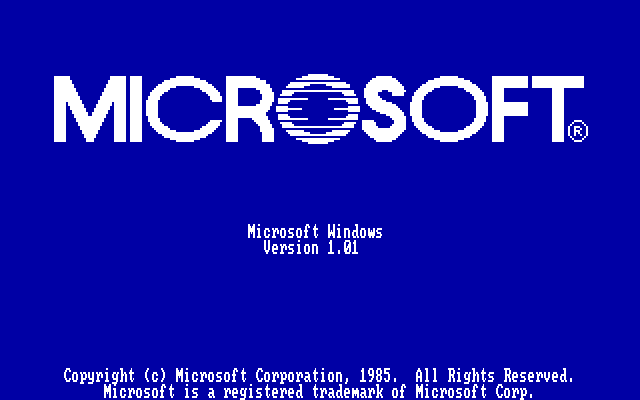
Windows 1.01 Title Screen (1985)
Source: techrepublic.com
Windows 1.0 arranged its main application windows as tiles, with dialog boxes allowed to overlap them. The bundled programs were mostly practical: Calendar, Cardfile, Notepad, Clock, Calculator, Paint, Write, Terminal, and the Clipboard viewer in the second shot.
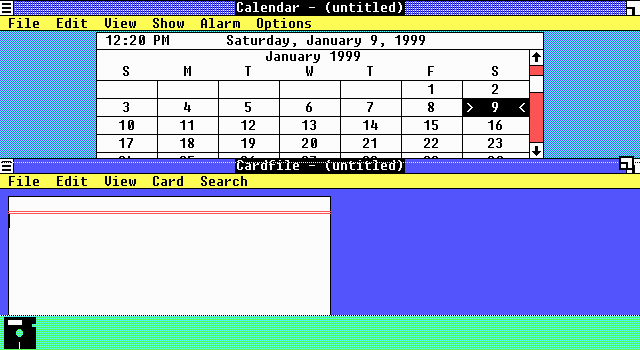
Windows 1.01 Calendar and Cardfile (1985 release)
Source: toastytech.com
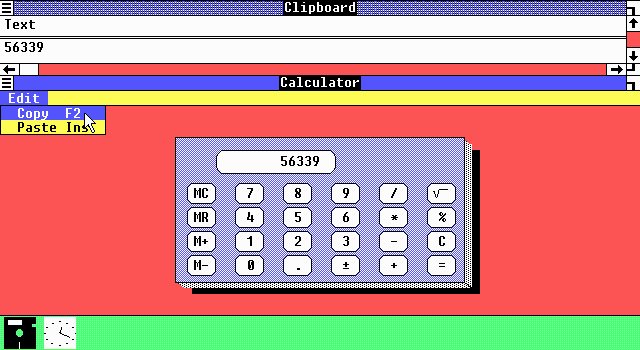
Windows 1.01 Calculator and Clipboard (1985)
Source: toastytech.com
The same software photographed on a CRT monitor. Cardfile holds a digital Rolodex of software dealers, and Notepad holds a memo dated April 15, 1985. Along the bottom is the icon bar, where minimized programs lived before the taskbar.
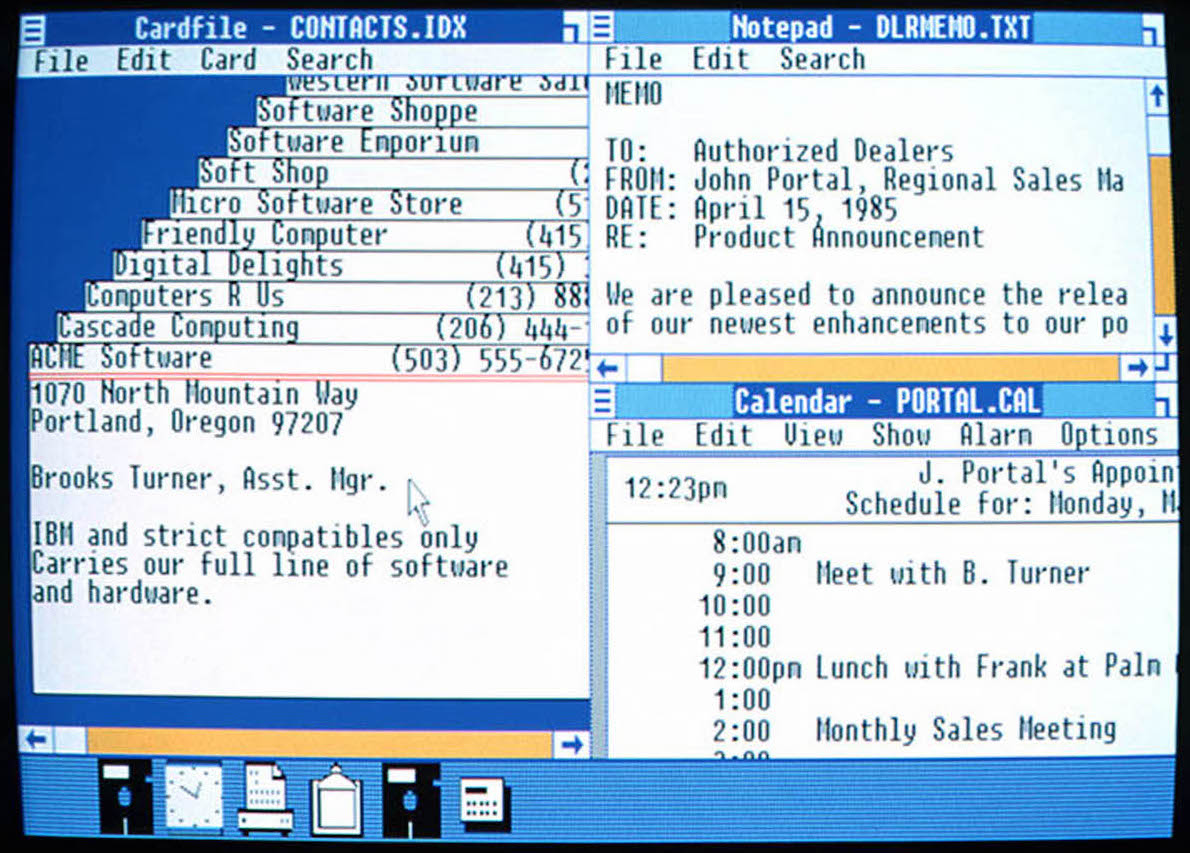
Windows 1.01 Calendar, Notepad, and Cardfile on CRT display (1985)
Source: time.com
The first Control Panel has three menus: Installation, Setup, and Preferences. Here, its Screen Colors dialog offers a live sample window and three sliders. The color picker is the eye-catching part, but Control Panel also handled settings such as the date, time, and mouse behavior.
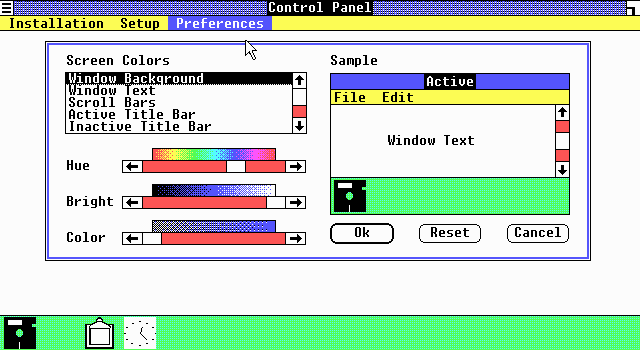
Windows 1.01 Control Panel Preferences (1985)
Source: toastytech.com
MS-DOS Executive listing C:\WINDOWS, Write open on README.DOC, Reversi in the corner, and an About box reporting Memory Free: 303K. Hold on to that number.
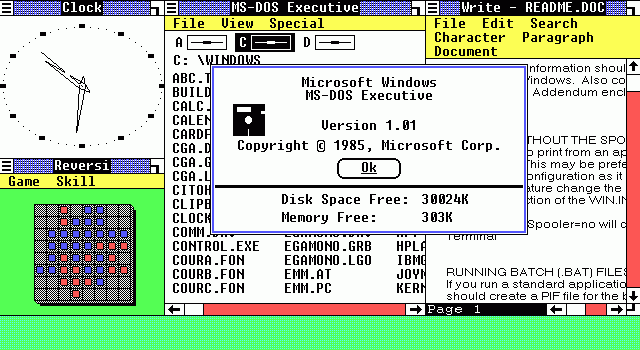
Windows 1.01 Desktop with Clock, Reversi, and About Dialog (1985)
Source: winsource.com
Windows 2.0 (1987)
Windows 2.0 arrived in December 1987 with a visible change: application windows could overlap. Apple sued Microsoft in March 1988 over similarities to the Macintosh interface. The courts ruled in Microsoft's favor, with the copyright ruling upheld on appeal in 1994.
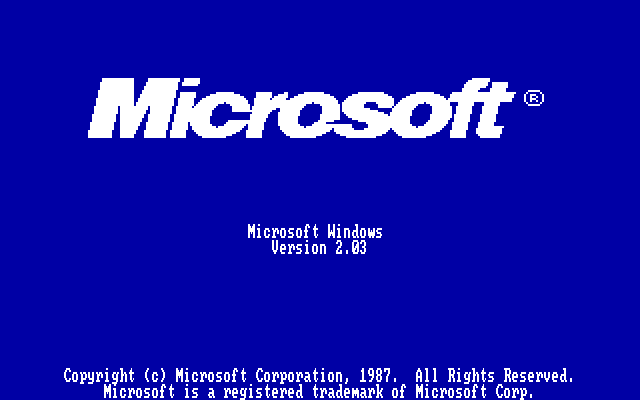
Windows 2.03 Title Screen (1987)
Source: techrepublic.com

Windows 2.03 Desktop with Paint, Calculator, Clock, and Control Panel (1987)
Source: toastytech.com
Another CRT photograph, this time with Microsoft Multiplan above a letter in IBM Writing Assistant. Multiplan was Microsoft's earlier spreadsheet, and our history of Microsoft Excel takes up that thread.
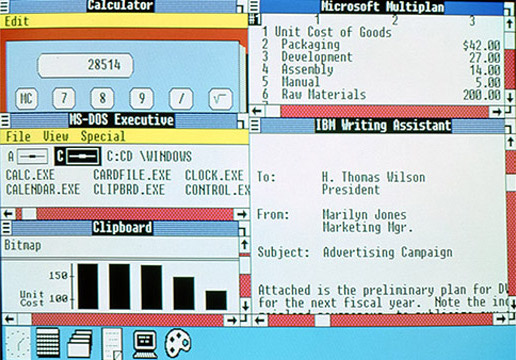
Windows 2.0 Desktop with Multiplan and IBM Writing Assistant on a CRT Monitor (1987)
Source: bt.com
The Control Panel's color picker still has a scrolling list of screen elements and a sample window. Reversi and Calculator show what overlapping bought: one program on top of another, neither resized to make room.
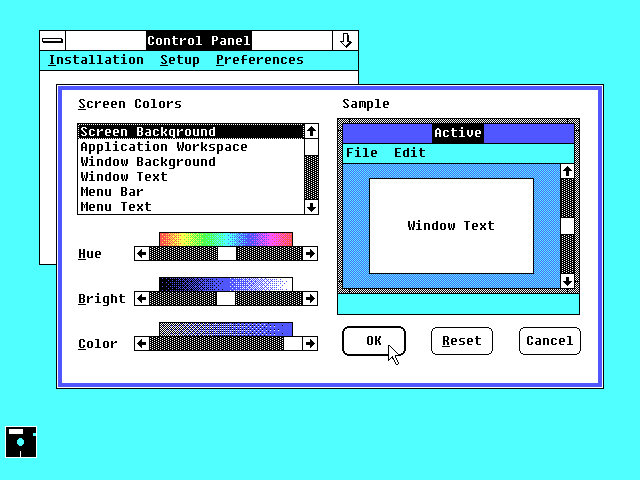
Windows 2.0 Control Panel (1987)
Source: winworldpc.com
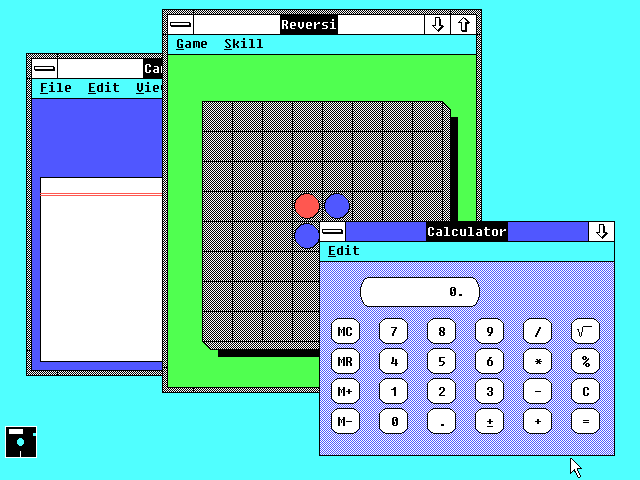
Windows 2.0 Desktop with Reversi and Calculator (1987)
Source: winworldpc.com
Windows 3.0 (1990)
Windows 3.0 shipped on May 22, 1990, and became Windows' commercial breakthrough. It sold in the millions, made better use of memory on compatible PCs, and looked like a different product: beveled edges and color icons designed by Susan Kare.
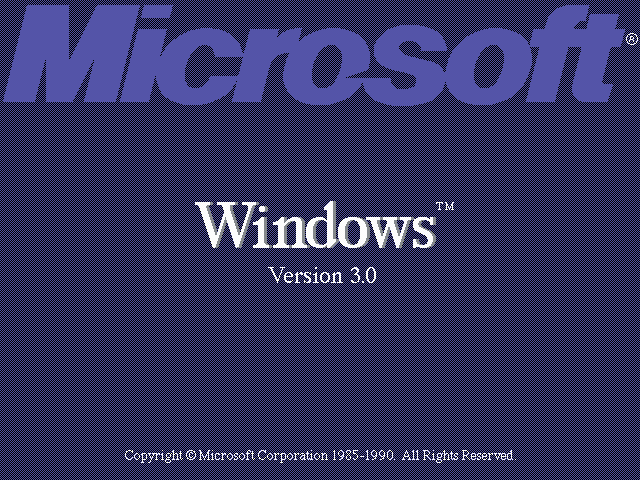
Windows 3.0 Title Screen (1990)
Source: techrepublic.com
Program Manager and File Manager took over the main roles of MS-DOS Executive. Program Manager holds applications as icons inside group windows; File Manager, bottom left, handles the disk.
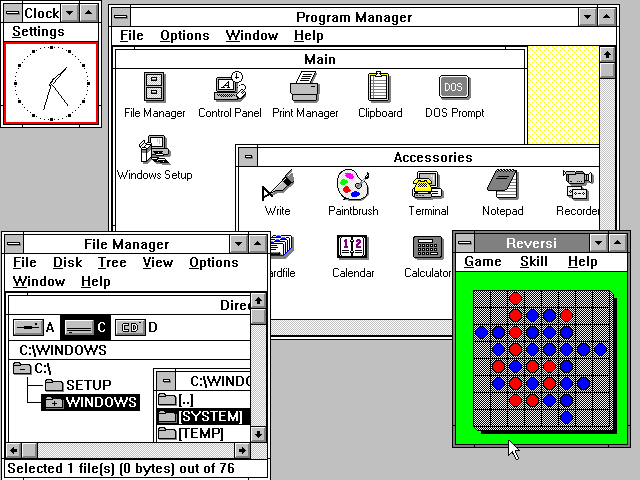
Windows 3.0 Desktop (1990)
Source: wikipedia.org
Write, Paintbrush and Calculator in 16 colors. Paintbrush is editing CHESS.BMP, one of the sample bitmaps that shipped in the Windows directory.
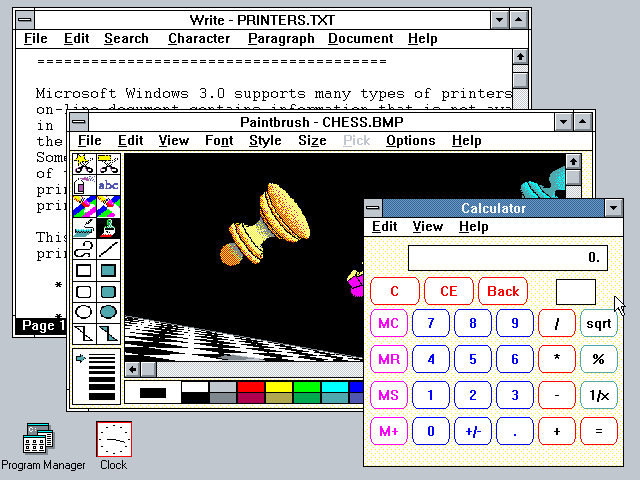
Windows 3.0 Desktop with Write, Paintbrush, and Calculator (1990)
Source: winworldpc.com
The Control Panel is a window of icons now, an arrangement that remains available in later versions. The second shot also shows Task List, with Switch To and End Task buttons. Those jobs will be familiar to anyone who has used Task Manager.
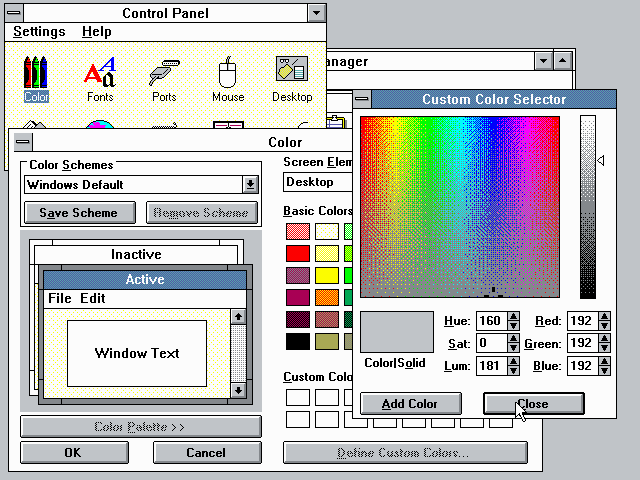
Windows 3.0 Control Panel (1990)
Source: toastytech.com
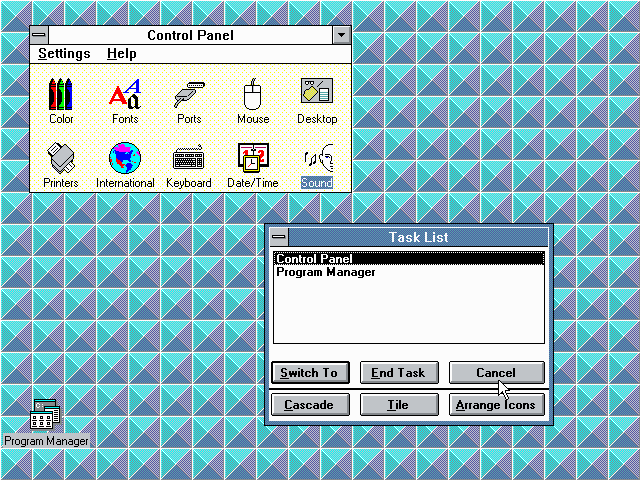
Windows 3.0 Control Panel, Task List, and Custom Background (1990)
Source: toastytech.com
And Solitaire, written by Microsoft intern Wes Cherry, with card artwork by Susan Kare. Moving those cards helped people practice dragging and dropping with a mouse. It was an easy way to get comfortable with a new interface, one hand at a time.
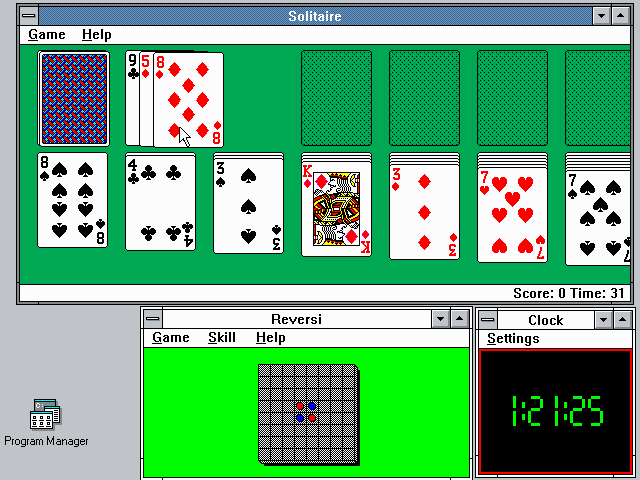
Windows 3.0 Desktop with Solitaire, Reversi, and Clock (1990)
Source: toastytech.com
Windows 3.1, Windows NT 3.1, and Windows for Workgroups 3.11 (1992-1993)
Windows 3.1 landed in April 1992, Windows NT 3.1 in July 1993, and Windows for Workgroups 3.11 later that year. NT was a separate 32-bit operating system that did not run on top of MS-DOS, despite sharing the 3.1 version number and a familiar interface.
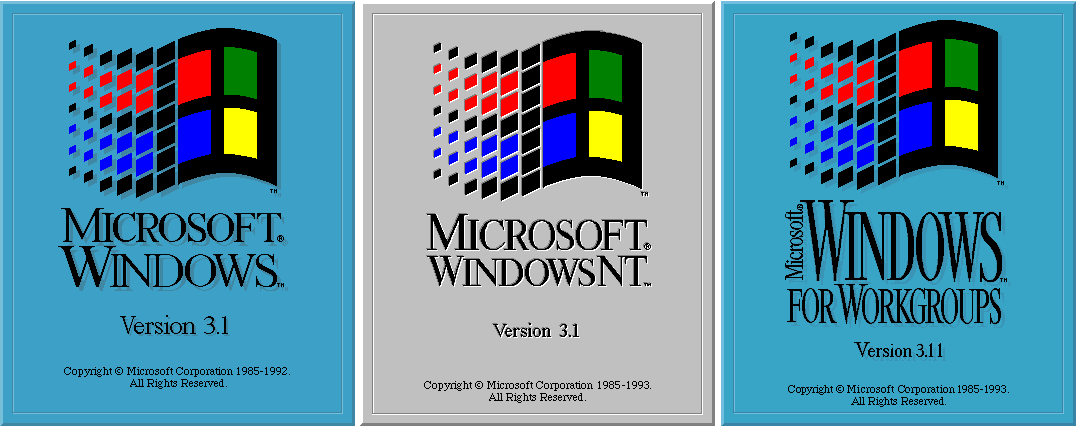
Windows 3.1, NT 3.1, and Windows for Workgroups 3.11 Title Screens (1992-1993)
Source: Version Museum
Program Manager, tidied up. The groups along the bottom are Accessories, Games, StartUp, and Applications. Windows 3.1 also introduced built-in TrueType support, letting applications use scalable fonts on screen and in print.
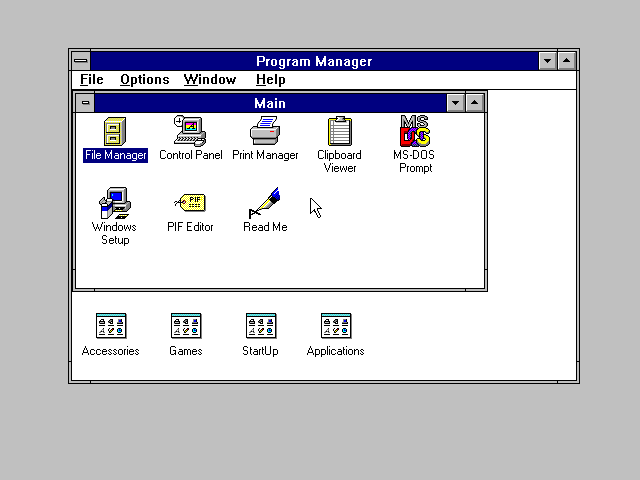
Windows 3.1 Program Manager (1992)
Source: toastytech.com
File Manager reads C: 477MB free, 498MB total, a large disk for this era and an almost empty one. In the next screenshot, it lists bundled wallpaper files: arches.bmp, argyle.bmp, cars.bmp, castle.bmp, chitz.bmp, egypt.bmp, and honey.bmp.
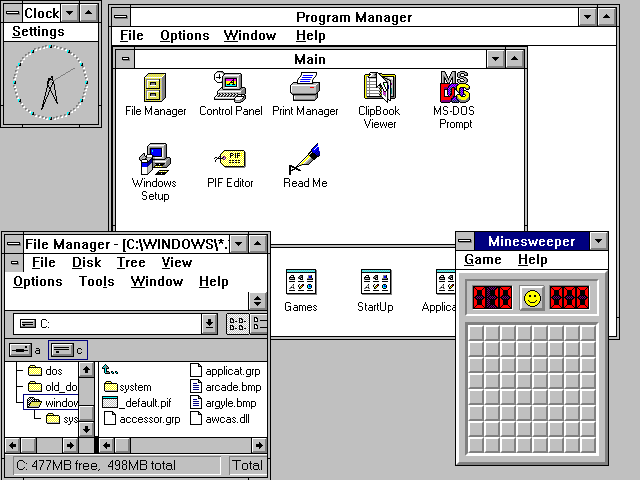
Windows 3.1 Desktop with Program Manager, File Manager, and Clock (1992)
Source: theverge.com
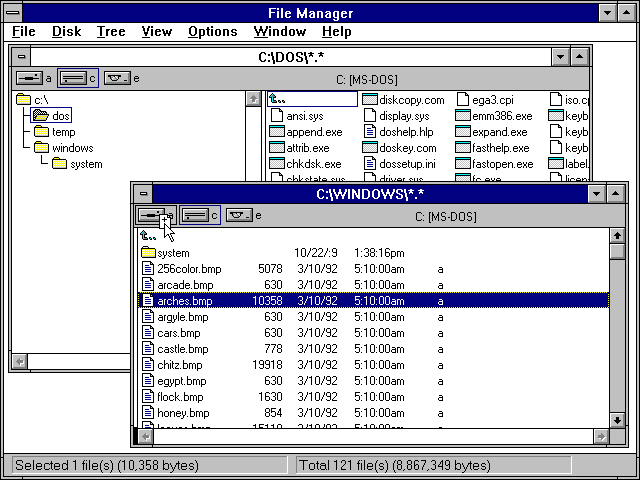
Windows 3.1 File Manager (1992)
Source: toastytech.com
Word and Excel in overlapping windows, with a PowerPoint icon minimized at bottom left. This one screenshot is the commercial argument for Windows.
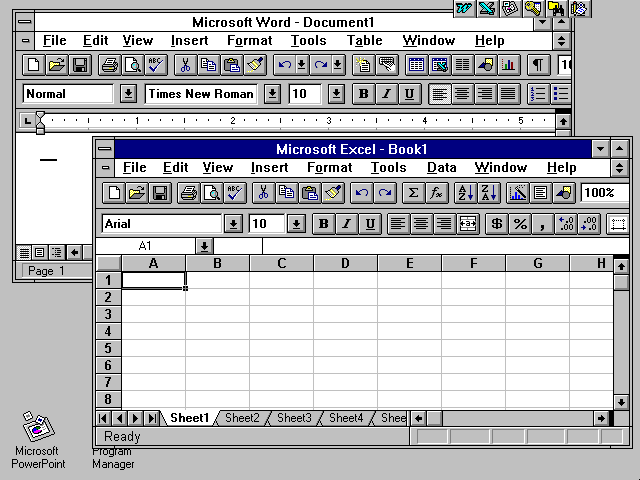
Windows 3.1 with Microsoft Word and Excel (Windows released in 1992)
Source: toastytech.com
The Control Panel includes 386 Enhanced and MIDI Mapper. Open on top of it is a preview of Hotdog Stand, an optional color scheme that really did ship in the box in red, yellow, and black. You had to choose this one yourself.
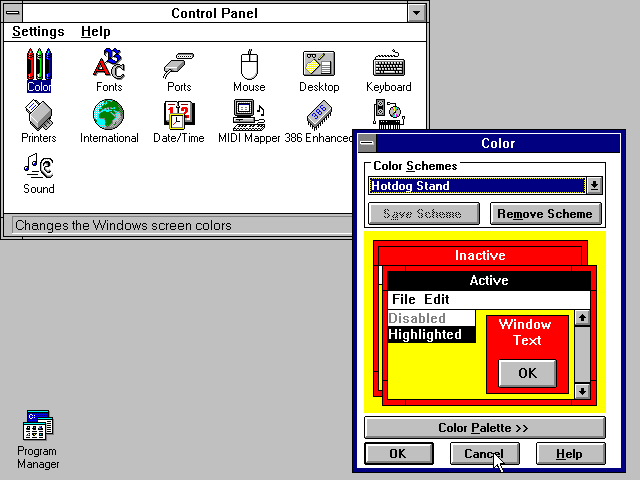
Windows 3.1 Control Panel (1992)
Source: toastytech.com
Solitaire with the palm tree card back, next to Minesweeper. Windows for Workgroups added built-in networking, and The Microsoft Hearts Network let people play over a local network. In the Workgroups 3.11 screenshot, the status bar is telling Nathan to pass three cards to Anna.
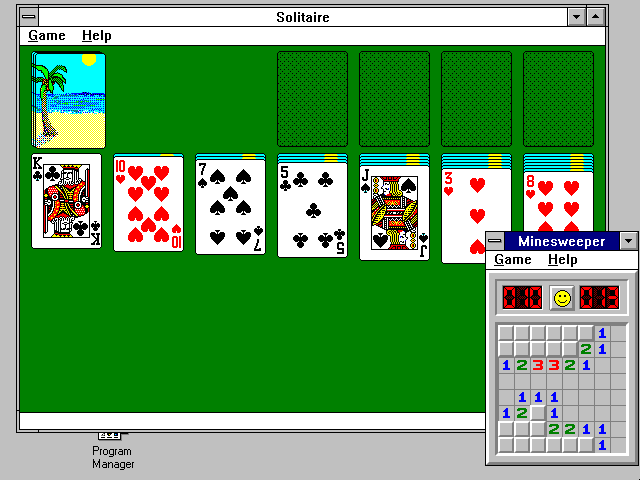
Windows 3.1 Solitaire and Minesweeper (1992)
Source: toastytech.com
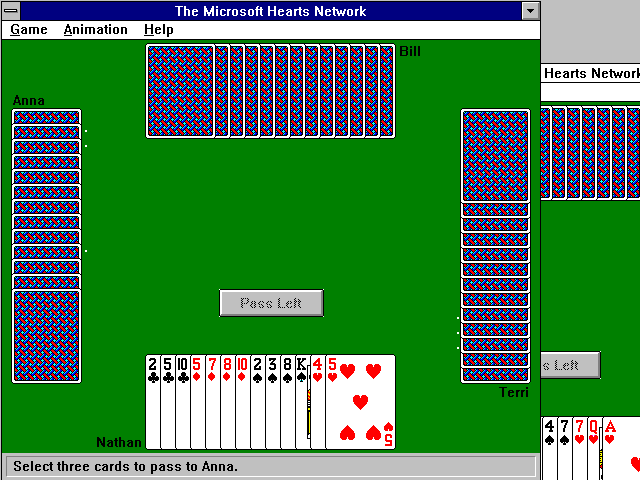
Windows for Workgroups 3.11 Hearts Network Game (1993)
Source: toastytech.com
The Windows for Workgroups 3.11 setup screen asks for your full name and a product number, then says you can leave the number blank if you cannot find the card. Company reads Unknown Organization. Windows Product Activation would arrive with Windows XP in 2001.
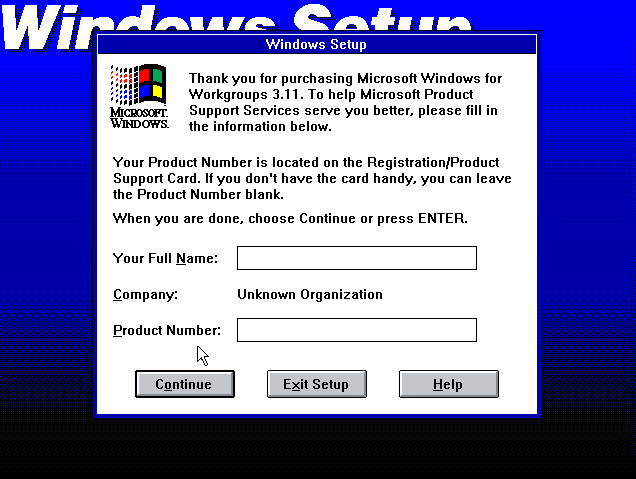
Windows for Workgroups 3.11 Setup (1993)
Source: wordpress.com
Windows 95 (1995)
Windows 95 went on sale on August 24, 1995, behind a campaign involving the Rolling Stones and midnight lines outside computer stores. The splash screen breaks with everything above it: a cloudy sky behind the four-pane Windows flag.
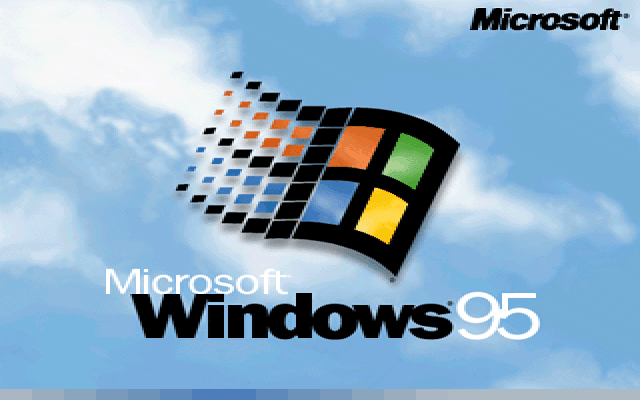
Windows 95 Title Screen (1995)
Source: techrepublic.com
First boot puts up a Welcome box, and the desktop behind it establishes a familiar layout: icons on the left, taskbar along the bottom. The Start menu cascades four levels deep, with a vertical Windows 95 banner up its edge.
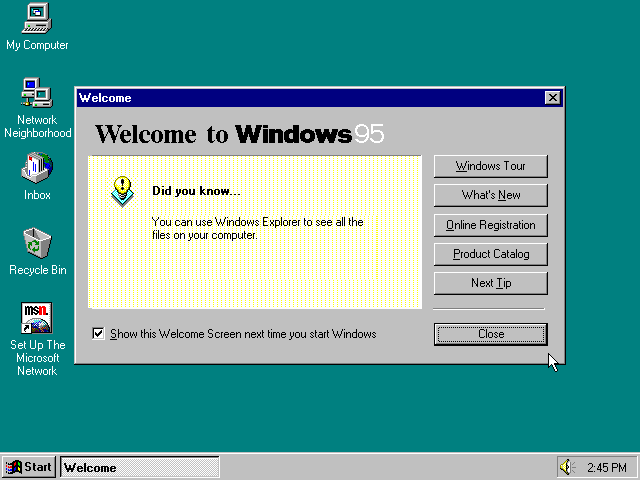
Windows 95 Welcome Dialog (1995)
Source: toastytech.com
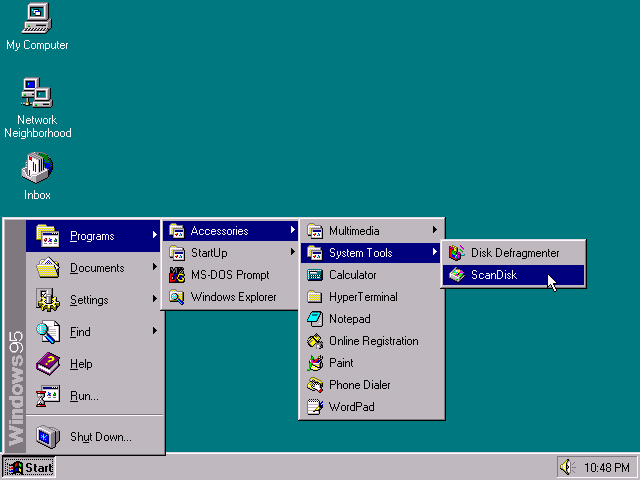
Windows 95 Start Menu (1995)
Source: toastytech.com
Explorer took over from File Manager as the main file browser, and Windows 95 brought long filenames to the consumer Windows desktop. The middle window holds a New WordPad Document, a name that would not fit the old DOS limit of eight characters plus a three-character extension. Save As offers a dropdown for browsing drives, folders, and the network.
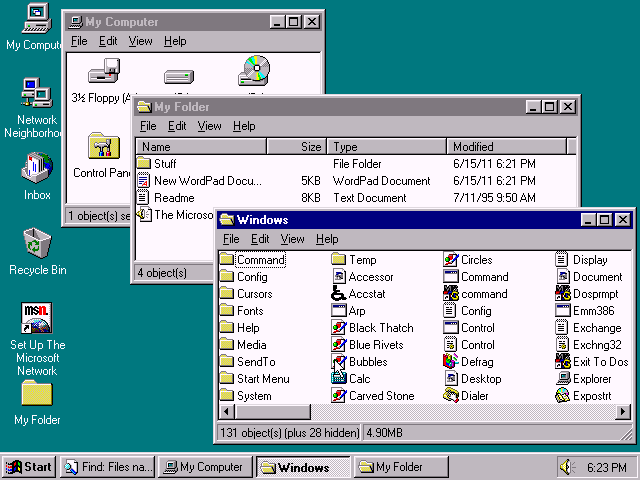
Windows 95 Windows Explorer (1995)
Source: toastytech.com
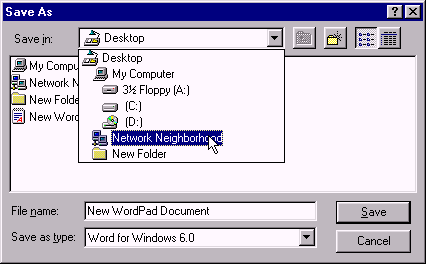
Windows 95 Save As Dialog (1995)
Source: toastytech.com
MS-DOS did not go anywhere. Two prompt windows here, one running EDIT, whose About box dates MS-DOS Editor 2.0.026 to 1995. The consumer release that finally shed DOS was six years out.
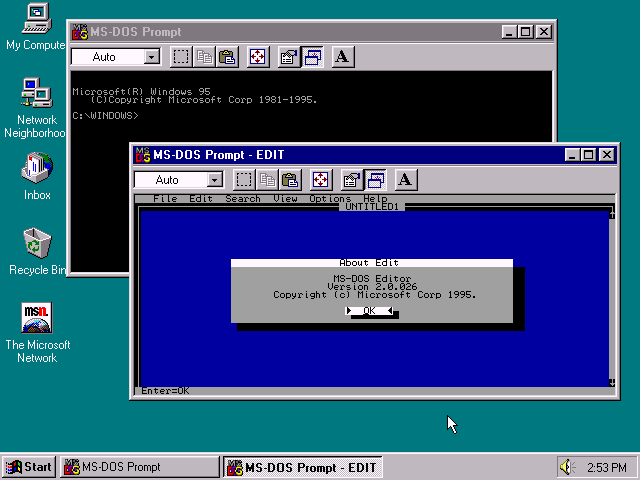
Windows 95 MS-DOS Prompt (1995)
Source: toastytech.com
Twenty-one icons in the Control Panel, and the labels say what you can manage: Add New Hardware for devices, Add/Remove Programs for software, Modems and Mail for communications, Joystick for games, and Passwords for login settings.
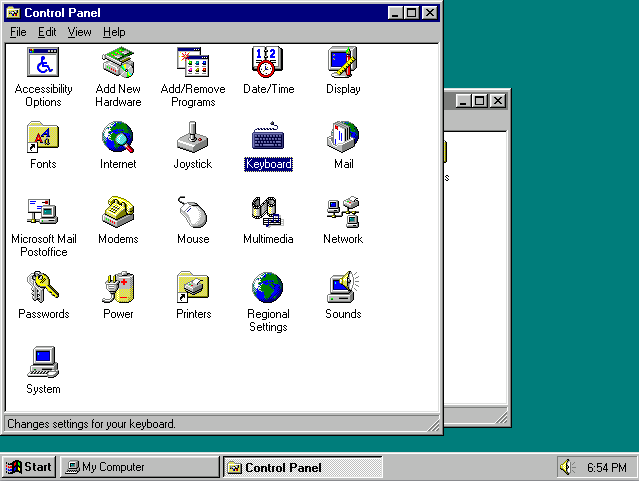
Windows 95 Control Panel (1995)
Source: toastytech.com
Setup ran over a blue circuit board, promised 30 to 60 minutes, then offered four kinds of install with Custom marked for advanced users and system administrators only.
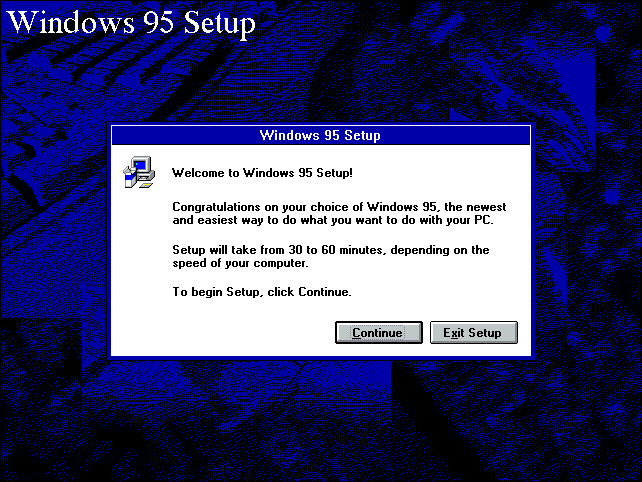
Windows 95 Setup/Installation Start (1995)
Source: howtogeek.com
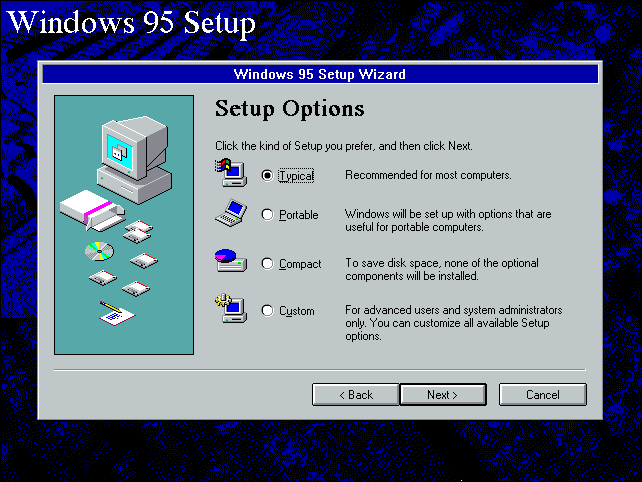
Windows 95 Setup Wizard (1995)
Source: howtogeek.com
Windows 98 (1998)
Windows 98 shipped on June 25, 1998, and kept the familiar Windows 95 desktop. It improved USB support, added support for multiple monitors and Windows Update, and included Internet Explorer's desktop integration.
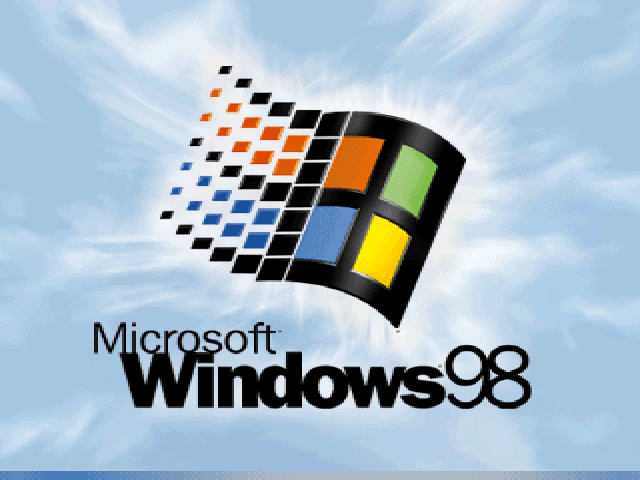
Windows 98 Title Screen (1998)
Source: techrepublic.com
The Welcome screen makes the priority obvious: four items in the contents list, two of them Register Now and Connect to the Internet. The Quick Launch strip beside Start came built in; Windows 95 users could get it through the Internet Explorer 4 Desktop Update.
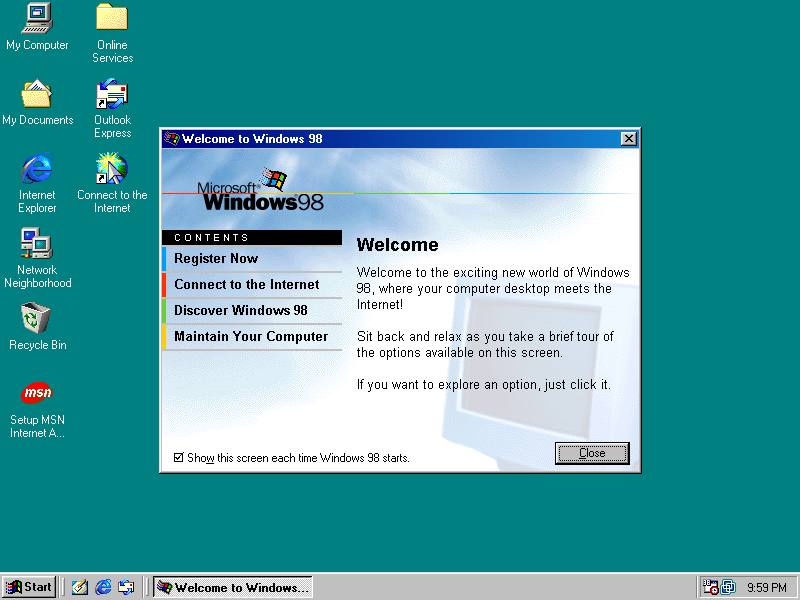
Windows 98 Desktop with Welcome Dialog (1998)
Source: winworldpc.com
System Properties identifies this as Windows 98 Second Edition, the 1999 update, with version 4.10.2222 A and 64 MB of RAM. The Windows 1.01 shot reported 303 KB of free memory. These are different measurements, free memory versus installed RAM, but they give a sense of the changing scale.
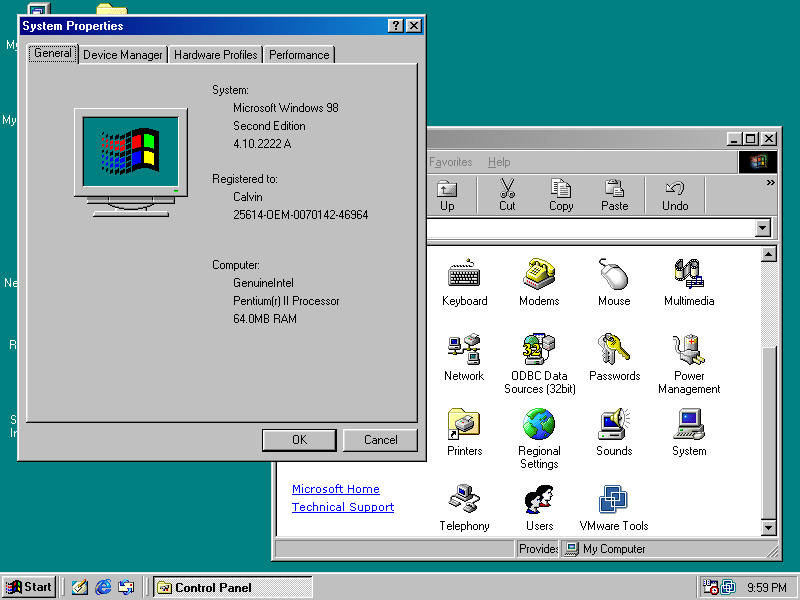
Windows 98 Second Edition System Properties (1999)
Source: winworldpc.com
Explorer borrowed the browser's controls. The C:\ window has an Address bar and a Links toolbar reading Best of the Web, Channel Guide, and Free HotMail. The illustrated panel with the drive name is Explorer's Web view. Active Desktop was the related feature for putting web content on the desktop itself.
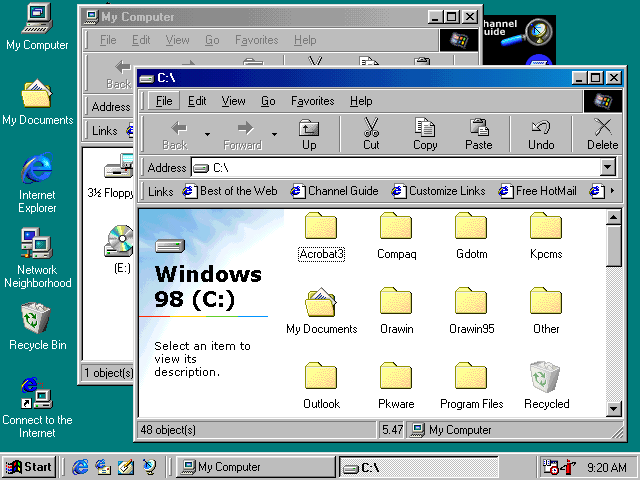
Windows 98 Windows Explorer (1998)
Source: toastytech.com
Twenty-seven objects in this Control Panel, including 32bit ODBC, Find Fast, Desktop Themes, and QuickTime 32. This was a customized installation: Find Fast came from Microsoft Office, while QuickTime came from Apple. The icon count depended on what you had installed.
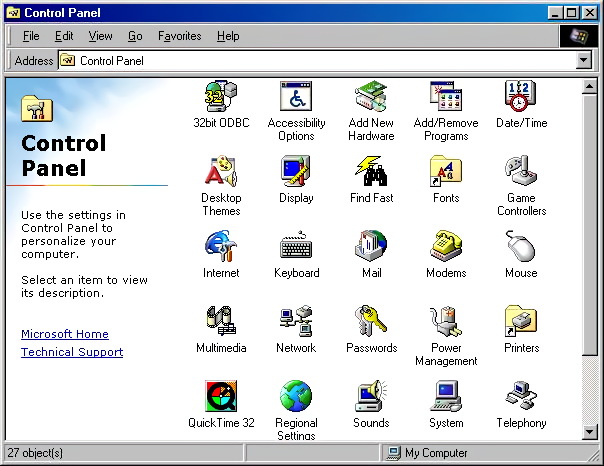
Windows 98 Control Panel with Additional Software (1998)
Source: cwdixon.com
Shut Down offers four choices and the last one is the tell: Restart in MS-DOS mode. Setup has grown a progress column down the left, and stops partway to make you confirm the date and time zone.
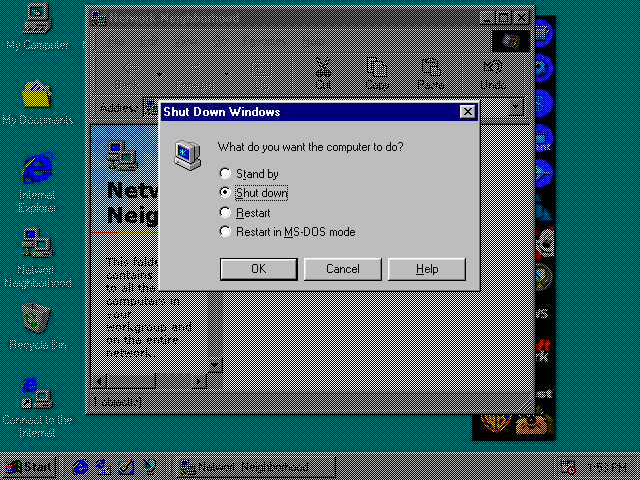
Windows 98 Shut Down Screen (1998)
Source: toastytech.com
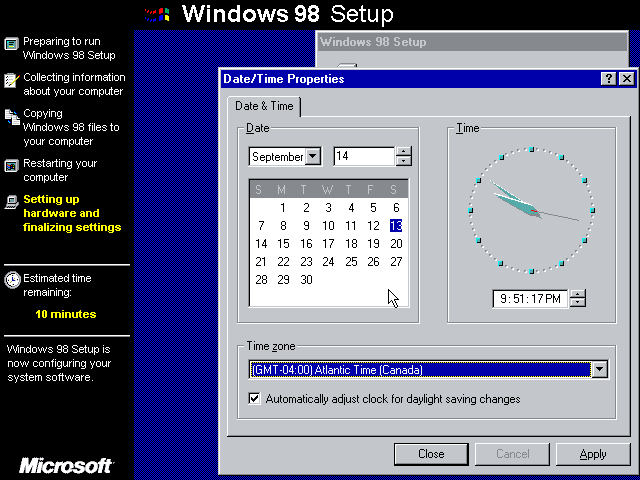
Windows 98 Installation/Setup (1998)
Source: winworldpc.com
Windows 2000 Professional and Server (2000)
Windows 2000 shipped on February 17, 2000, as the successor to Windows NT 4.0. Both splash screens carry the line Built on NT Technology, with orange framing for Professional and blue for the Server Family.
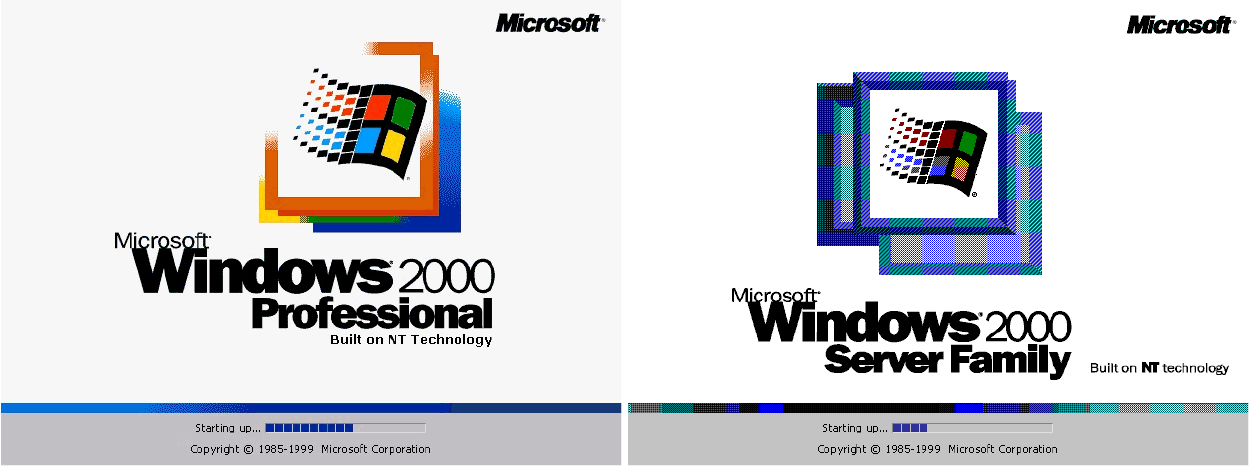
Windows 2000 Pro and Server Title Screens (2000)
Source: techrepublic.com
This logon box asks for a user name and password before showing the desktop. On typical Windows 95 and 98 installations, dismissing the password prompt still let you use the local computer. Windows 2000's account system did not let you bypass this logon box by pressing Escape.
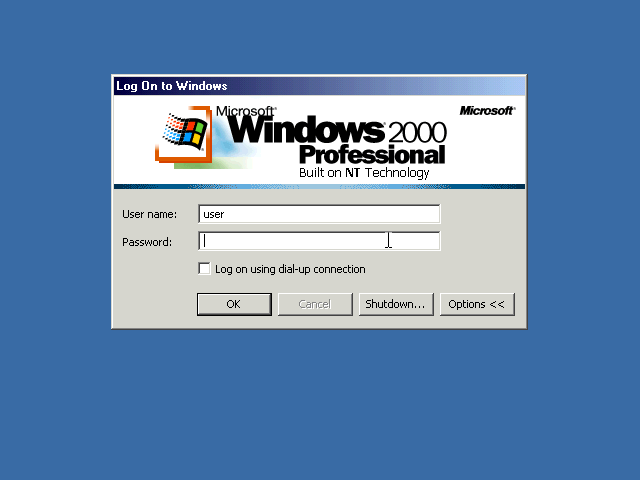
Windows 2000 Login Window (2000)
Source: winworldpc.com
The Start menu keeps its cascading layout, with Windows Update near the top. Worth opening the Accessibility submenu: Wizard, Magnifier, Narrator, On-Screen Keyboard. Screen reading is in the box now.

Windows 2000 Start Menu (2000)
Source: winworldpc.com
Explorer keeps the web panel from 98 and calms it down. The next screenshot shows Users and Passwords, where the tooltip is a small piece of history: Account upgraded from Windows 95 or Windows 98.

Windows 2000 Windows Explorer (2000)
Source: winworldpc.com
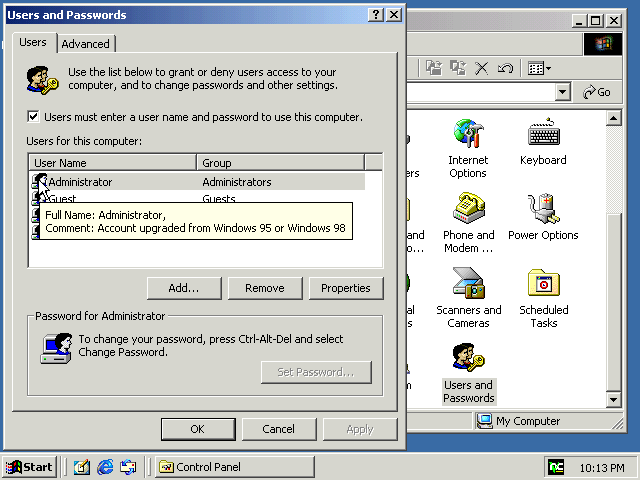
Windows 2000 User and Password Management (2000)
Source: winworldpc.com
Word 2002, part of Office XP, running on Windows 2000. Office XP arrived in 2001, so this shows the system after its launch year. Notice the task pane down the right and the Type a question for help box at the top. Our history of Microsoft Word follows those toolbars.
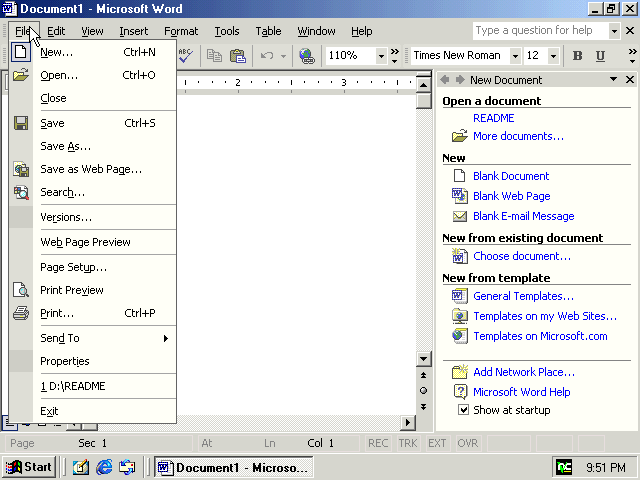
Windows 2000 Running Word 2002 from Office XP (2001 or later)
Source: toastytech.com
By now the Control Panel has been colonized. Microsoft settings sit beside Java Plug-in, Symantec LiveUpdate, and MPEG Layer-3 Configuration. Wireless Link was part of Windows 2000's infrared support, while Automatic Updates reflects an update to the original release.
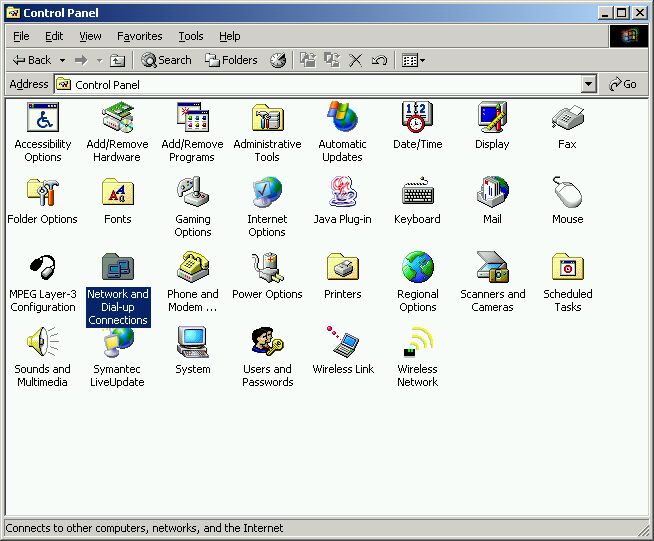
Windows 2000 Control Panel (2000)
Source: dotcio.rpi.edu
Shut Down is a dropdown now, with a line explaining what the option will do. Setup still opens in text mode on a blue background, 41 percent through copying files.
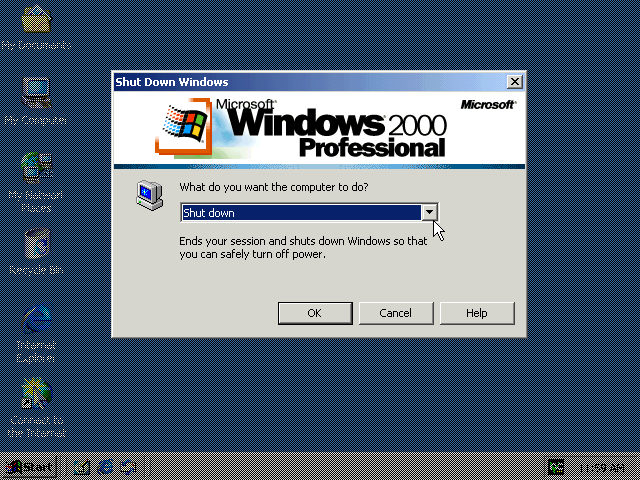
Windows 2000 Shut Down Screen (2000)
Source: toastytech.com
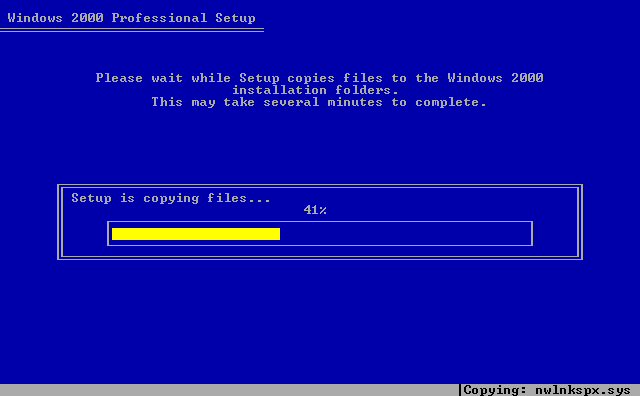
Windows 2000 Installation/Setup (2000)
Source: beagle.com.au
Windows Me (2000)
Windows Me, short for Millennium Edition, arrived on September 14, 2000, as the last of the DOS-based line. The splash screen has a softer look: white background, green frame, and Me in a loose italic script.
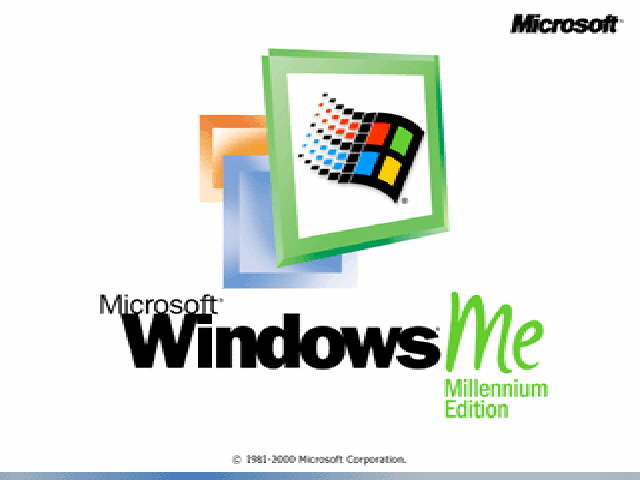
Windows Me Title Screen (2000)
Source: techrepublic.com
The Start menu has a much longer Games folder: Internet Backgammon, Internet Checkers, Internet Hearts, and Internet Spades. Alongside Classic Hearts was a version for playing online. Explorer opens on My Documents, which now holds My Music and My Pictures.
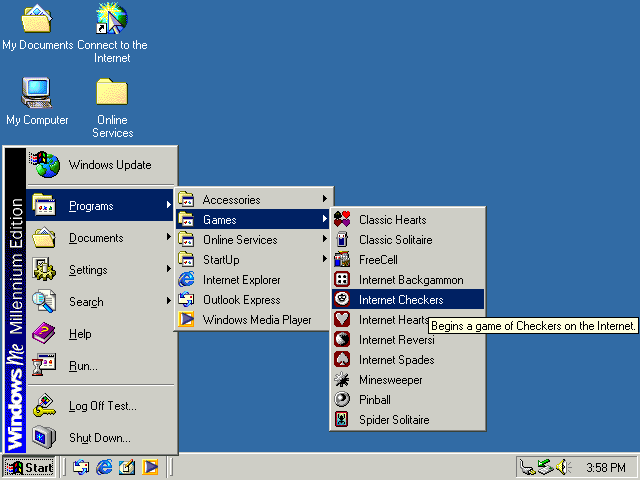
Windows Me Start Menu (2000)
Source: toastytech.com
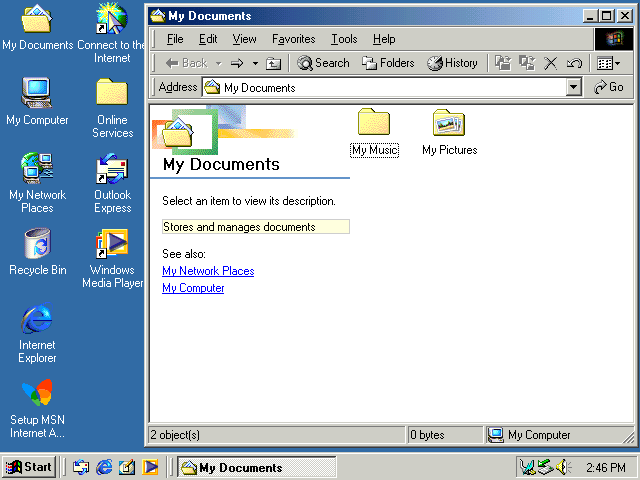
Windows Me Windows Explorer (2000)
Source: toastytech.com
Windows Media Player 7 was one of the most visible additions, and you could change its appearance with skins. The Skin Chooser is open on Rusty, with alternatives including Splat, Toothy, Roundlet, and Pyrite. The Control Panel image below appears to show Windows 2000: its Administrative Tools and Users and Passwords entries distinguish it from Me. QuickTime and RealPlayer G2 are also installed.
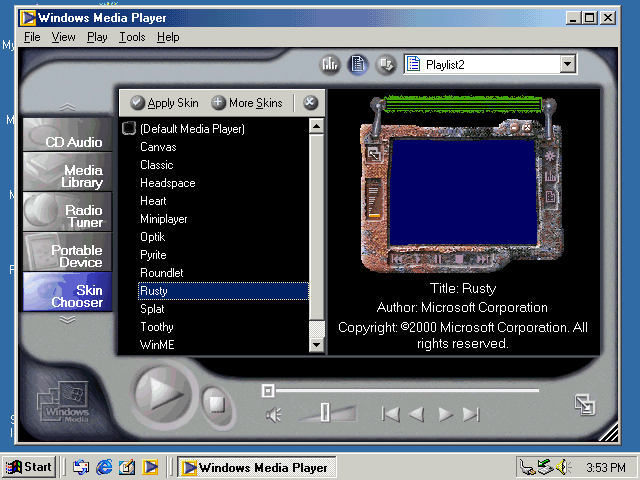
Windows Me with Windows Media Player 7 (2000)
Source: toastytech.com
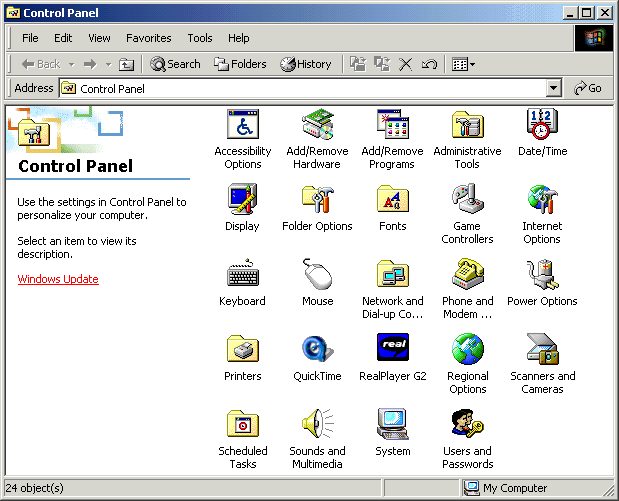
Control Panel with QuickTime and RealPlayer G2, Apparently Windows 2000 (2000)
Source: simplehelp.net
And the unwelcome blue screen. This one reports a fatal exception in VFAT, a virtual device driver involved in file access. The message alone does not establish the underlying cause. Later Windows releases still had blue-screen errors, though the wording and design changed.
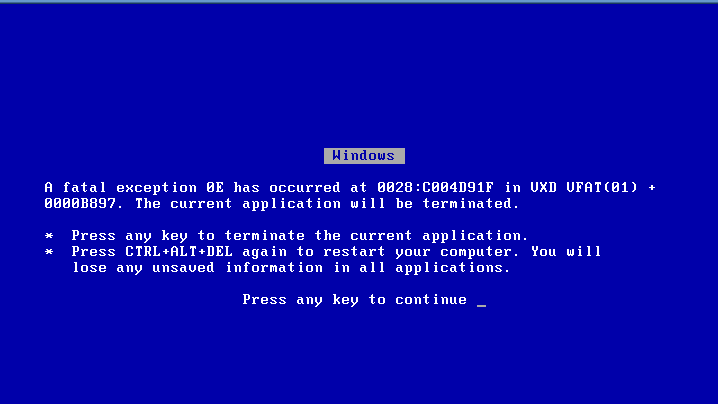
Windows Me Blue Screen of Death (2000)
Source: winworldpc.com
Windows XP (2001)
Windows XP was released on October 25, 2001, and brought the NT foundation to mainstream home users as well as businesses. It no longer depended on MS-DOS to run, though 32-bit editions could still run many DOS programs. It also arrived with a bright blue taskbar and a green Start button.
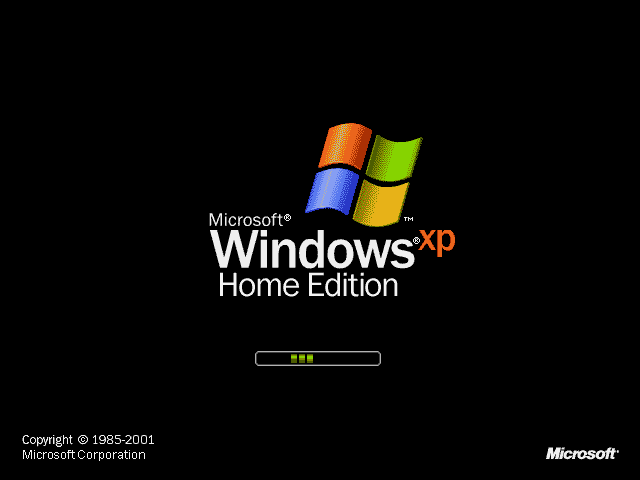
Windows XP Title Screen (2001)
Source: techrepublic.com
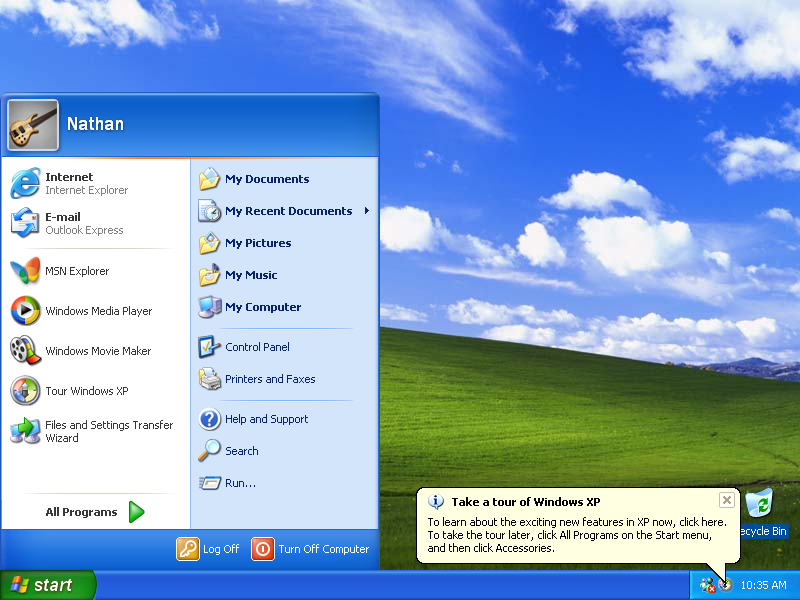
The Welcome screen replaced the logon box on home machines. One account, Nathan, who has picked a guitar for a picture, and the instruction reads To begin, click your user name.
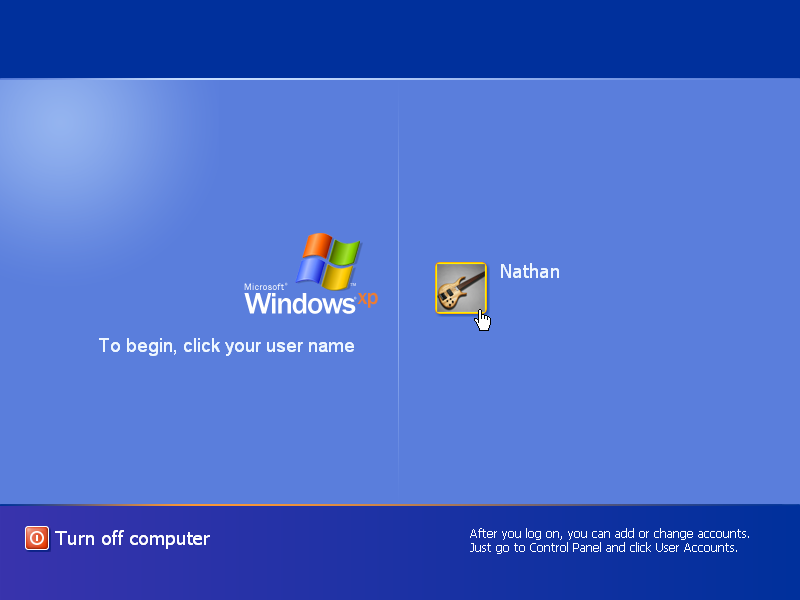
Windows XP Login Screen (2001)
Source: toastytech.com
The Start menu went two columns wide, put your name and picture in a header, and pushed All Programs to the bottom. Behind it is Bliss, the green hill photographed in Sonoma County, California, by Charles O'Rear.
Windows XP Start Menu (2001)
Source: toastytech.com
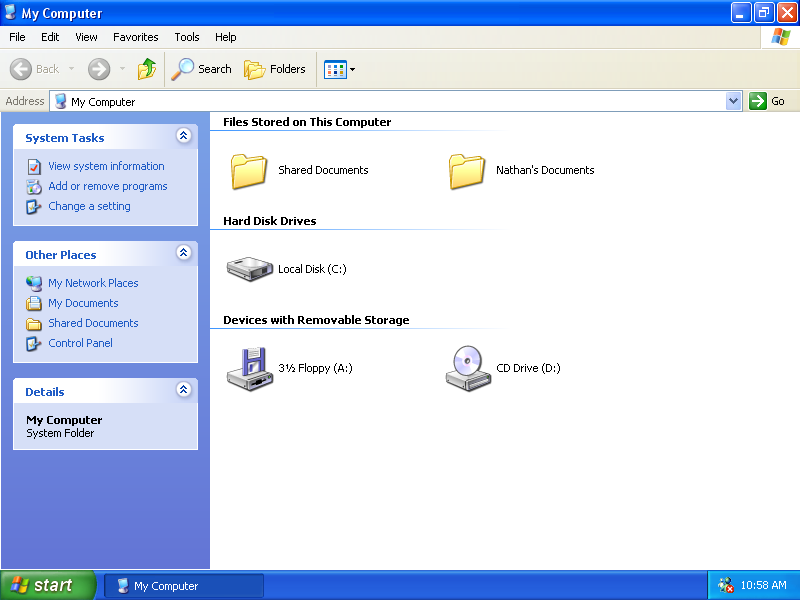
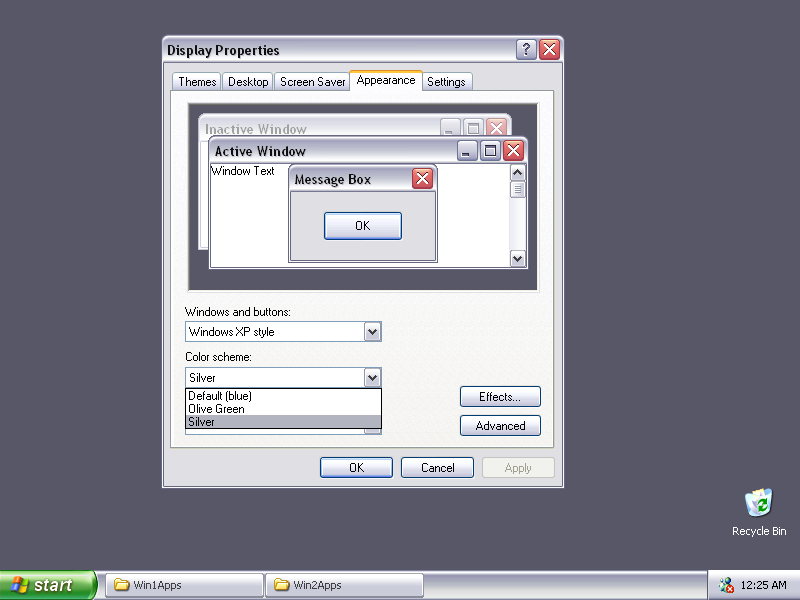
Explorer traded the web panel for collapsible task panes: System Tasks, Other Places, Details. Rounded corners, gradient title bar, red close button, all of it the theme called Luna, which shipped in the three color schemes listed in the next screenshot: blue, olive green, and silver.
Windows XP Windows Explorer (2001)
Source: toastytech.com
Windows XP Alternate Theme (2001)
Source: toastytech.com
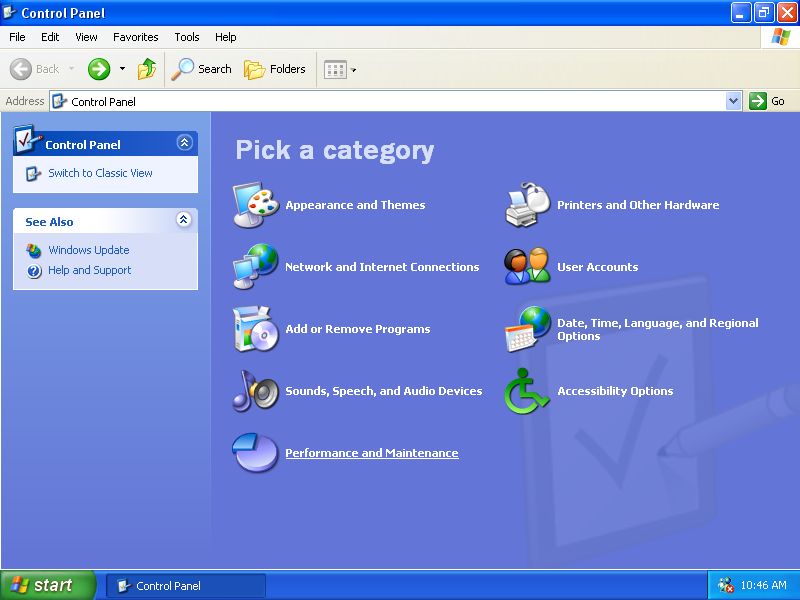
The Control Panel groups its settings under nine headings in this Category view. Classic View, shown next, keeps the familiar icon grid. Its Security Center icon identifies it as Service Pack 2 or later; that feature arrived in 2004.
Windows XP Control Panel Category View (2001)
Source: toastytech.com

Windows XP Control Panel Classic View, Service Pack 2 or Later (2004 or later)
Source: suffieldacademy.org
Turn off computer presents three big buttons over a grayed-out desktop. Setup still opened in a blue text-mode screen, and the graphical half that follows runs a five-stage checklist and estimates 33 minutes.
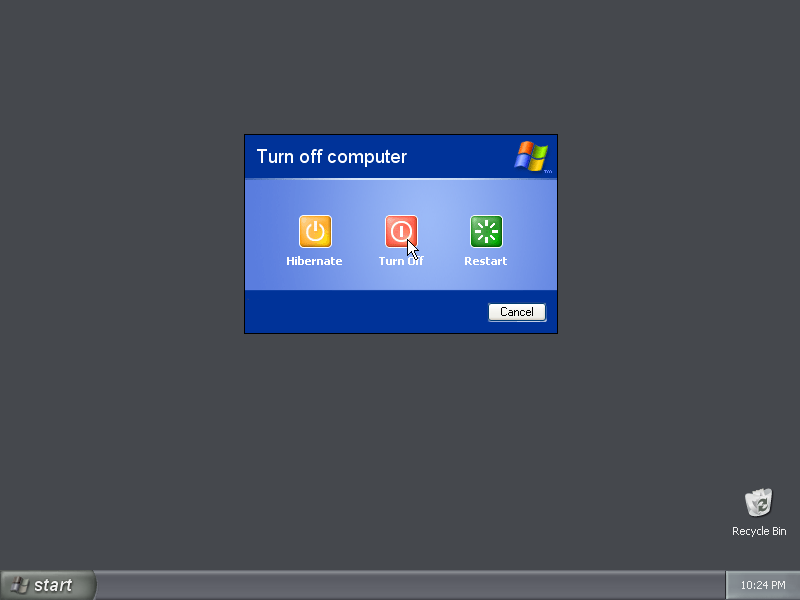
Windows XP Shut Down/Turn Off Computer Screen (2001)
Source: toastytech.com
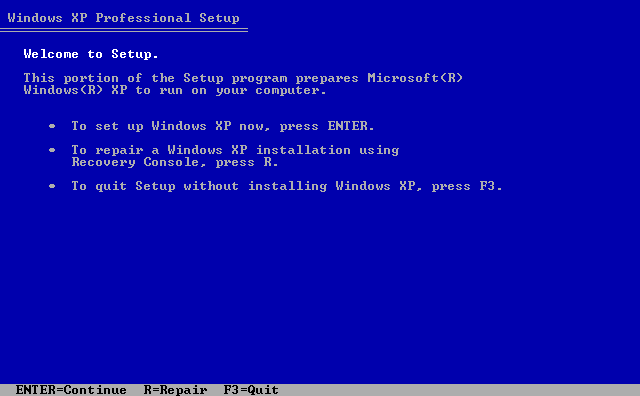
Windows XP Setup/Installation Start (2001)
Source: suffieldacademy.org
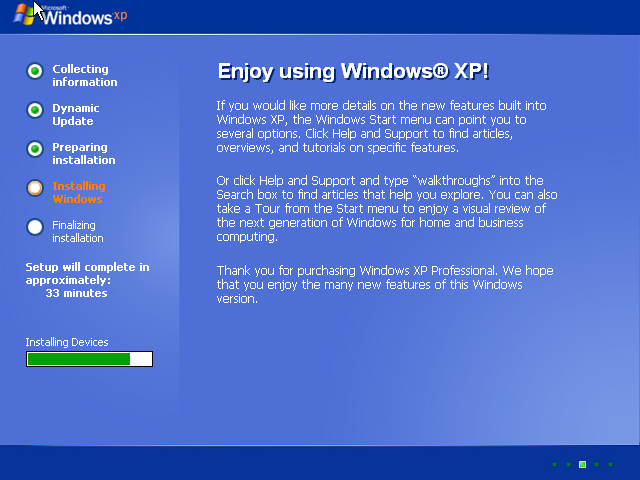
Windows XP Setup/Installation Screen (2001)
Source: suffieldacademy.org
Windows Vista (2006)
Windows Vista went to business customers in November 2006 and reached general retail availability on January 30, 2007. It brought higher hardware demands and User Account Control prompts, along with a striking new look: translucent window frames, soft highlights, and a round Start button.
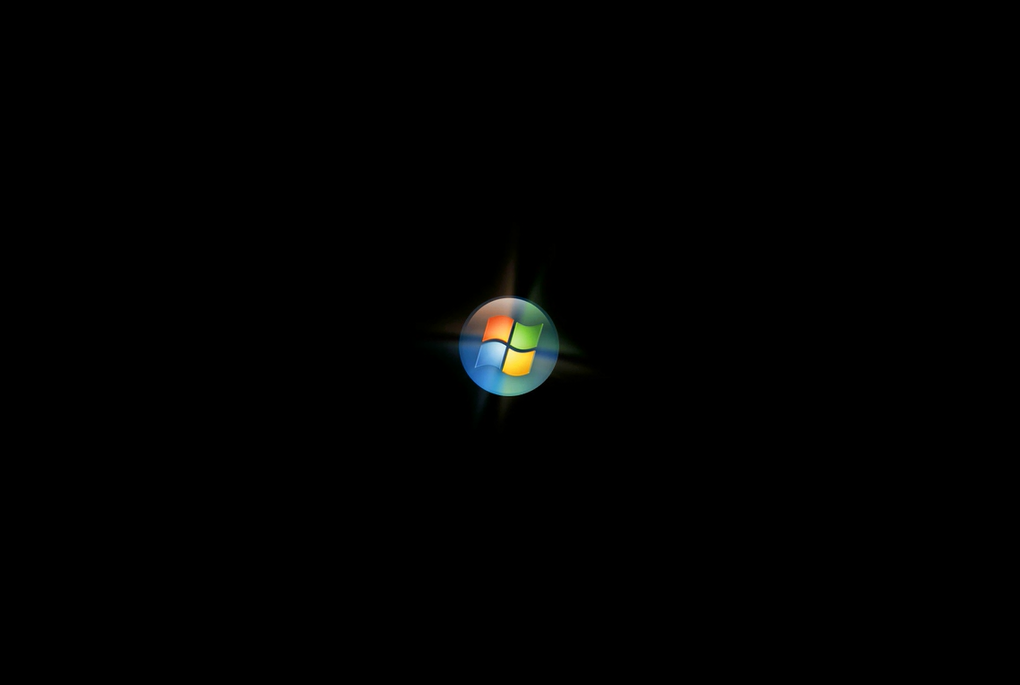
Windows Vista Title Screen (2006)
Source: techrepublic.com
The Start menu kept its two columns and gained a Start Search box, letting you launch programs by typing. All Programs opened within the menu instead of cascading across the desktop. The list shown here includes Windows Mail, Media Center, Photo Gallery, DVD Maker, and Meeting Space.
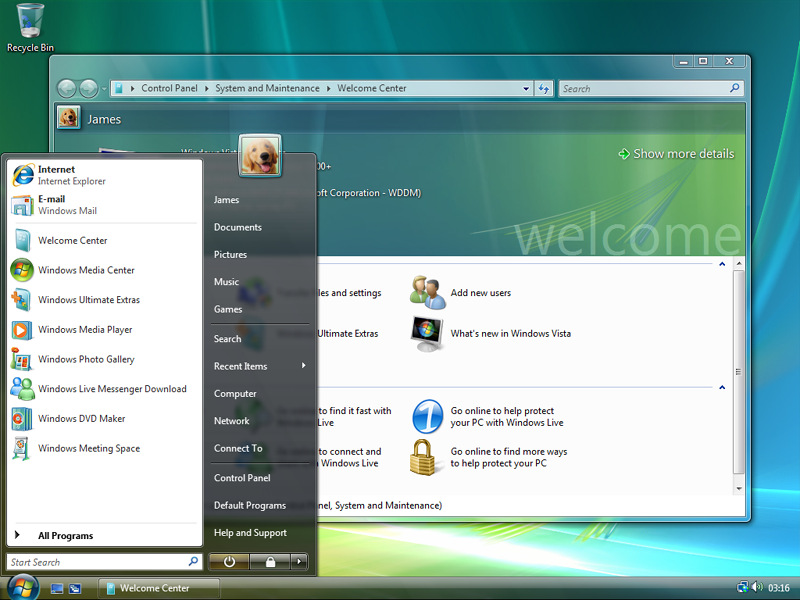
Windows Vista Start Menu (2006)
Source: fandom.com
Explorer's address bar gained a clickable breadcrumb trail, and the window frame is Aero glass, translucent and blurred. The watermark reads Windows Vista RC 1, Build 5600, so this is a prerelease.
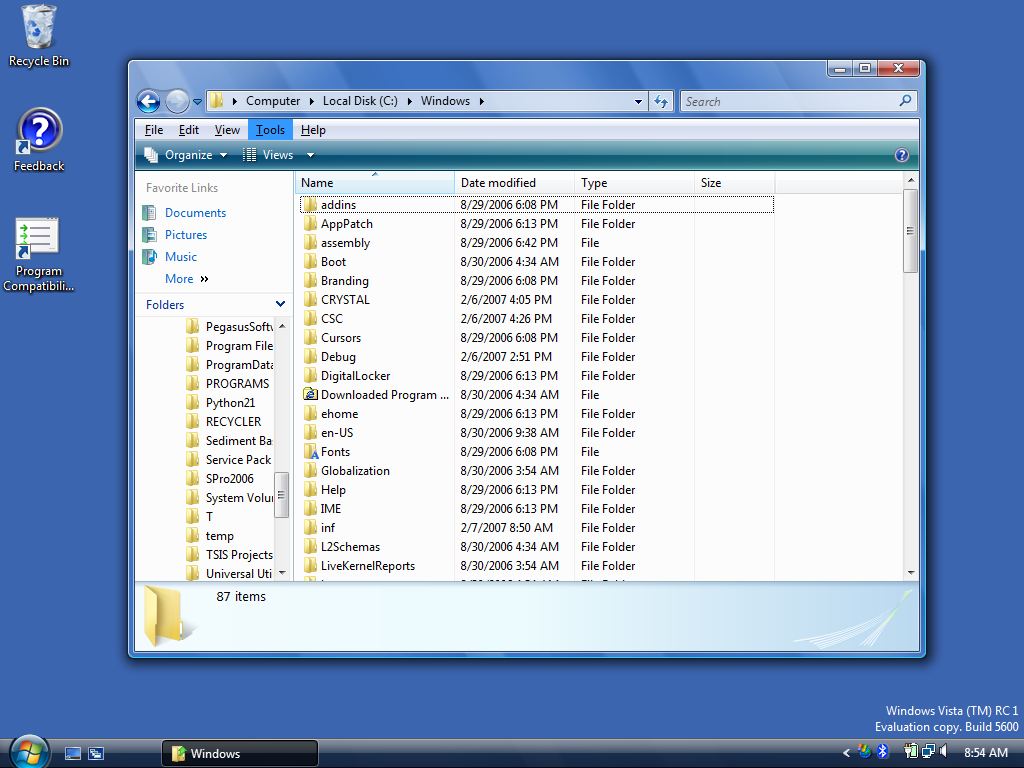
Windows Vista RC1 Windows Explorer, Build 5600 (2006)
Source: toastytech.com
The Control Panel develops XP's category layout, with common tasks linked directly beneath each heading. Change desktop background is right there under Appearance and Personalization.
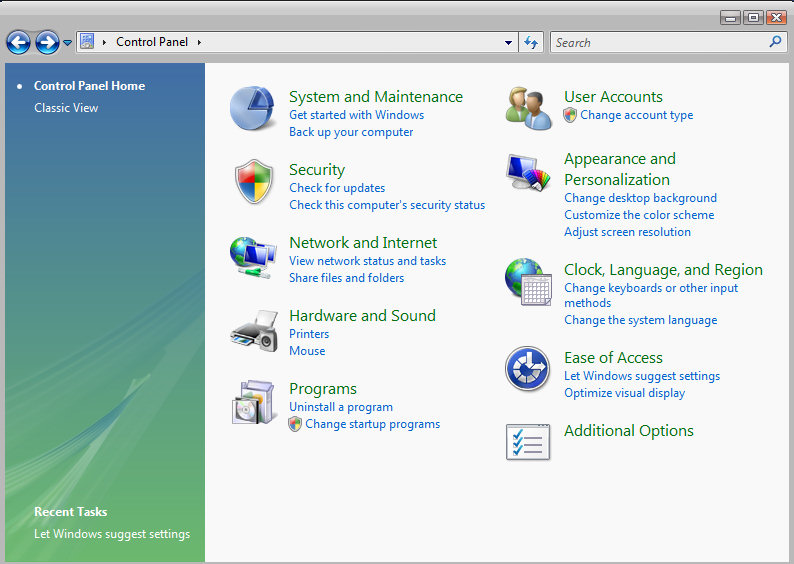
Windows Vista Control Panel (2006)
Source: computerperformance.co.uk
Flip 3D made a show of Aero's graphics effects. Hold the Windows key and press Tab, and your open windows stack up in perspective as live thumbnails. It remained in Windows 7 but was removed in Windows 8.
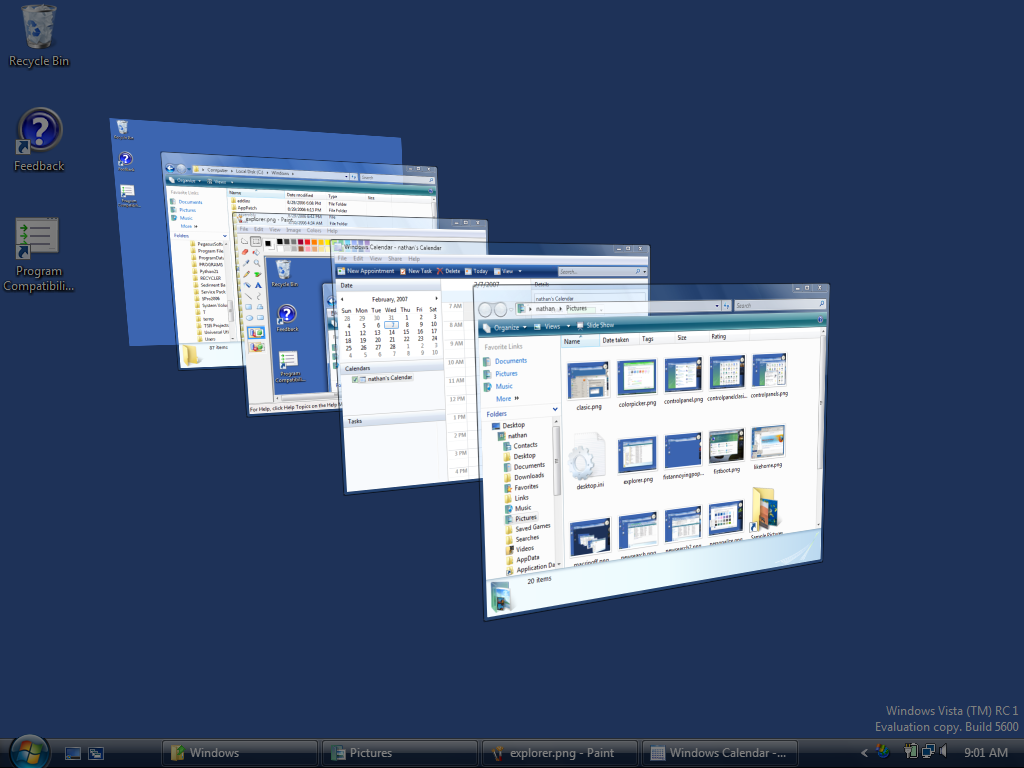
Windows Vista RC1 Flip 3D, Build 5600 (2006)
Source: toastytech.com
Windows 7 (2009)
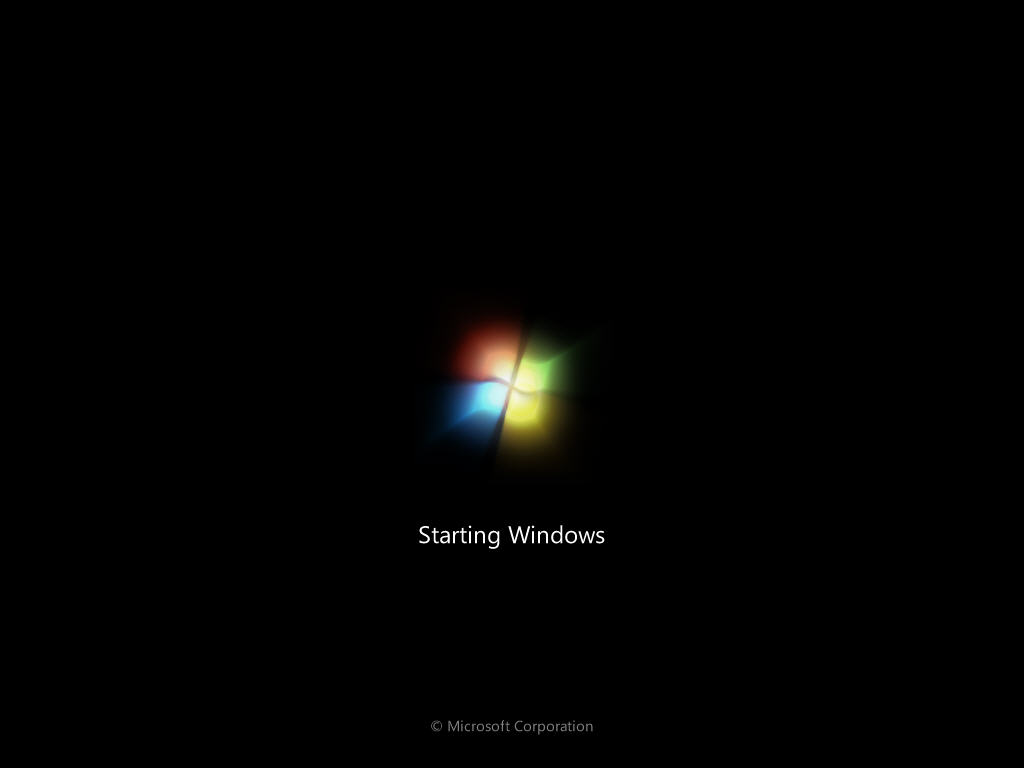
Windows 7 shipped on October 22, 2009, refining Vista's interface and introducing a redesigned taskbar. During startup, four glowing points come together to form the Windows flag above the words Starting Windows.
Windows 7 Title Screen (2009)
Source: techrepublic.com
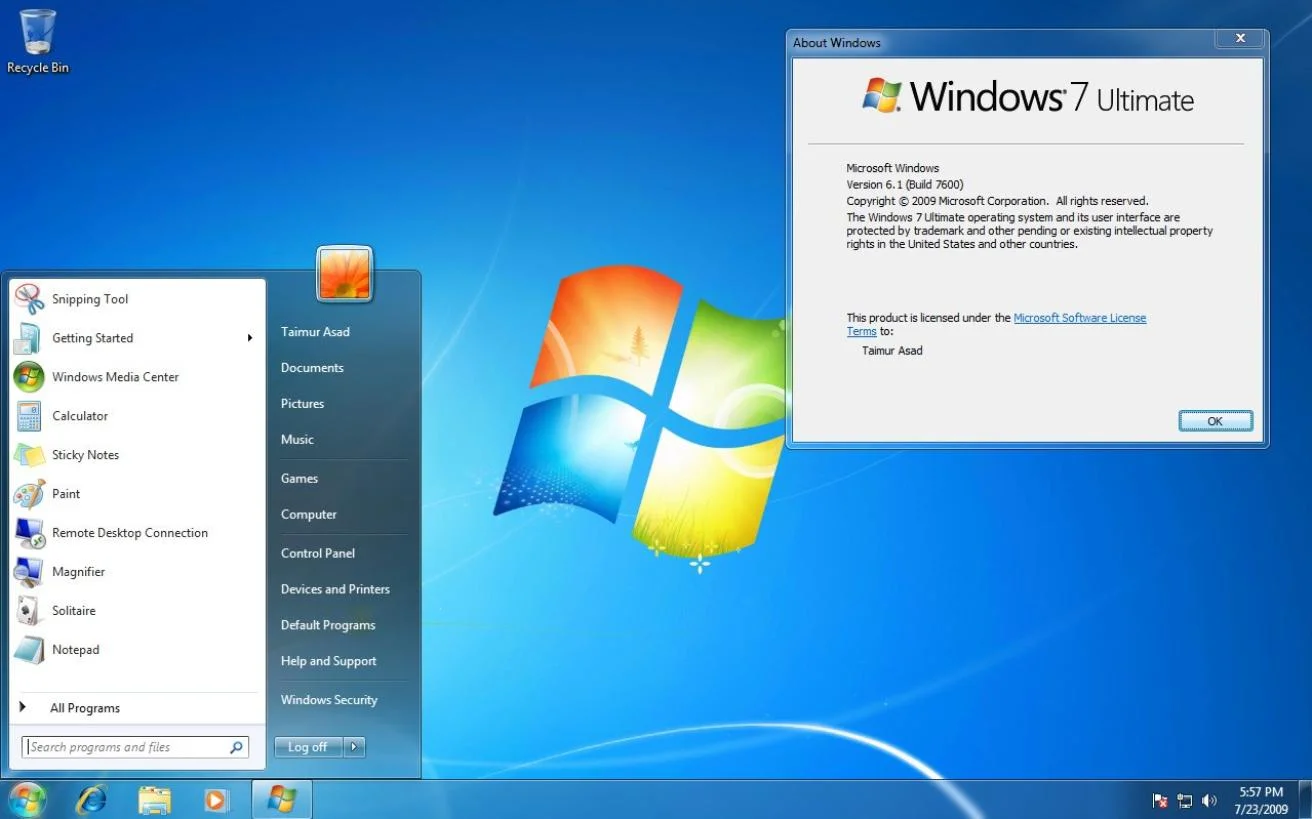
The taskbar is the headline. Buttons became large unlabeled icons, running programs and pinned shortcuts sharing one strip. The About Windows dialog reads Version 6.1, even though the product name is Windows 7. The internal version number and the name on the box do not always match.
Windows 7 Start Menu and About Windows Dialog (2009)
Source: softonic.com
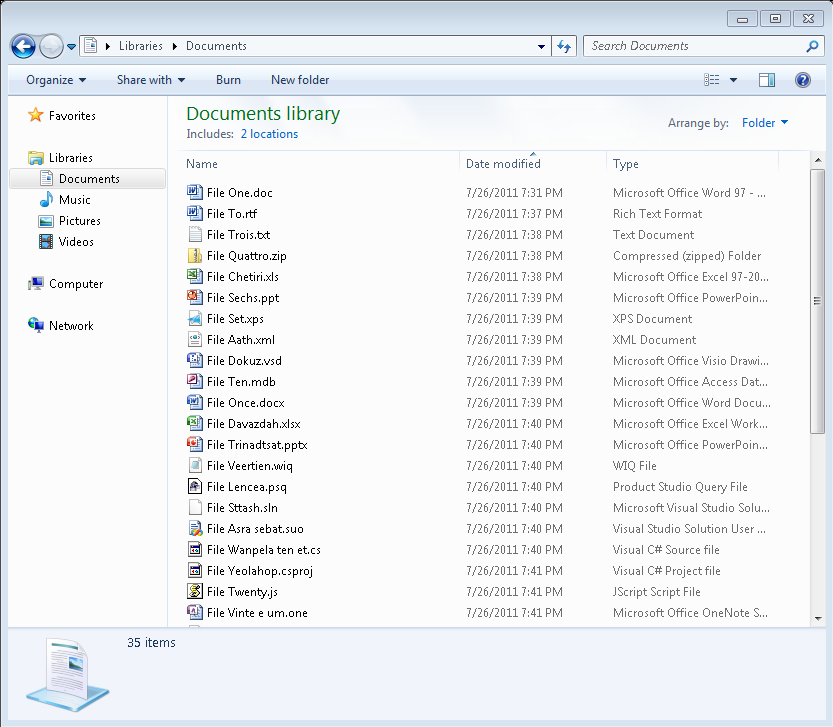
Explorer introduced Libraries, which collect files from multiple folders into one view without moving them. This one says Includes: 2 locations and shows 35 items. The list mixes familiar Office files with Visio diagrams, Access databases, OneNote notebooks, and XPS documents.
Windows 7 Windows Explorer (2009)
Source: microsoft.com
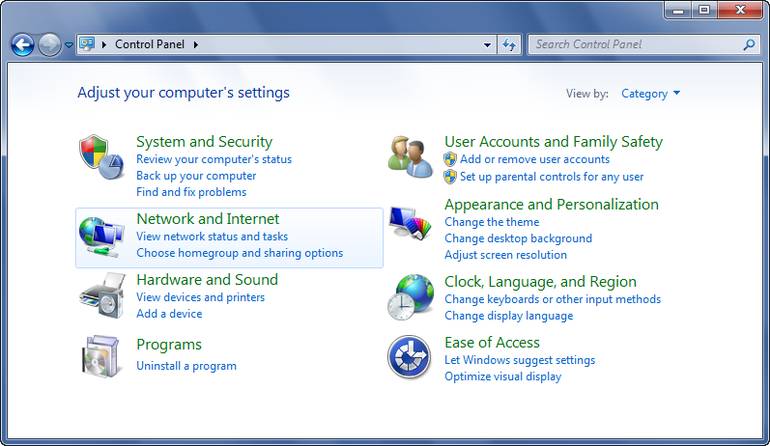
The Control Panel keeps Vista's category layout and search box, with some categories regrouped. Setup offers three dropdowns on a blue background, worth comparing with the Windows 95 wizard earlier on this page. The Build 7000 watermark identifies this setup screenshot as a Windows 7 beta.
Windows 7 Control Panel (2009)
Source: techrepublic.com
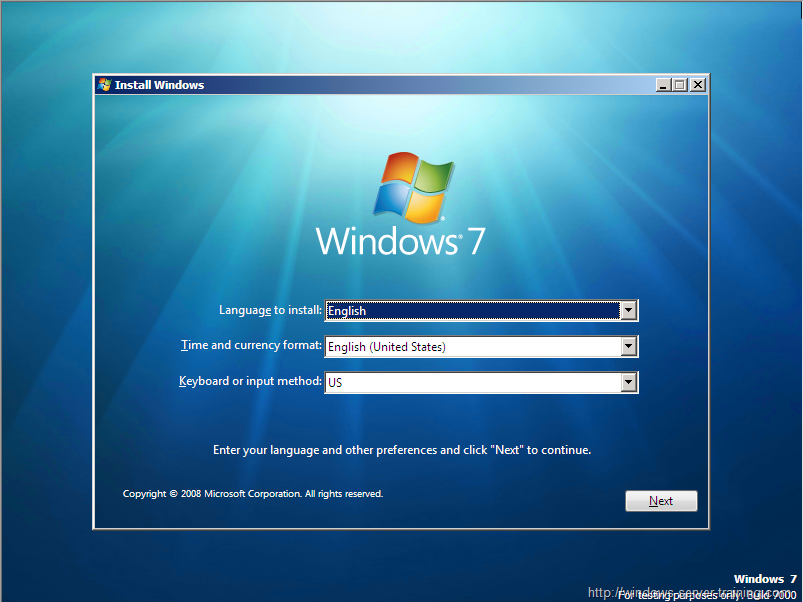
Windows 7 Beta Setup, Build 7000 (2009)
Source: windows-server-training.com
Windows 8 (2012)
Windows 8 was released on October 26, 2012, with the most dramatic redesign here. Microsoft put a new interface designed for touch alongside the traditional desktop. Even the waving flag became a flat window seen at an angle.
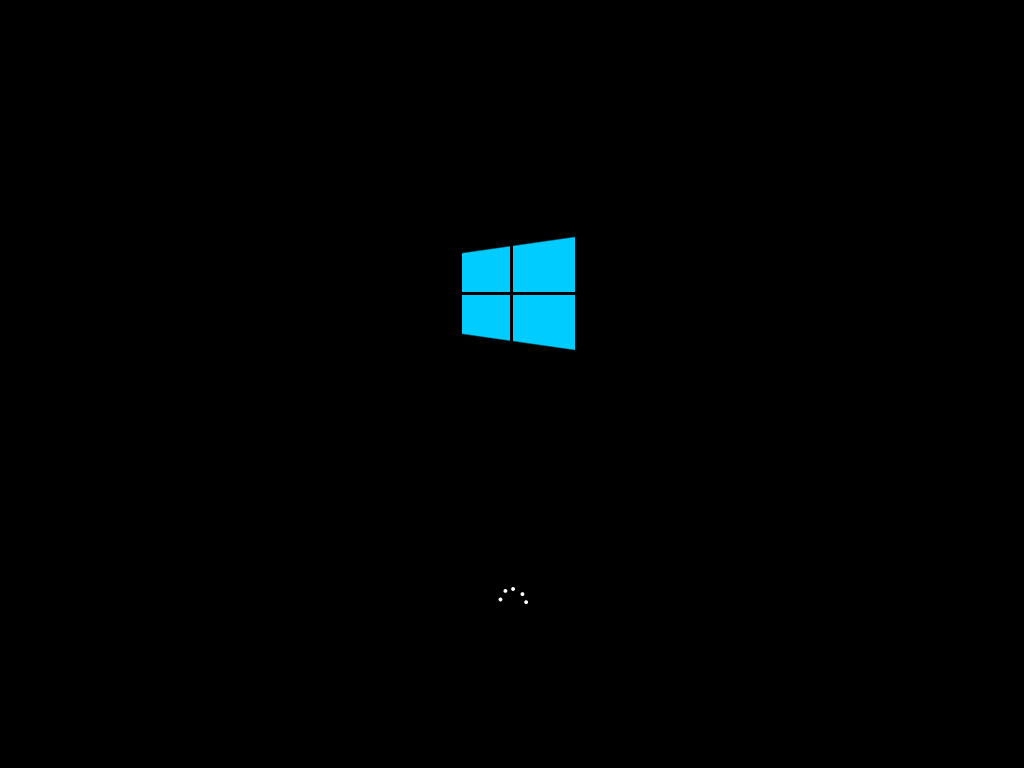
Windows 8 Title Screen (2012)
Source: techrepublic.com
This is the Start screen, which replaced the Start menu. Its grid scrolls sideways, and live tiles can show updates: a mail preview from Wendy Teo, soccer practice at 5:30, and 71 degrees in Seattle. Windows 8 also removed the desktop's Start button. Windows 8.1 brought the button back in 2013, but it still opened this Start screen.
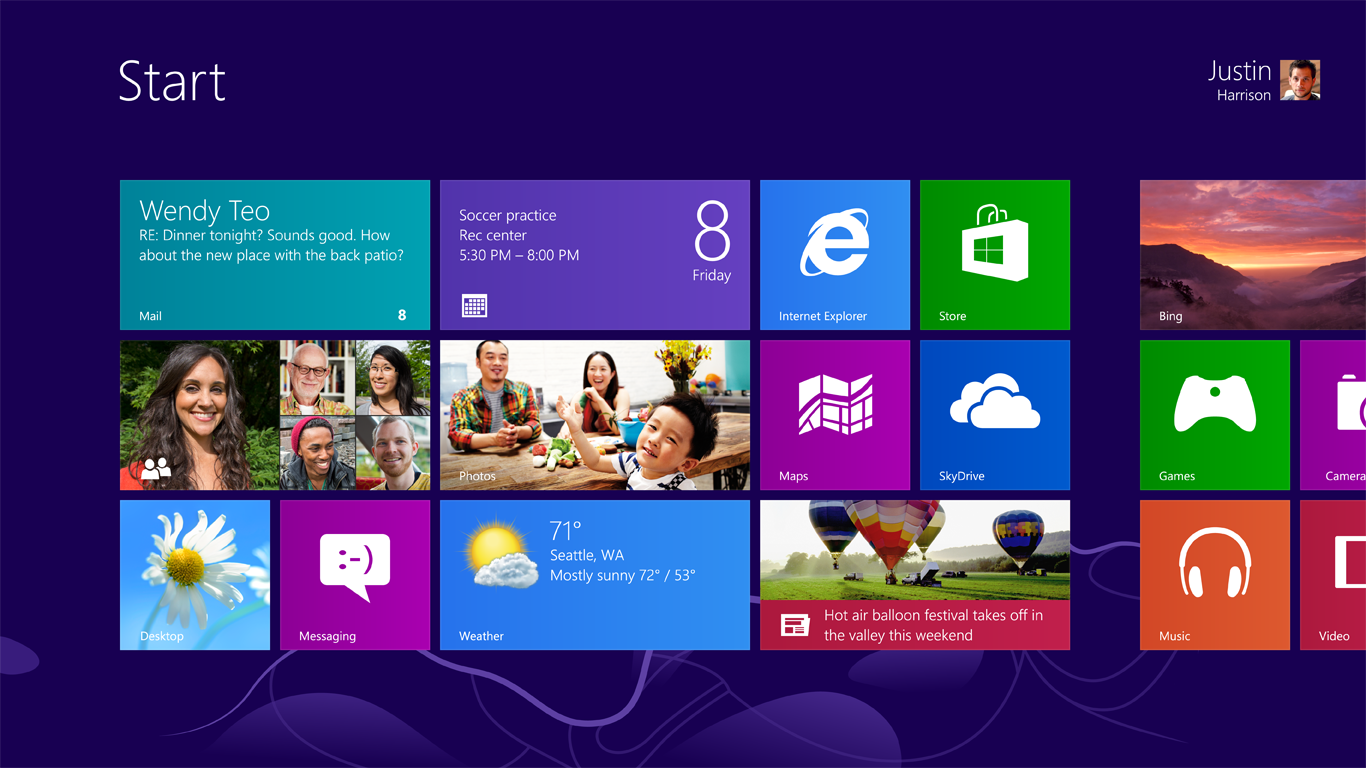
Windows 8 Start Screen with Live Tiles (2012)
Source: theverge.com
The Apps list showed installed programs, including those you had not pinned to Start. Toshiba's PC Health Monitor, Recovery Media Creator, and TOSHIBA VIDEO PLAYER sit among Notepad and Paint. Control Panel is over on the right, still there.
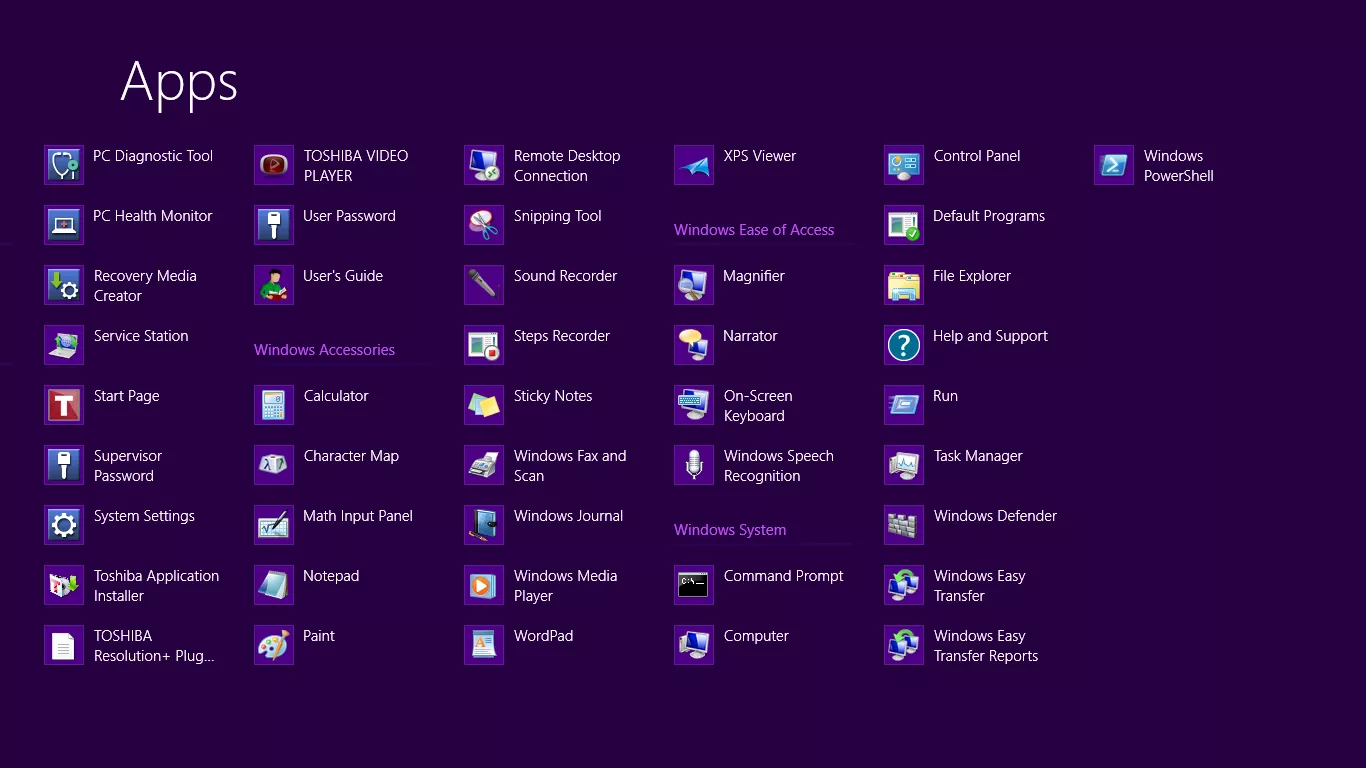
Windows 8 Apps List (2012)
Source: cnet.com
Task Manager was rebuilt for this release. Its App history tab tracks CPU time and network use for Store apps, with separate columns for metered connections and the data used to update live tiles.
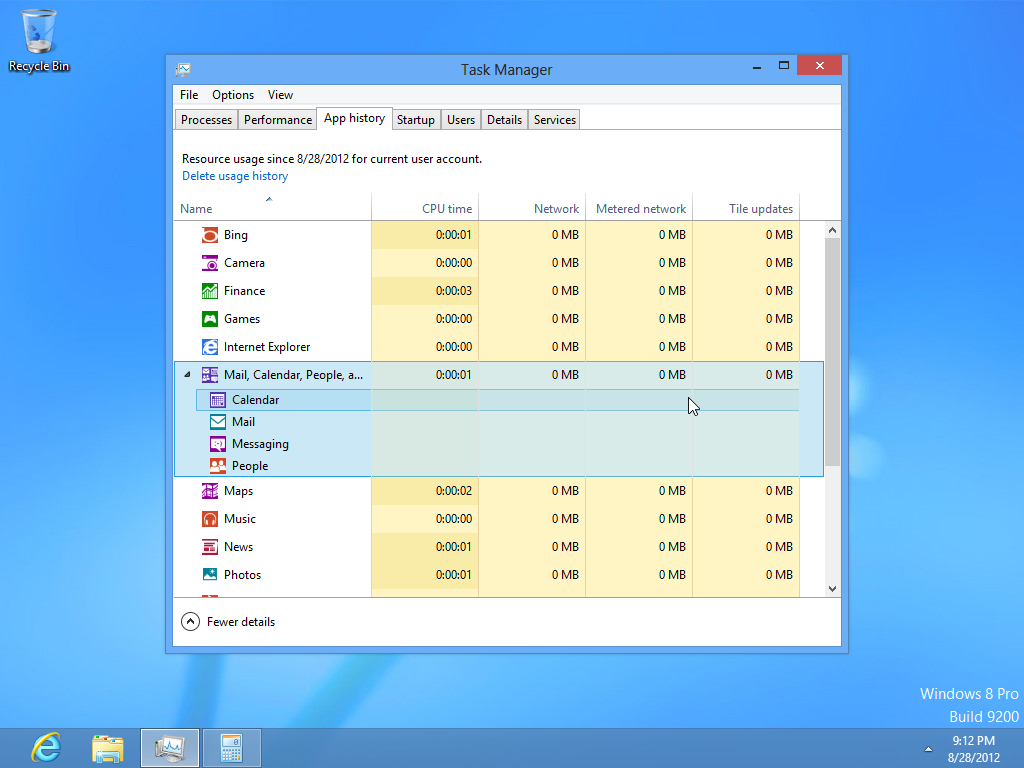
Windows 8 Task Manager (2012)
Source: toastytech.com
PC settings provided a new home for many common settings. This Consumer Preview screenshot shows its flat layout, green accent, and list of categories on the left. The desktop Control Panel remained alongside it, with a layout similar to Windows 7. Some settings still required a trip back to the desktop.
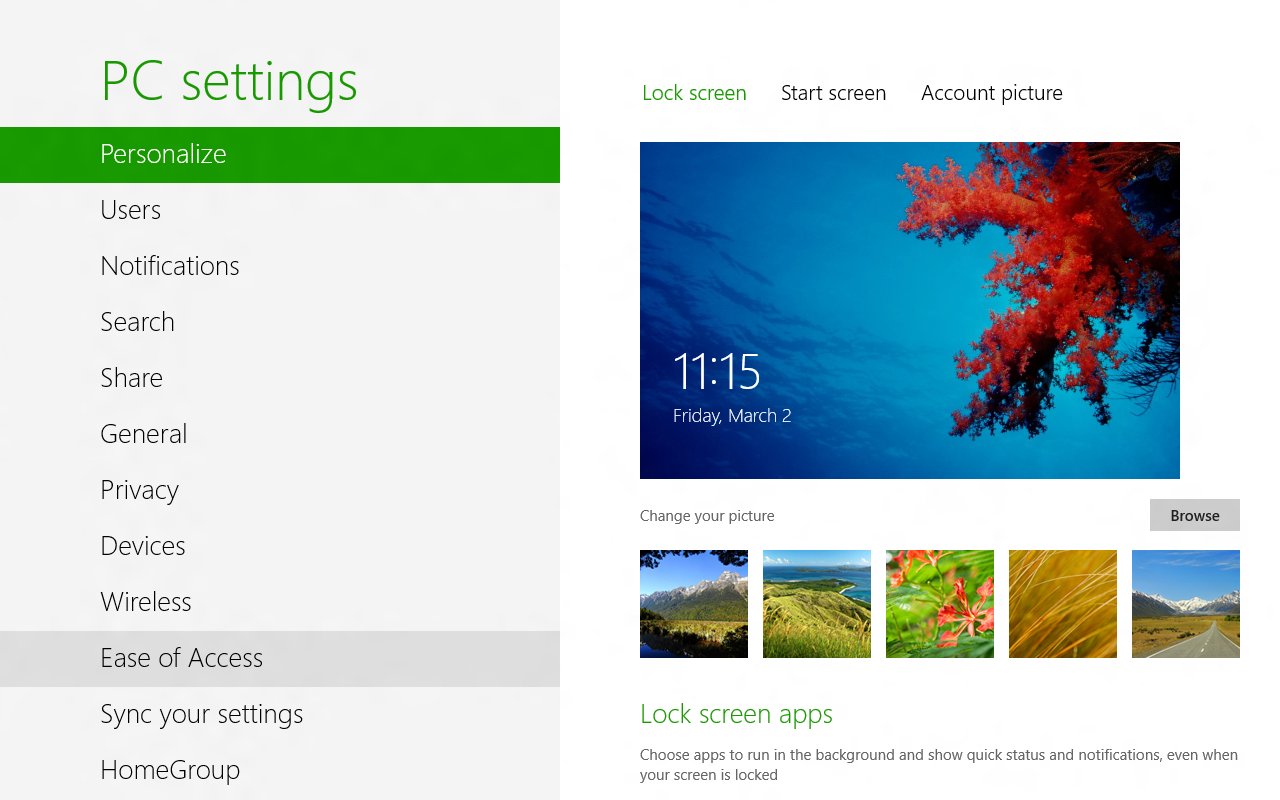
Windows 8 Consumer Preview PC Settings (2012)
Source: softpedia.com
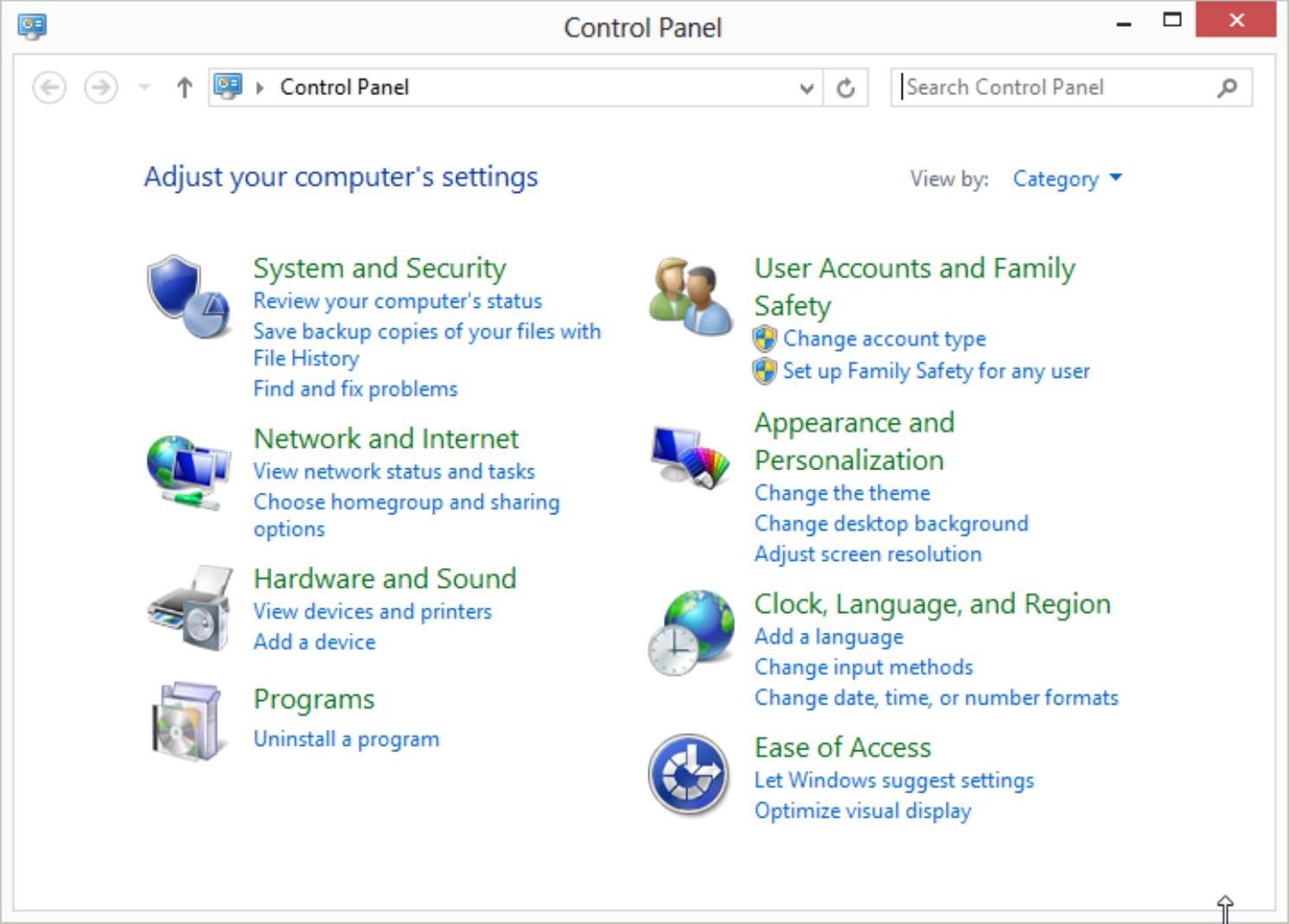
Windows 8 Control Panel Category View (2012)
Source: wikihow.com
Setup is the Windows 7 dialog with a new logo and a purple background.
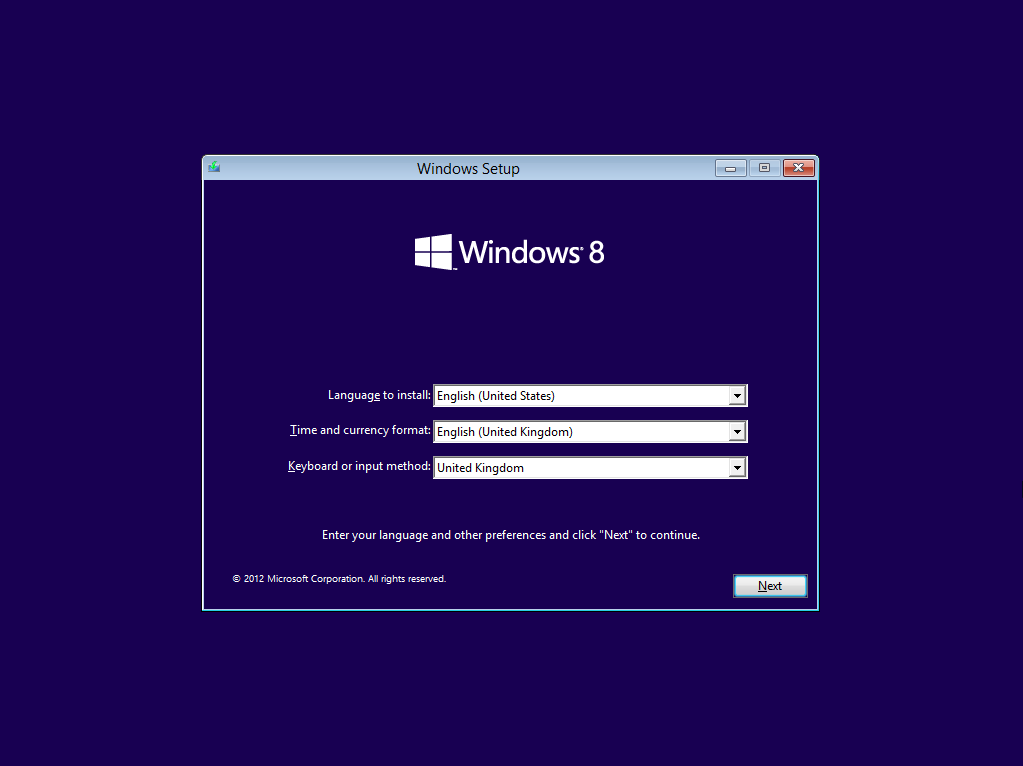
Windows 8 Installation/Setup Screen (2012)
Source: azurecurve.co.uk
Windows 10 (2015)
Windows 10 was released on July 29, 2015. There was no Windows 9. Microsoft skipped the number, offered a free upgrade for eligible Windows 7 and 8.1 PCs during the first year, and brought back the Start menu.
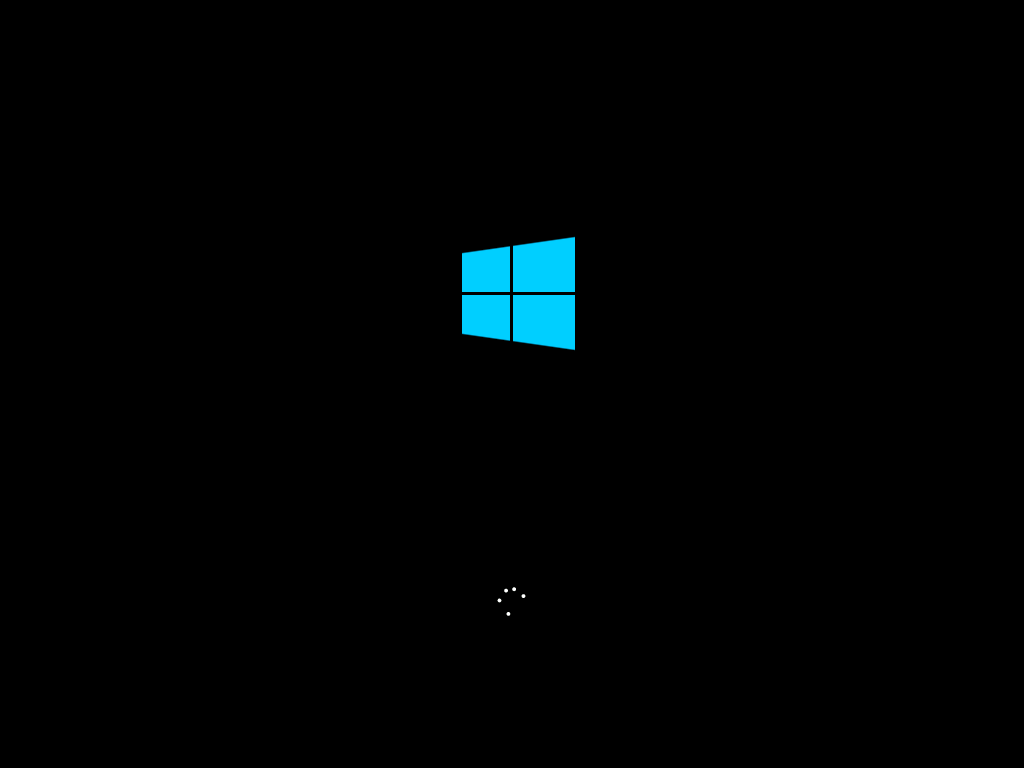
Windows 10 Title Screen (2015)
Source: techrepublic.com
And here is the compromise. A Start menu in the old shape, with the live tiles from Windows 8 bolted onto the right of it. Cortana sits in the taskbar behind a box reading Ask me anything, and the clock reads one day after launch. The second shot shows another installation, with shortcuts for Chrome, paint.net, and other programs.
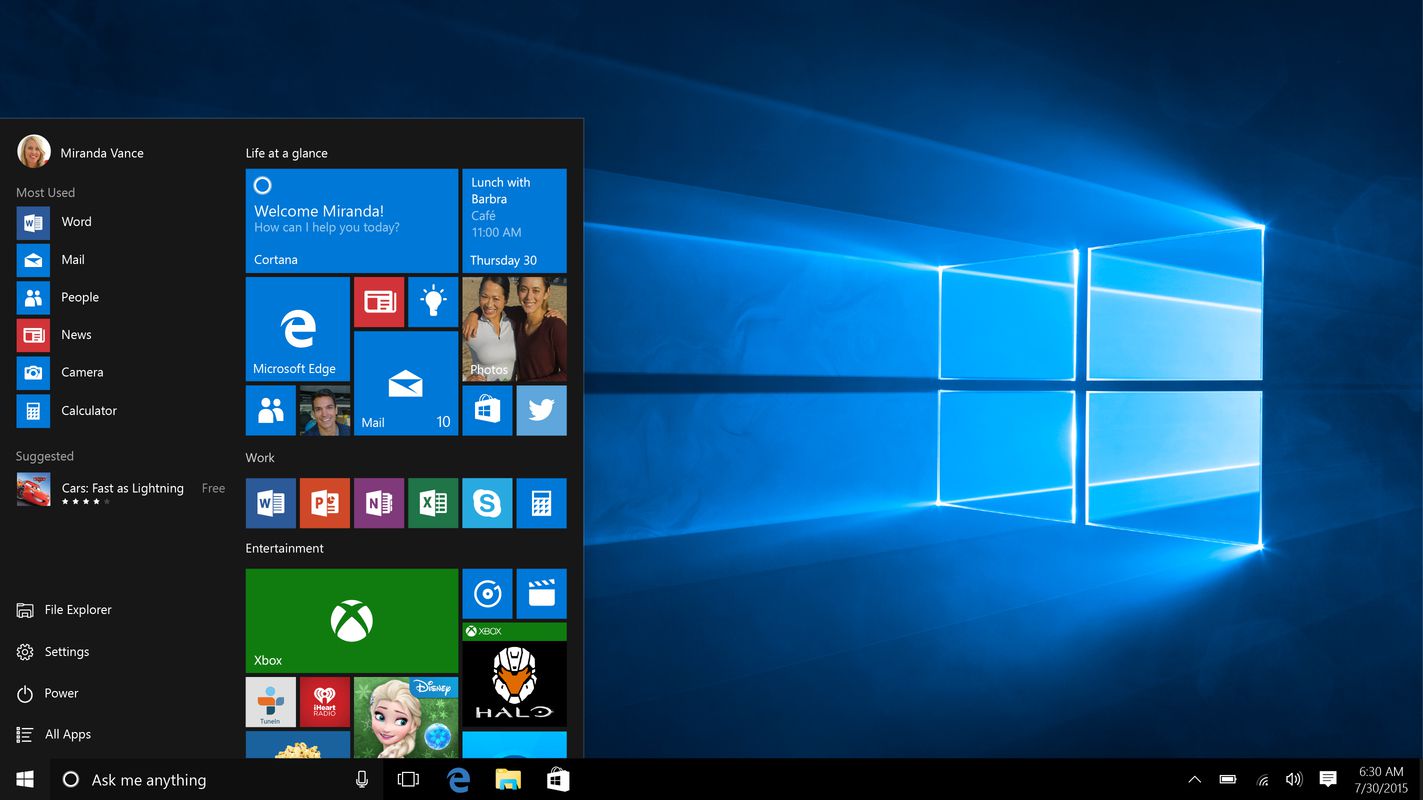
Windows 10 Start Menu and Cortana (2015)
Source: theverge.com
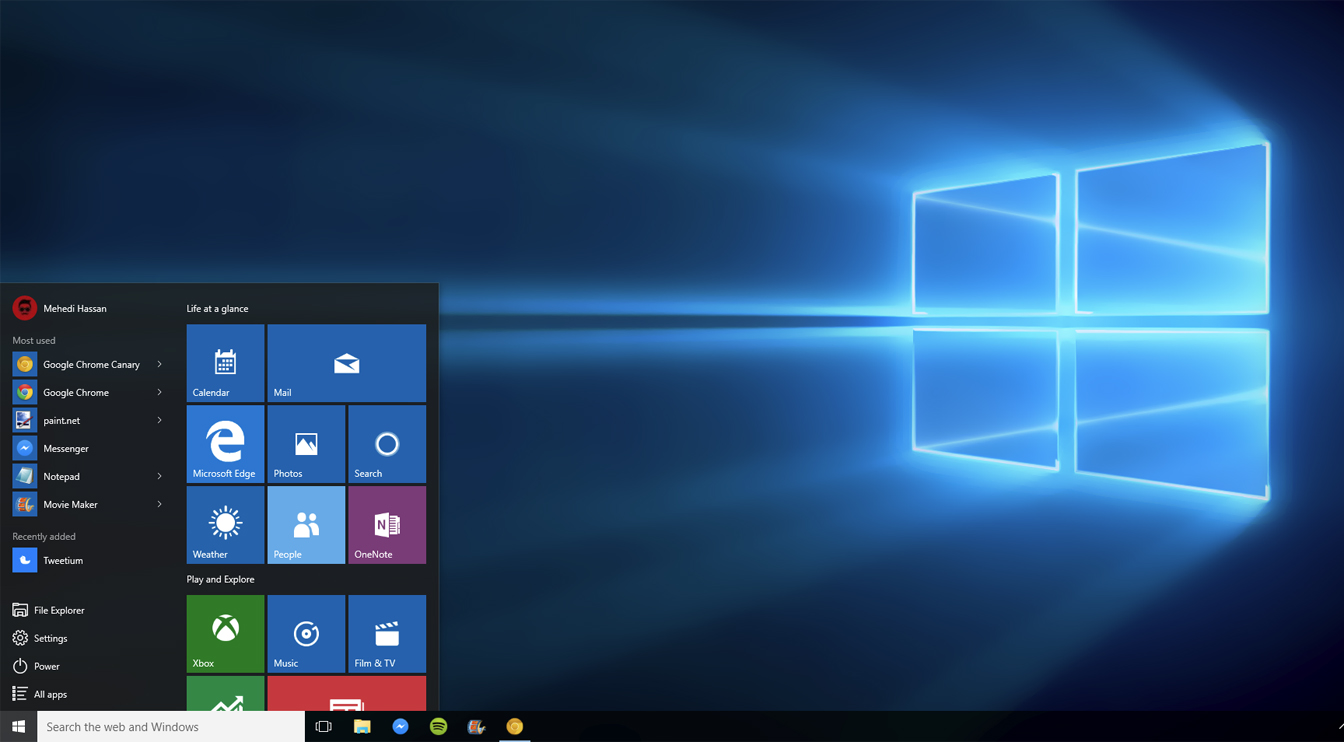
Windows 10 Desktop (2015)
Source: extremetech.com
Settings succeeded PC settings and opened in a desktop window. This screenshot shows a later Windows 10 interface, with eleven categories and a Find a setting box on top. The taskbar date reads 2017, and the Gaming category was added in that year's Creators Update.
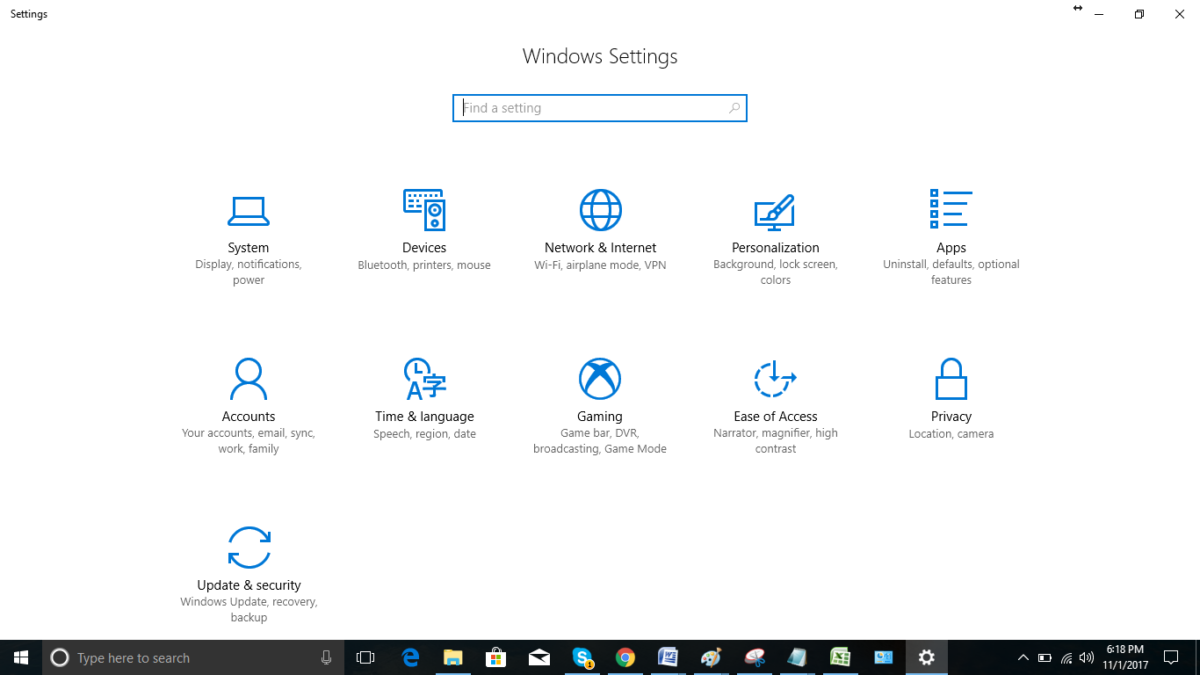
Windows 10 Settings with Apps and Gaming Categories (2017)
Source: controlpanelwindows10.com
The older Control Panel remained available, too. Here it is in Windows 10's Category view, alongside the newer Settings app. One of its links reaches back to an earlier release: Backup and Restore (Windows 7).
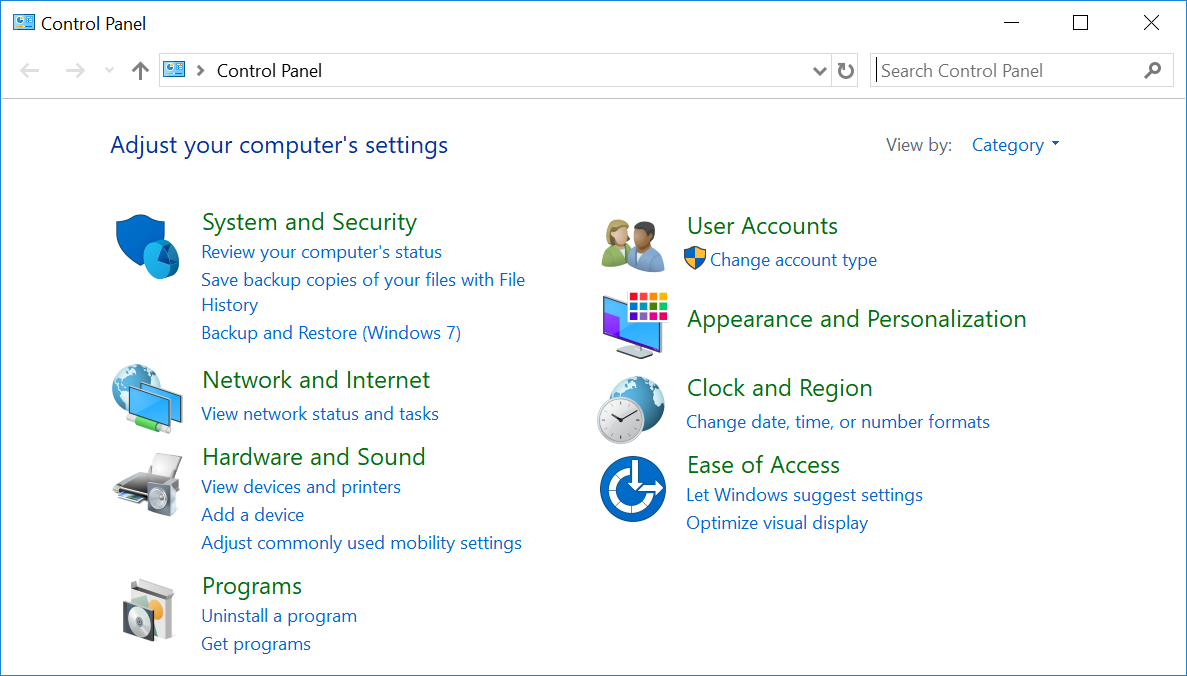
Windows 10 Control Panel Category View (2015 release)
Source: rosettastone.com
Setup, one last time: three dropdowns on purple, and a Windows wordmark with no number after it. This gallery ends with Windows 10, but the story continued: Windows 11 arrived in October 2021.
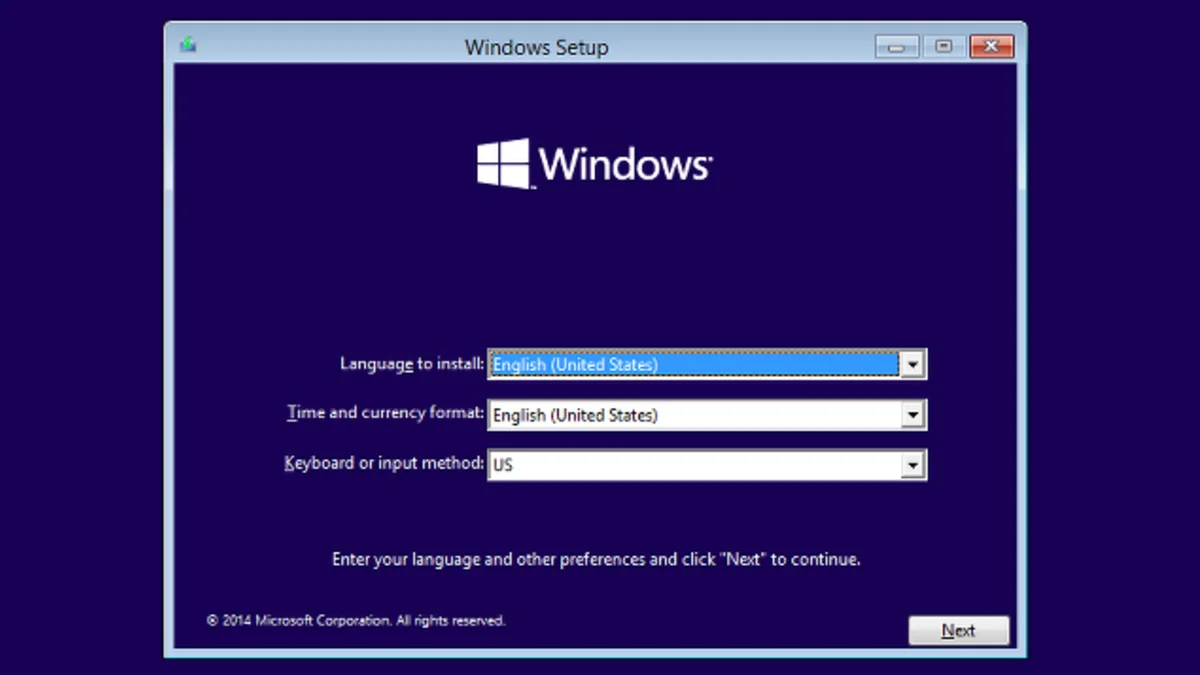
Windows 10 Installation/Setup Screen (2015)
Source: lifehacker.com
More from Version Museum
 More from Version Museum
Classic Mac OS
Continue with the rival desktop that Windows spent two decades competing against. View the exhibitPopular exhibits
Please help support our museum hosting costs by making a small donation -- buy us a coffee! Thank you so much!
 Buy us a coffee!
Scroll up to the top.