



In December 1996, Apple bought NeXT to get an operating system... and got Steve Jobs back with it. Four years later NeXTSTEP's Unix
machinery arrived wearing a candy shell. Jobs unveiled the interface, called Aqua,
at Macworld on January 5, 2000, and said one design goal was
buttons you would want to lick.
The row below show OS X logos, but it also carries a second story. It begins as retail boxes and ends as an installer icon, because by then the upgrade was free.

Mac OS X Logos (2001-2019)
Source: wikipedia.org
Mac OS X 10.0 Cheetah - Aqua Arrives (2001)
Cheetah went on sale on March 24, 2001 for $129. It was slow, and it couldn't burn a CD or play a DVD.
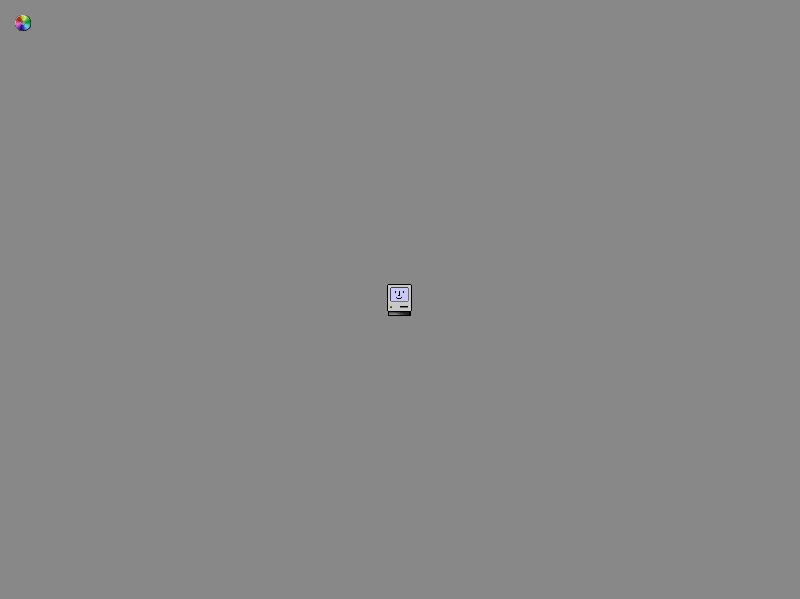
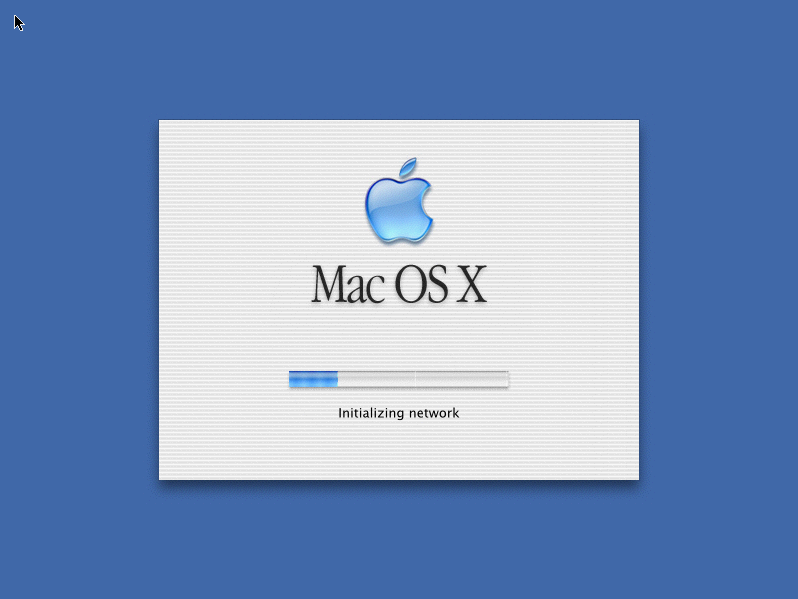
The two startup screens below are the handover caught in the act. First the
Happy Mac, which had greeted Macintosh owners since 1984, now sitting
in front of a Unix kernel. It was retired the following year in Jaguar. The second screen is pure 2001 down to the pinstripes, and it
narrates its own boot: "Initializing network."
Mac OS X 10.0 Happy Mac Loading Screen (2001)
Source: virtuallyfun.com
Mac OS X 10.0 Cheetah Loading Screen (2001)
Source: virtuallyfun.com
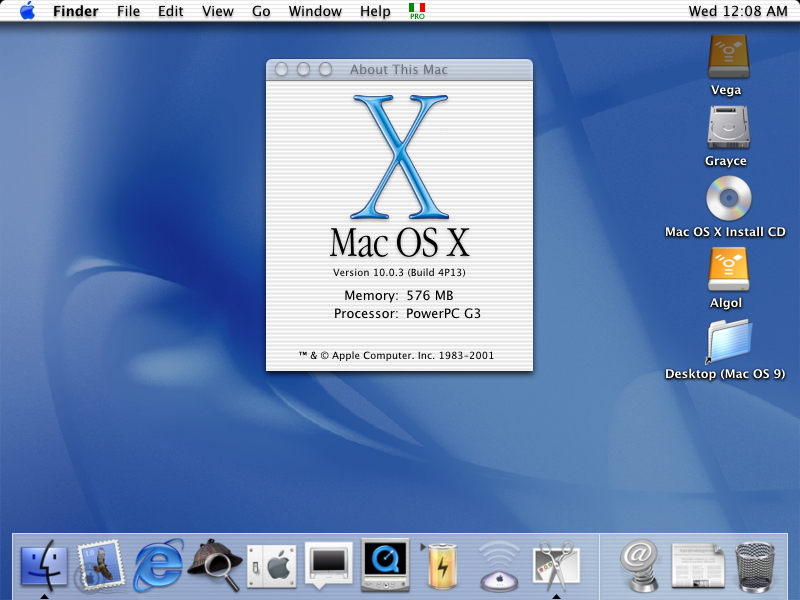
About This Mac gives away how people ran this. Version 10.0.3 on a PowerPC G3, and beside the hard drives, a folder labeled
Desktop (Mac OS 9). The old system was one restart away.
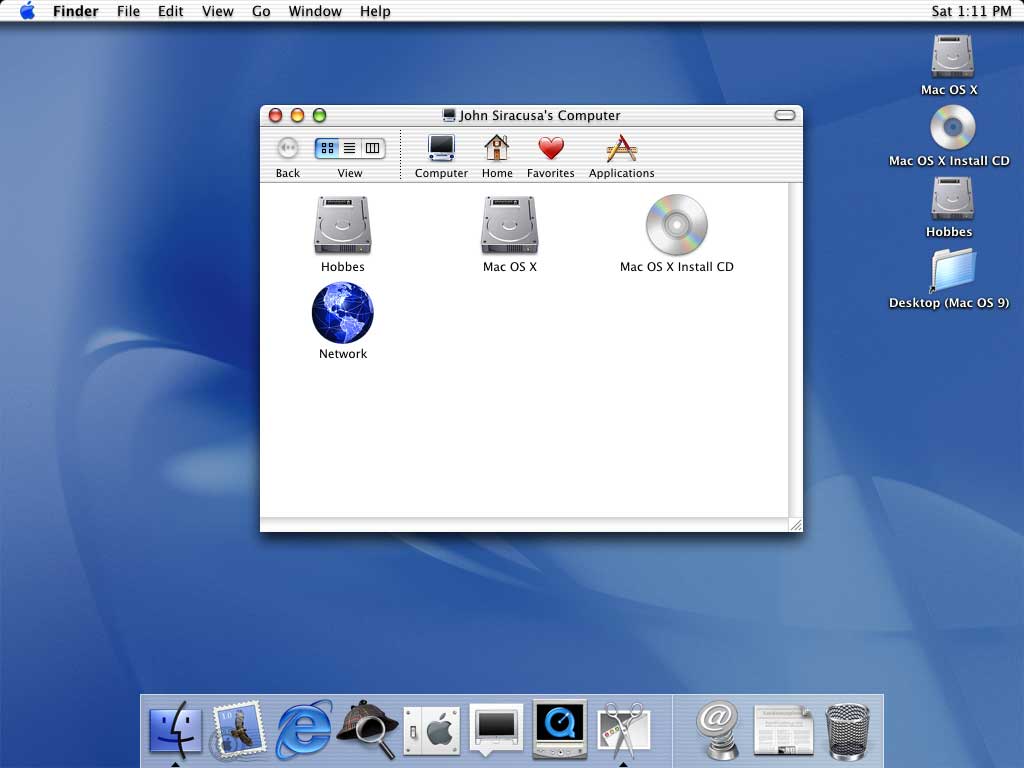
The window below reads John Siracusa's Computer, because the shot comes from the
Ars Technica review of 10.0. There is no sidebar yet, just six toolbar
buttons, one a red heart labeled Favorites.
Mac OS X 10.0 Cheetah About This Mac (2001)
Source: systemfolder.wordpress.com
Mac OS X 10.0 Cheetah Finder (2001)
Source: arstechnica.com
Column view came straight from NeXTSTEP, and this one shows the entire Applications folder of a fresh install. Address Book, Chess, Clock, Dock Extras, Image Capture, Internet Explorer, Mail, Preview, Sherlock, Stickies, TextEdit. No iPhoto, no iTunes, no Safari, no App Store.
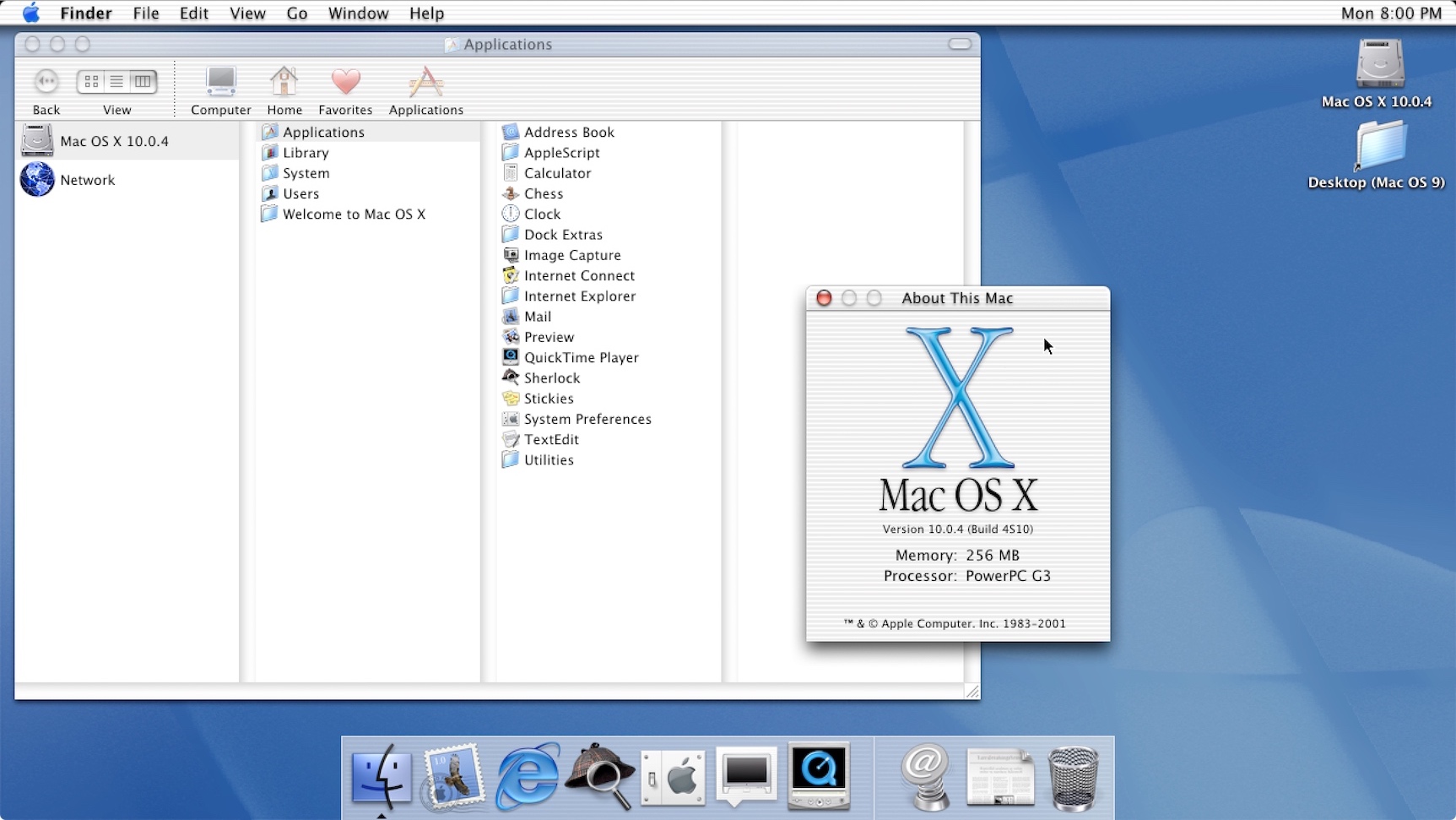
Mac OS X 10.0 Cheetah Finder Column View (2001)
Source: fandom.com
The browser in that list is Microsoft's, and it stayed the default for two more years. Its About box is a fine time capsule: a Preview Release build numbered 5.1b1, a copyright notice still crediting NCSA Mosaic, and a bookmarks bar carrying Office for Macintosh and MSN. Mail 1.0 beside it has an empty inbox and five toolbar buttons.
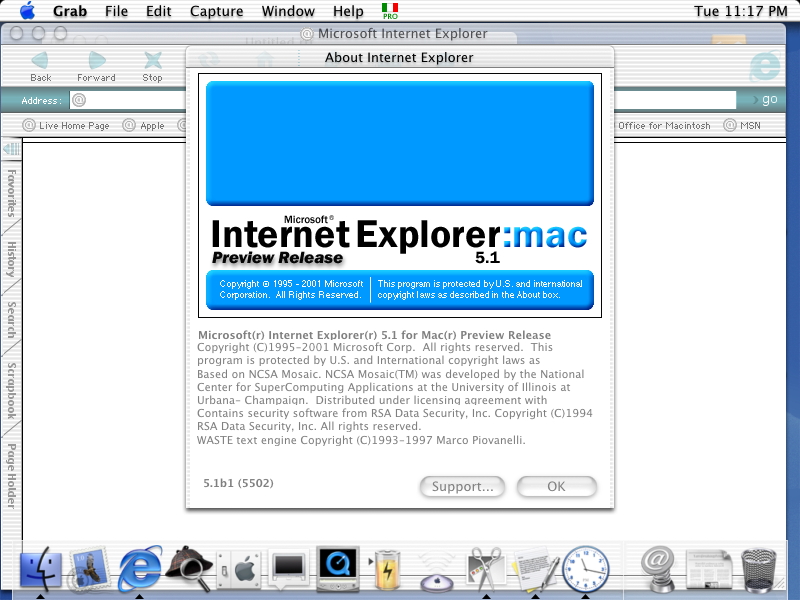
Mac OS X 10.0 Cheetah Internet Explorer 5.1 (2001)
Source: systemfolder.wordpress.com
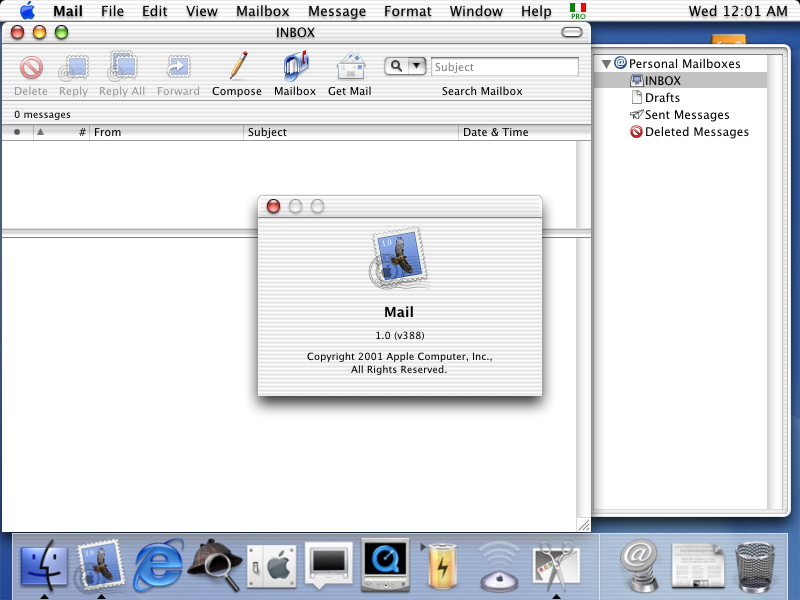
Mac OS X 10.0 Cheetah Mail App (2001)
Source: systemfolder.wordpress.com
QuickTime Player is where brushed metal first shows up, and the QTV tab is a wall of streaming channels: CNN, Disney, NPR, BBC
World, MTV, ESPN, HBO. That is what 2001 thought television was about to become.
Sherlock had no background index. You ticked the volumes you wanted searched... and waited. Three of the five here report
Can't index.
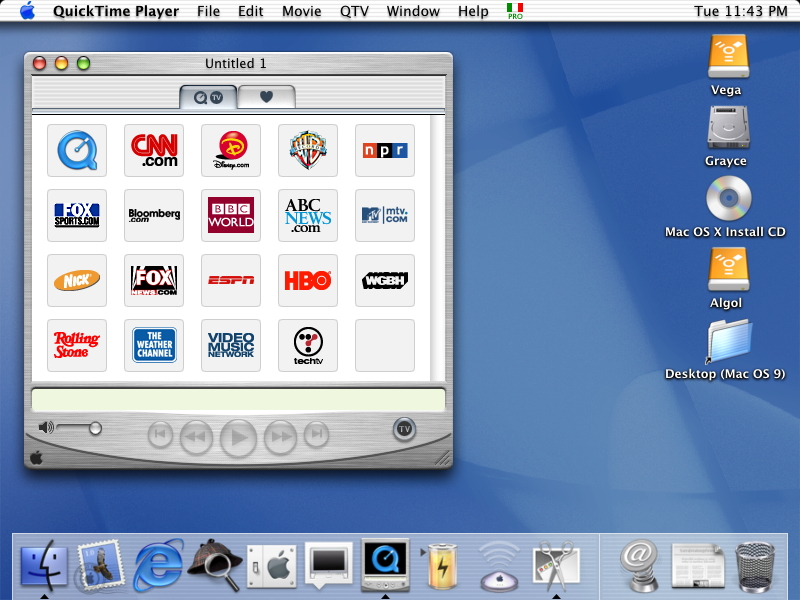
Mac OS X 10.0 Cheetah QuickTime Player (2001)
Source: systemfolder.wordpress.com
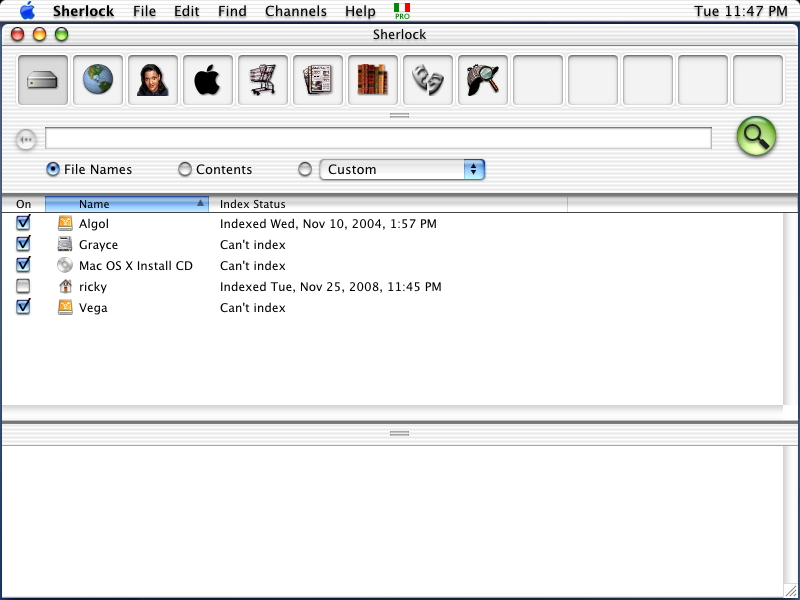
Mac OS X 10.0 Cheetah Sherlock Search App (2001)
Source: systemfolder.wordpress.com
The most consequential screen on this page looks like nothing. A preference pane asking for an iTools member name, offering a free sign-up and an iDisk. Keep an eye on this panel as you scroll, because it becomes .Mac in 2002, MobileMe in 2008 and iCloud in 2011.
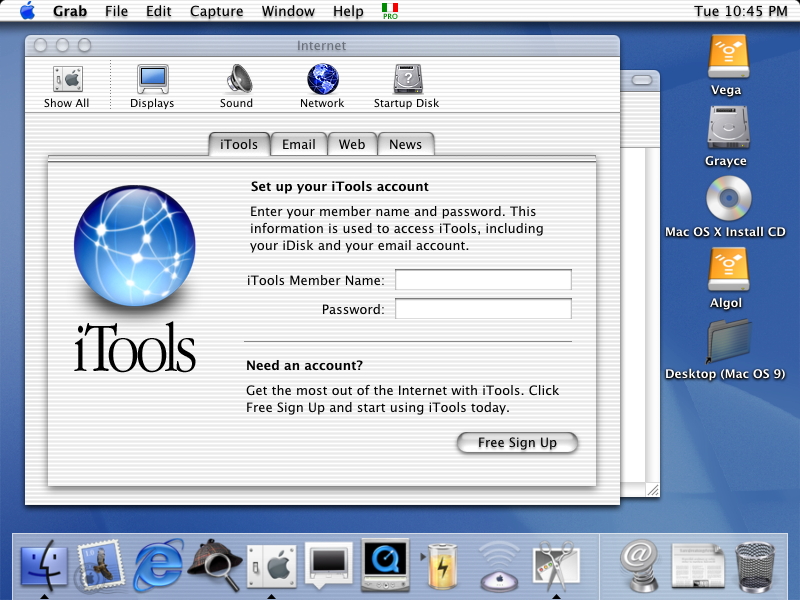
Mac OS X 10.0 Cheetah iTools (2001)
Source: systemfolder.wordpress.com
System Preferences is one flat field of twenty-one icons with an instruction printed across the middle: Drag your favorite preferences to the toolbar above. One pane dates it exactly, and that is Classic, which ran your old Mac OS 9 applications inside a compatibility box.
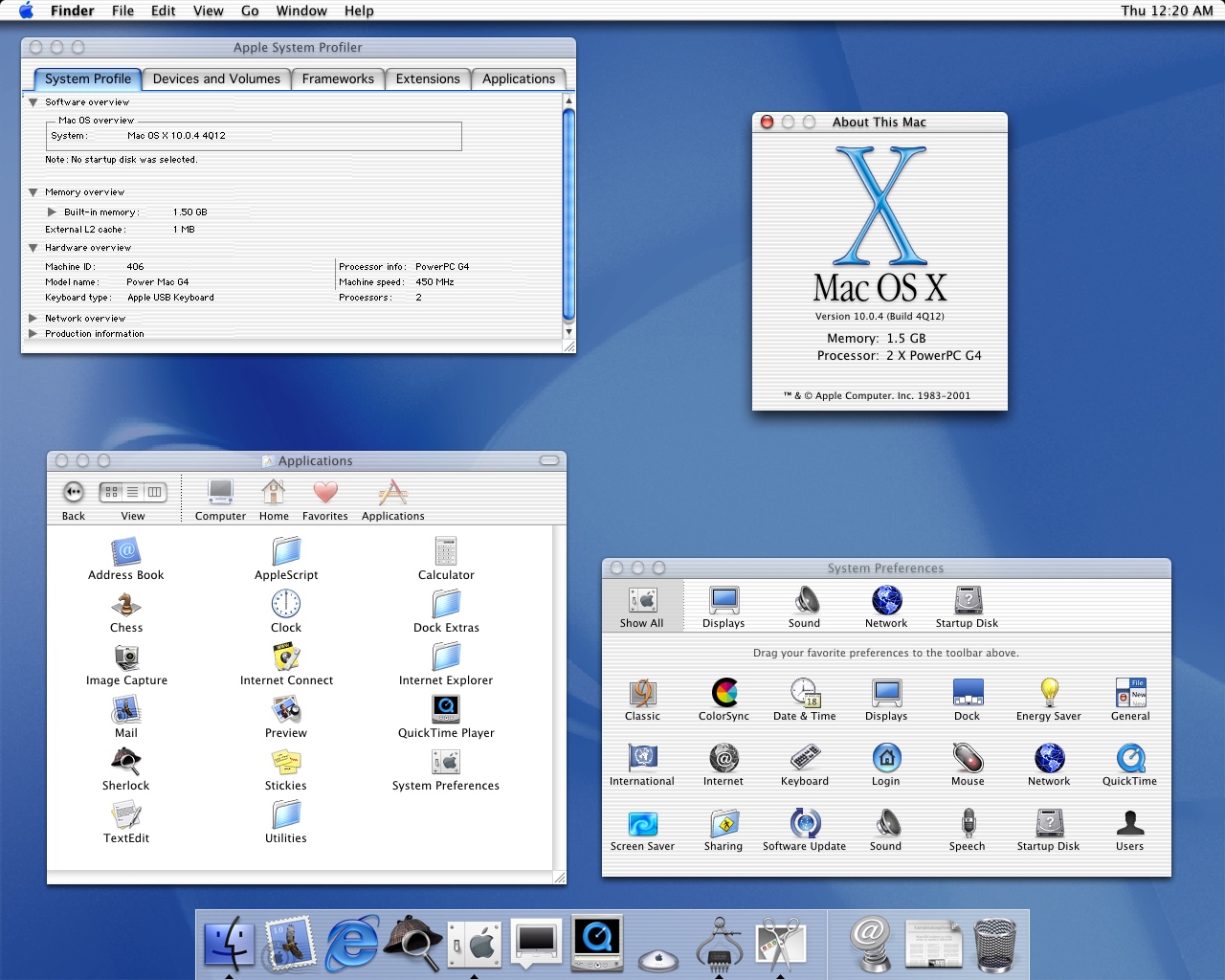
Mac OS X 10.0 Cheetah System Preferences and Applications (2001)
Source: macrumors.com
Mac OS X 10.3 Panther - Metal, Exposé and a Browser of Apple's Own (2003)
Two releases fill the gap. Puma in September 2001 offered Cheetah owners a limited-time free upgrade kit and fixed much of its
speed problem, and Jaguar in August 2002 handed the drawing work to the graphics card. Panther landed on October 24, 2003.
The Happy Mac is gone, replaced by a gray Apple and a spinner. Apple Garamond has given way to Lucida Grande.

Mac OS X 10.3 Panther Gray Boot Screen (2003)
Source: wordpress.com
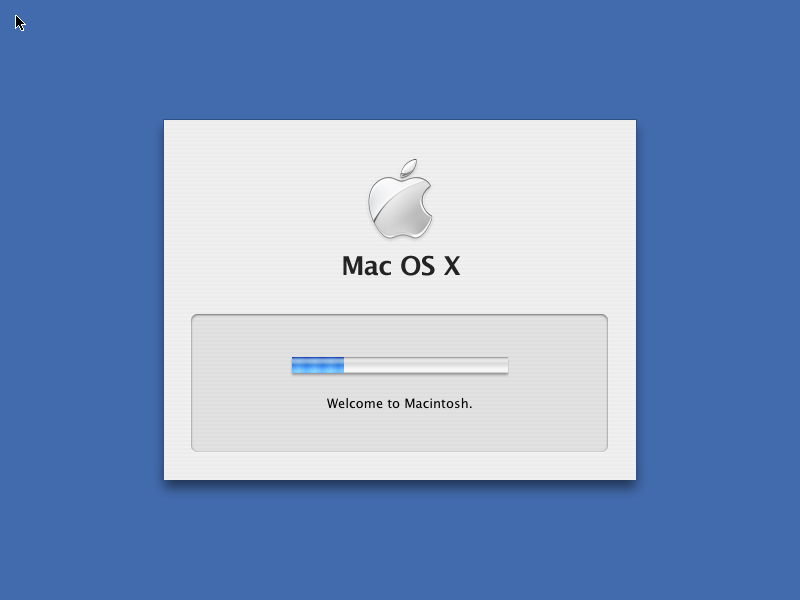
Mac OS X 10.3 Panther Loading Screen (2003)
Source: toastytech.com
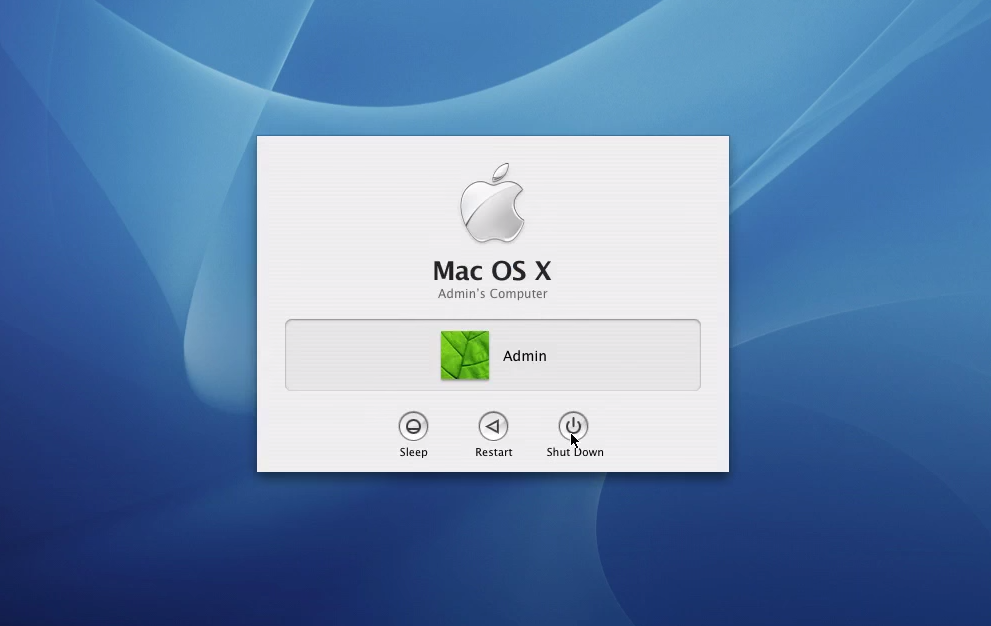
Mac OS X 10.3 Panther Login/Shutdown Screen (2003)
Source: Gadget Unit TV
The Finder went brushed metal here, and grew the sidebar it has had ever since. Read the file list and you get 2003 in one column. iPhoto, iSync, iTunes, Microsoft Office X, OmniGraffle, QuickBooks, Zinio and Safari.
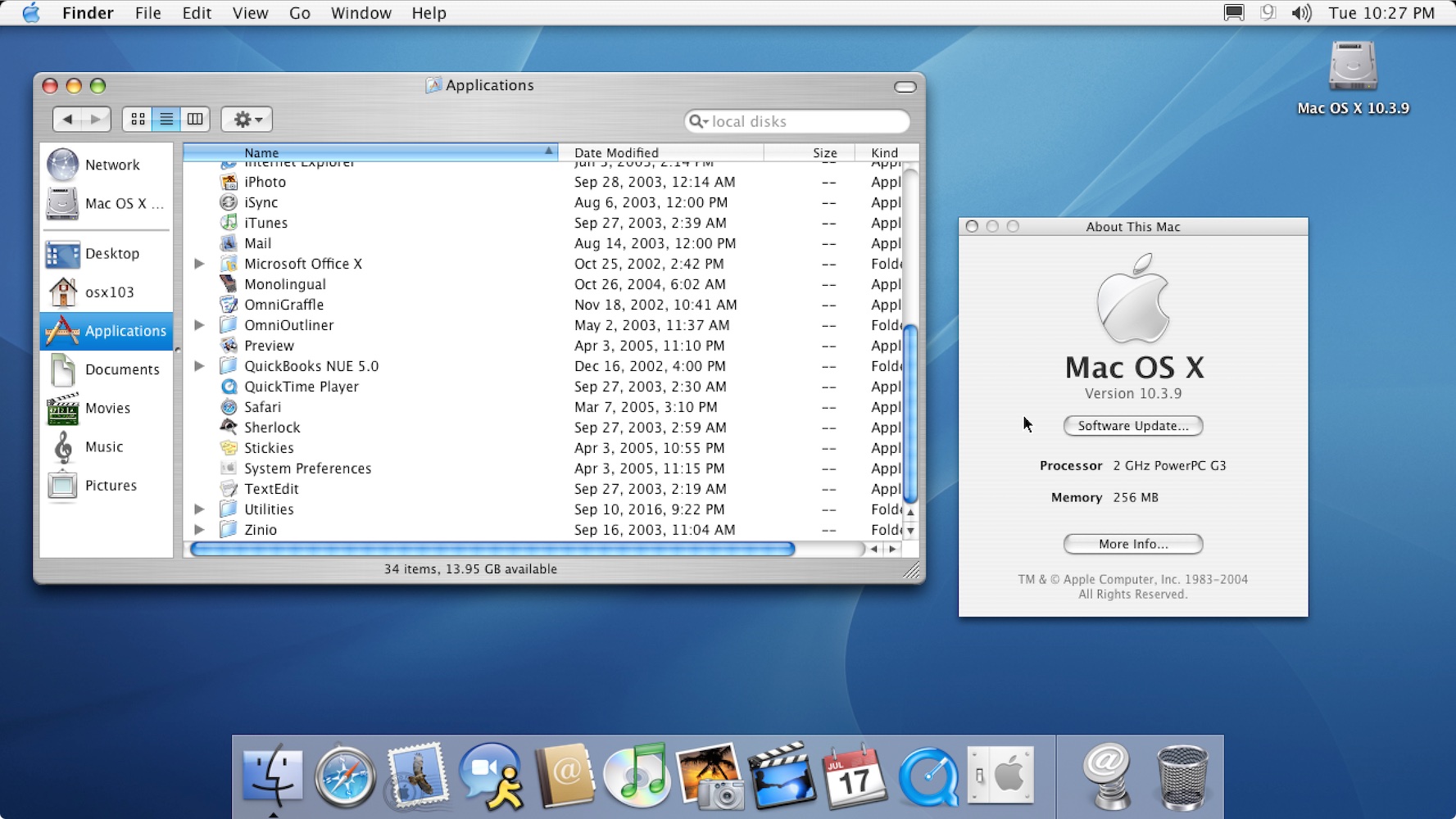
Mac OS X 10.3 Panther Finder/Applications and About This Mac (2003)
Source: fandom.com
Safari had shipped that year and was already Apple's default browser on new Macs. Panther made it the default browser in the OS X release. Below, we see a vintage page from Slashdot. The lead story is about Napster streaming 700,000 songs to a campus for $9.95 a month, and in the interviews column readers are invited to ask the founder of a two-year-old site called Wikipedia about online collaboration.
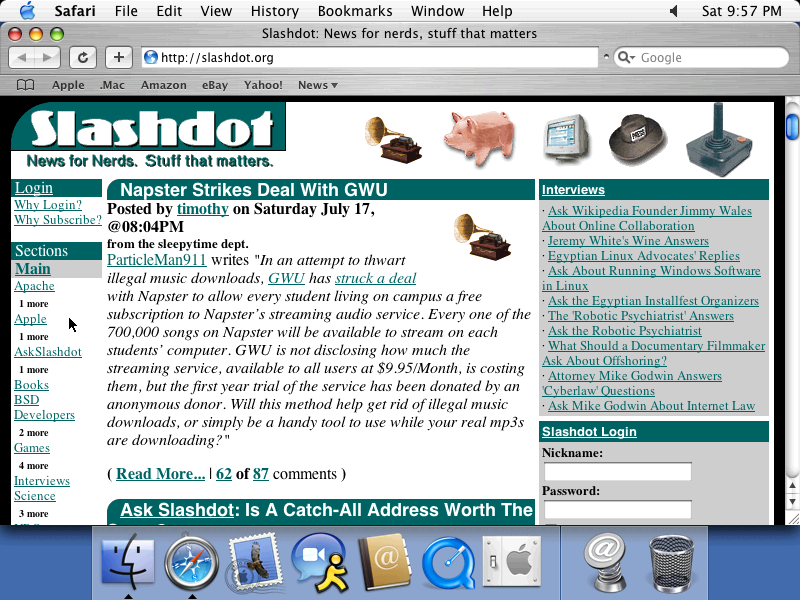
Mac OS X 10.3 Panther Safari Browser with Slashdot (2003)
Source: toastytech.com
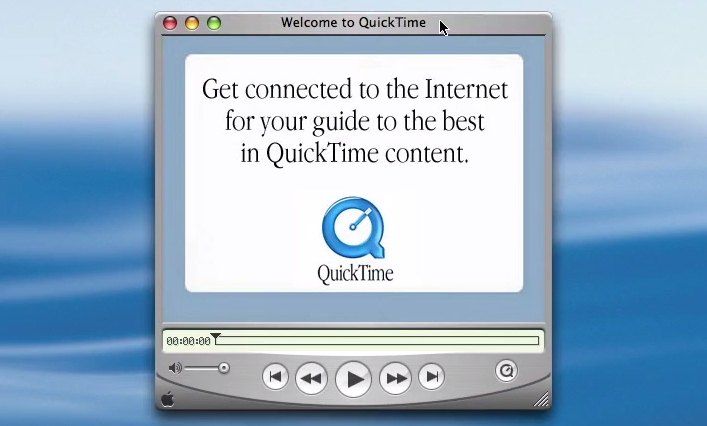
Mac OS X 10.3 Panther QuickTime App (2003)
Source: Gadget Unit TV
Desktop and Screen Saver had been two panes, and Panther merged them. The wallpaper selected is Tiles Blue, and a checkbox offers
to change the picture every thirty minutes, which is as close as 2003 got to a wallpaper that moves. Hold that thought for the last
section.
The chess set beside it descends from the game NeXT shipped, and the notes on top are genuinely translucent.
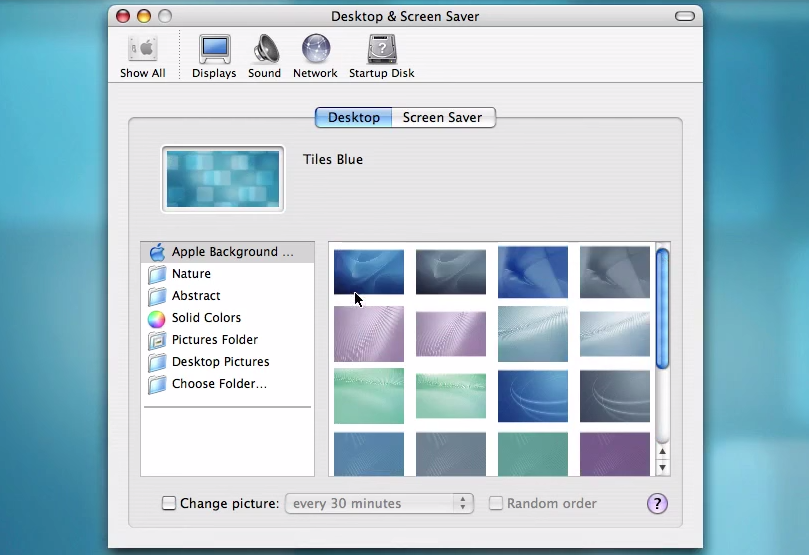
Mac OS X 10.3 Panther Desktop and Screen Saver Settings (2003)
Source: Gadget Unit TV
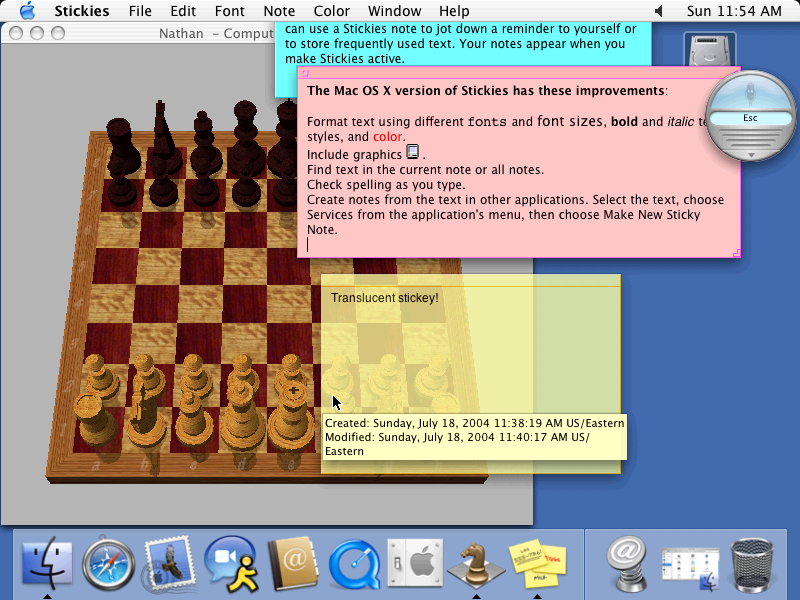
Mac OS X 10.3 Panther Chess and Stickies (2003)
Source: toastytech.com
System Preferences has been sorted into Personal, Hardware, Internet & Network and System, and would keep those four groups for a decade. New in the grid is Exposé, which threw every open window into a tiled layout with one key press. The Classic Mac OS icon is still in the bottom row, lurking.
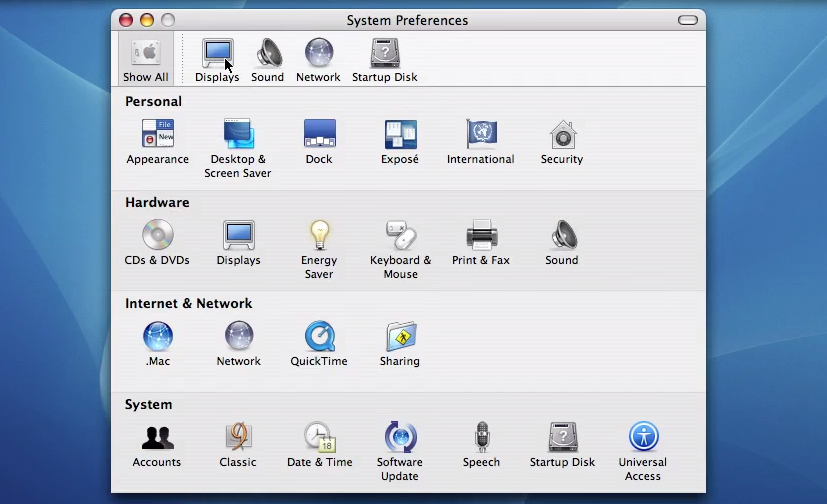
Mac OS X 10.3 Panther System Preferences (2003)
Source: Gadget Unit TV
Mac OS X 10.6 Snow Leopard - The Upgrade With No New Features (2009)
Six years pass here, and they were the busy ones. Tiger in April 2005 brought Spotlight and Dashboard, the move to Intel was announced that June, and Leopard in October 2007 delivered Time Machine, Spaces, the glass Dock and a window style that killed brushed metal. Then Snow Leopard shipped on August 28, 2009 for $29, advertised on the absence of features.
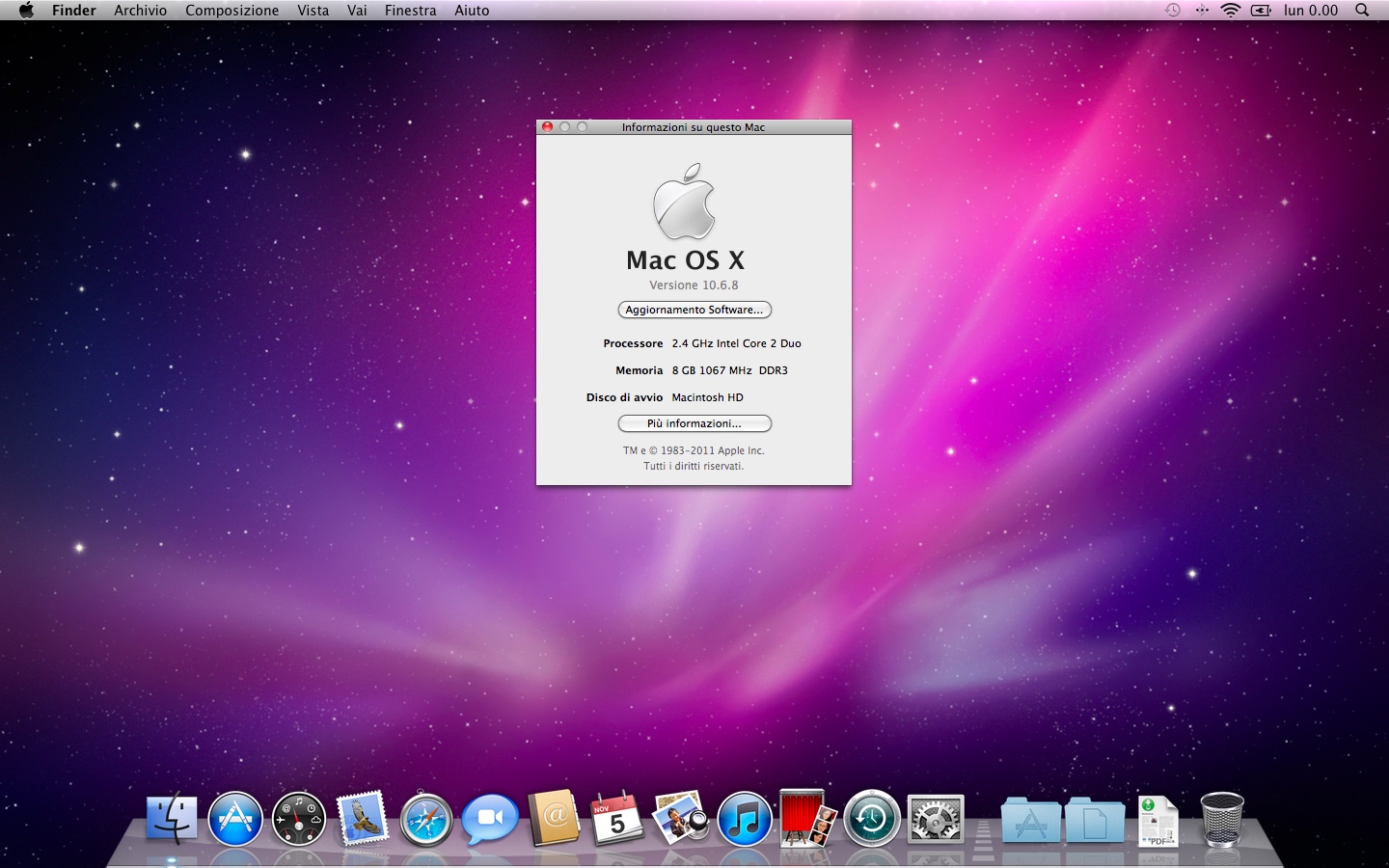
Mac OS X 10.6 Snow Leopard About Dialog (Italian) (2009)
Source: wikipedia.org
That Italian About box is 10.6.8, the last version. Look at the second Dock icon, though. That blue circled A is the Mac App
Store, which arrived in the
10.6.6 update of January 6,
2011, so this machine was still in service well after release.
The Exposé shot is a real desktop, right down to a mail client reporting 4,372 messages.
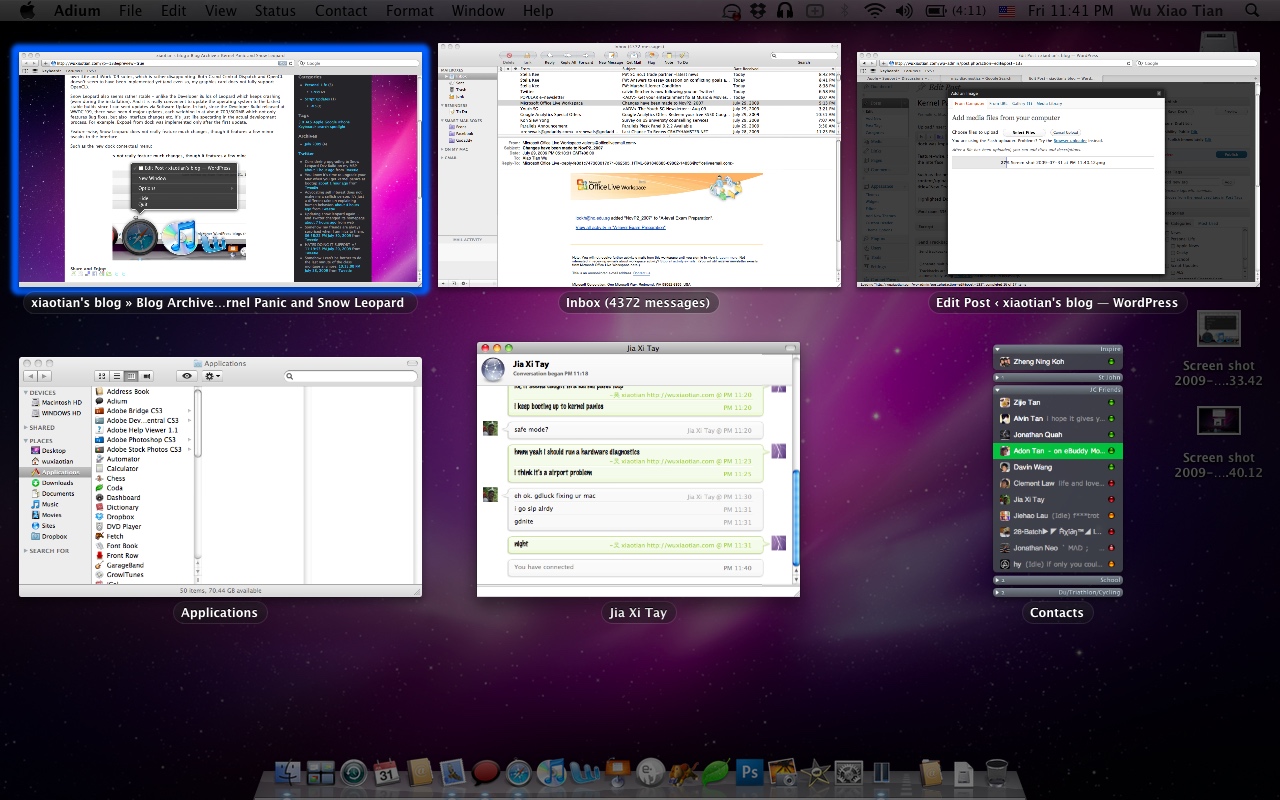
Mac OS X 10.6 Snow Leopard Exposé (2009)
Source: medium.com
The next two were captured minutes apart, and you can date them to the day. The New York Times front page is stamped Wednesday, March 24, 2010, with the Dow at 10,836. Press F12 the same afternoon and Dashboard slides over the top: a calculator, Cupertino at 64 degrees, a flip calendar reading Wednesday 24.
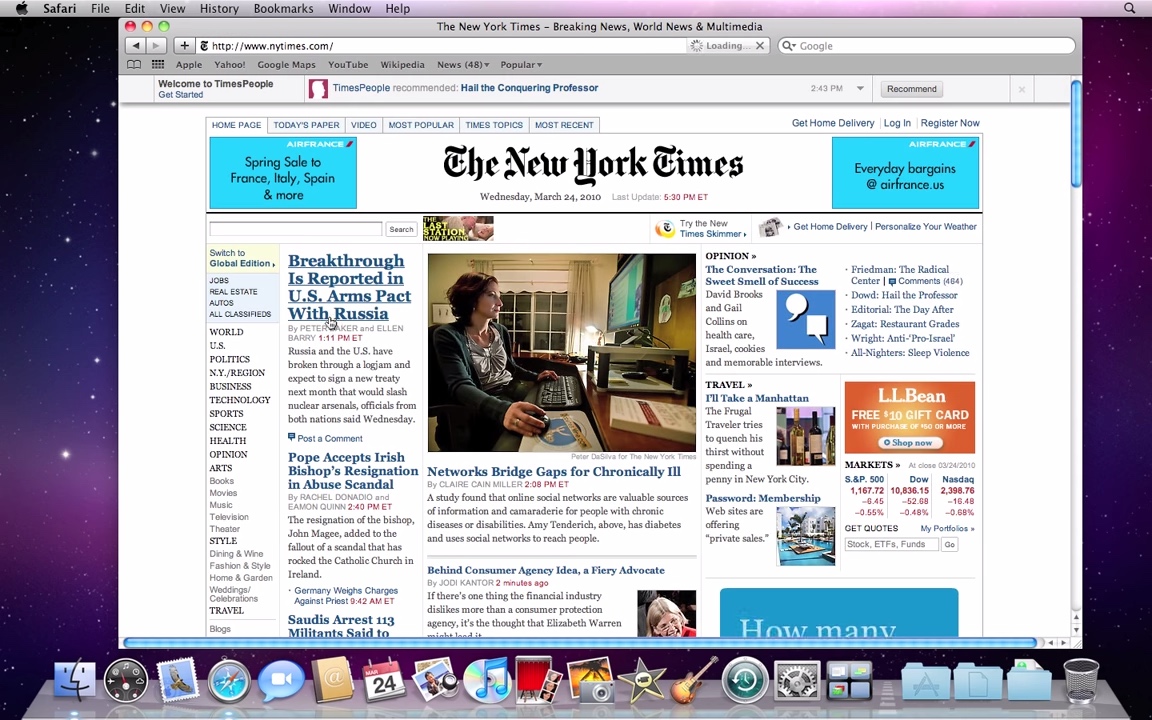
Mac OS X 10.6 Snow Leopard Safari Browser with NY Times Website (2009)
Source: interlacedinc
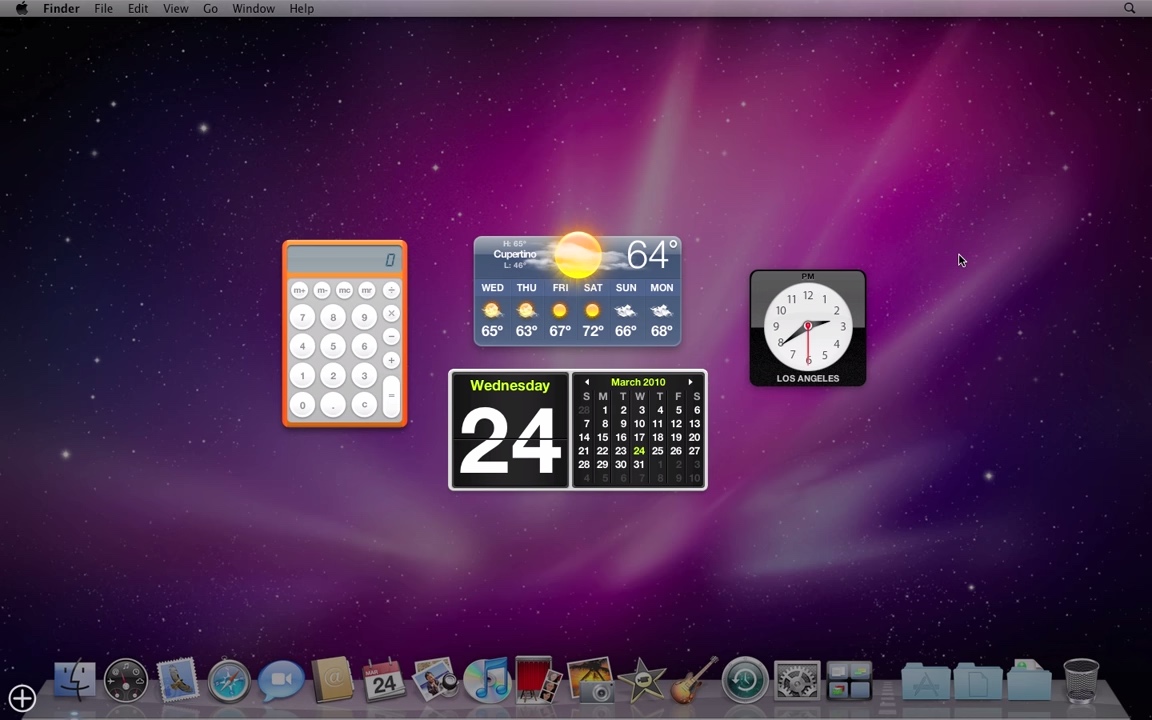
Mac OS X 10.6 Snow Leopard Dashboard Feature (2009)
Source: interlacedinc
Cover Flow came to the Finder from iTunes, and here it is flipping through a folder of desktop pictures, so you are looking at
Mac OS X wallpapers rendered as album art inside Mac OS X. The iDisk in that sidebar is the iTools account, now called MobileMe.
Front Row did not survive. Press the Menu button on the white Apple Remote and the Mac became a television. Lion removed it in 2011.
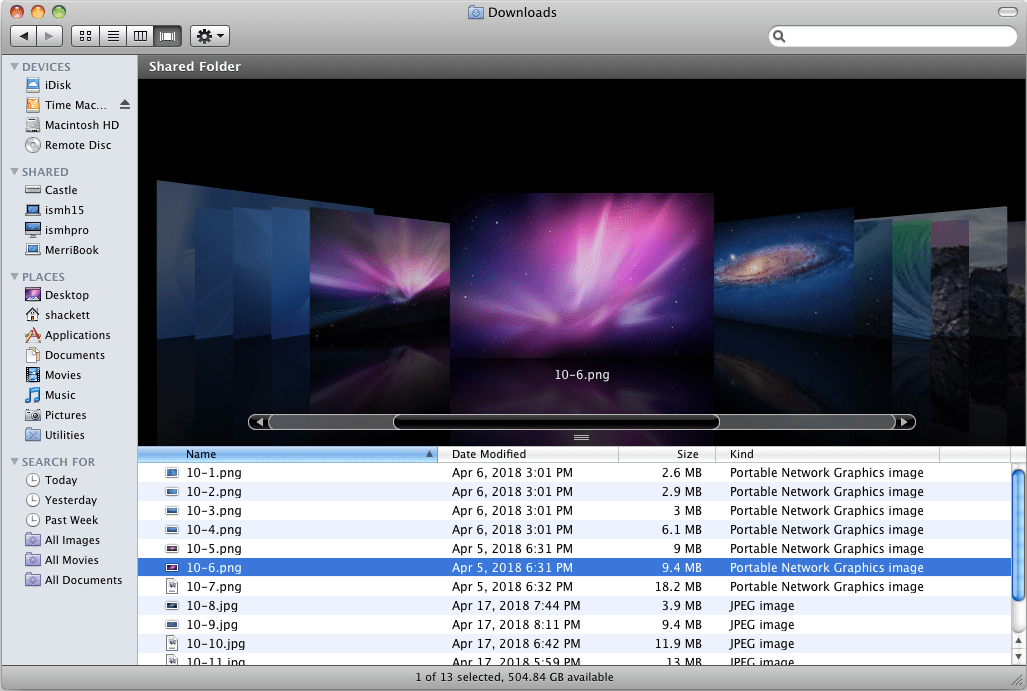
Mac OS X 10.6 Snow Leopard Finder Cover Flow (2009)
Source: 512pixels.net
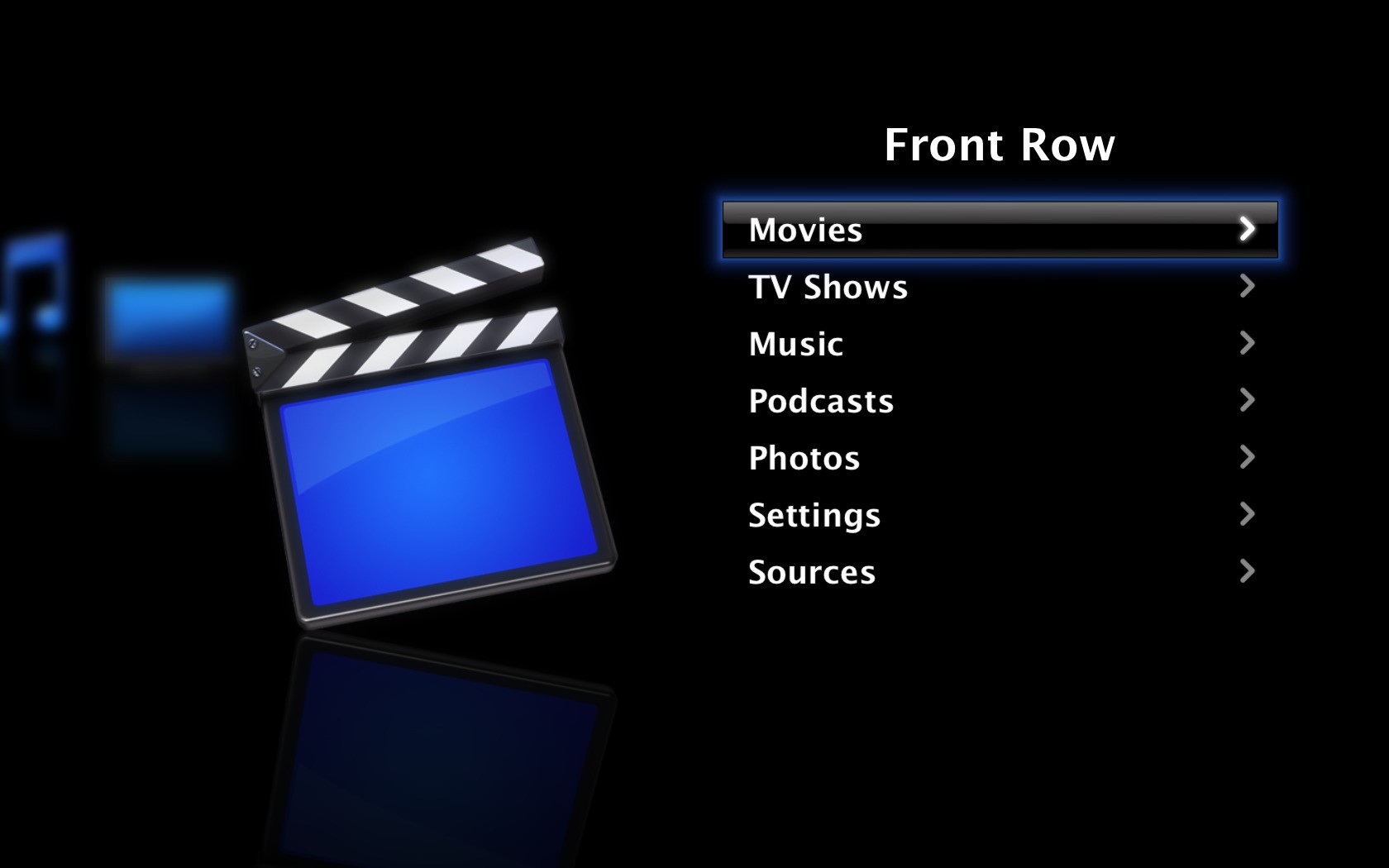
Mac OS X 10.6 Snow Leopard Front Row (2009)
Source: alternativeto.net
System Preferences keeps Panther's four groups with different things inside them. Classic is gone. It was already absent from Leopard, and had never been available on Intel Macs. Where .Mac used to sit, there is now MobileMe. The installer shows a factory fresh copy of Mac OS X breathed to life, in about 30 minutes time.
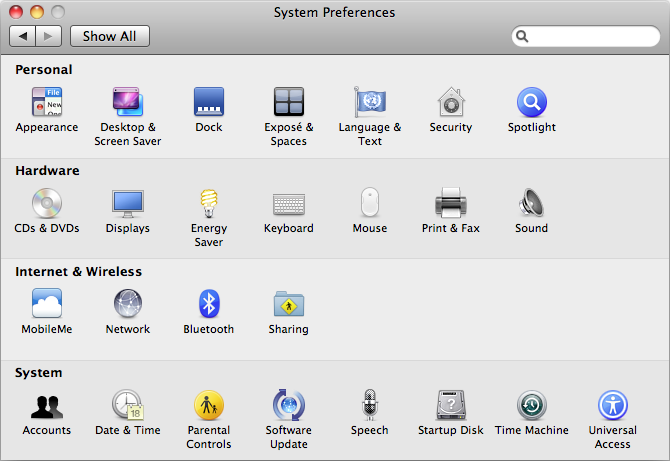
Mac OS X 10.6 Snow Leopard System Preferences (2009)
Source: arstechnica.com
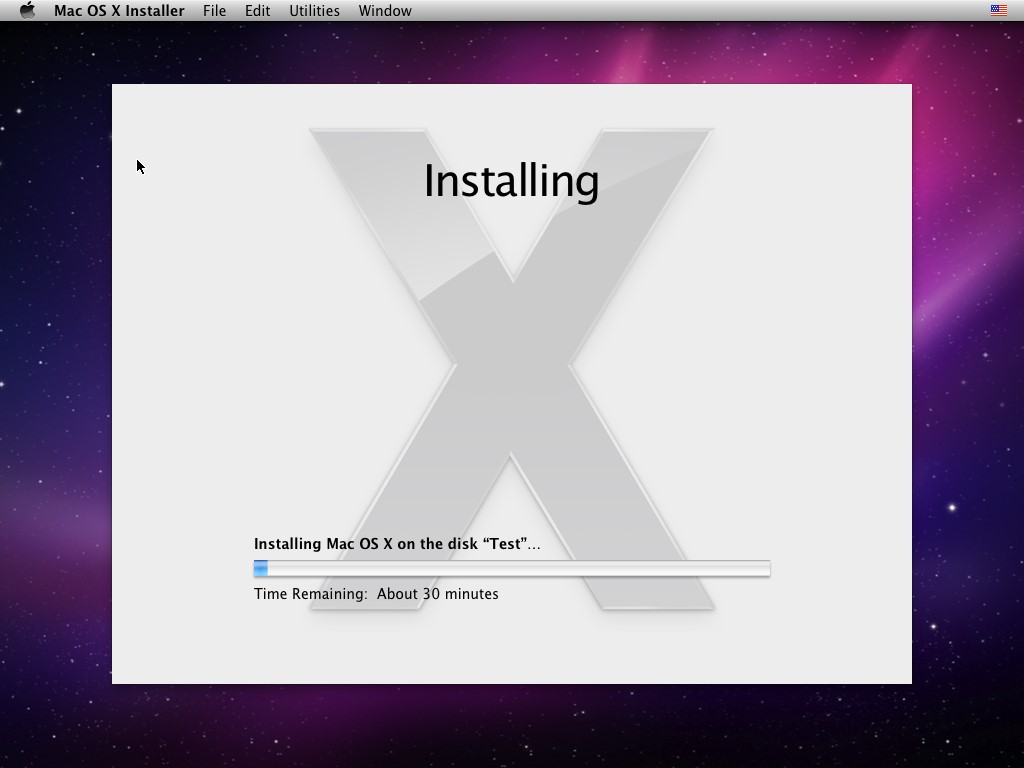
Mac OS X 10.6 Snow Leopard Installer (2009)
Source: totoku.info
Mac OS X 10.9 Mavericks - The Big Cats Run Out (2013)
Lion in 2011 is where Apple brought iPad-inspired software features over to the desktop operating system, with Launchpad, multi-touch gestures, Mission Control and reversed scrolling. Mountain Lion followed in 2012 and quietly dropped Mac from the name, so Mac OS X became OS X. By 2013 the big cats had run out. Mavericks, released October 22, is named after a surf break south of San Francisco, and it was the first major OS X release available as a free download for all compatible Macs.
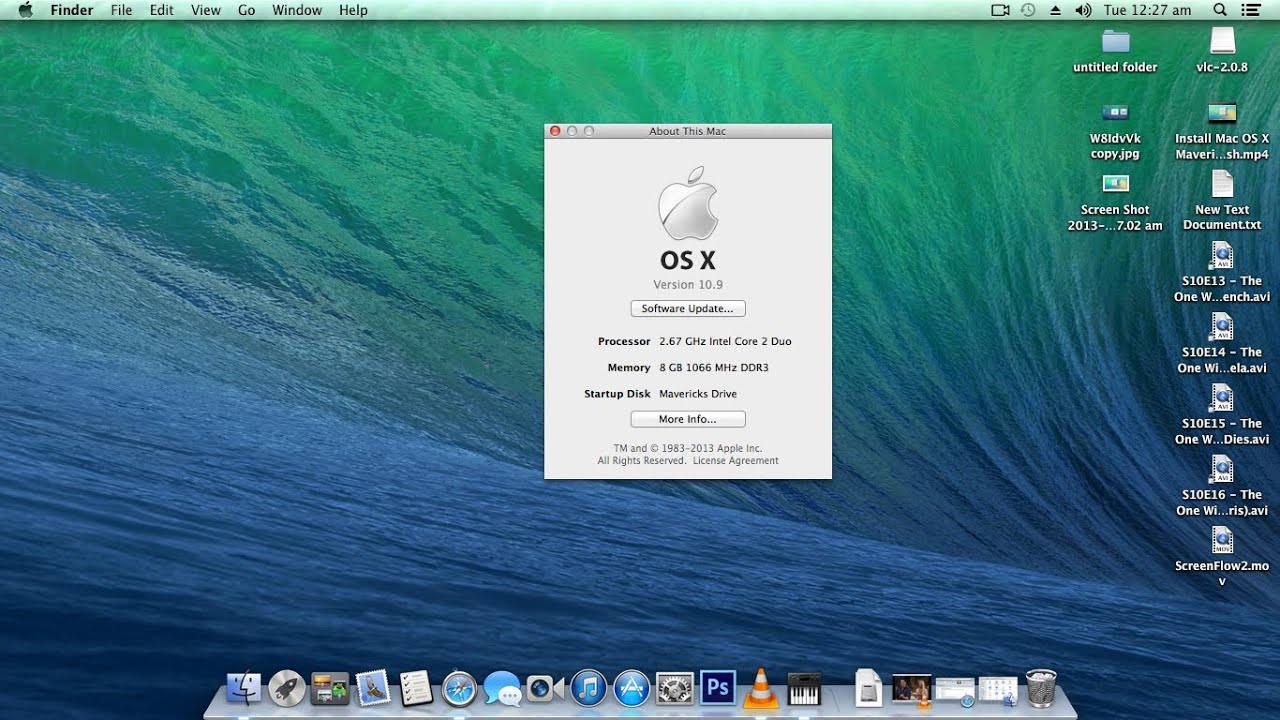
Mac OS X 10.9 Mavericks About Dialog (2013)
Source: dimaspratama20.com
The cluttered desktop below is the best single view of what Mavericks added. The Finder window has tabs across the top and a Tags
section in the sidebar, behind it is iBooks, new to the Mac, and the Calendar has lost its stitched leather.
Launchpad's Other folder is a museum shelf in itself: Grapher, X11, AppleScript Editor, and Grab, the screenshot utility running in two
of the Cheetah shots above.
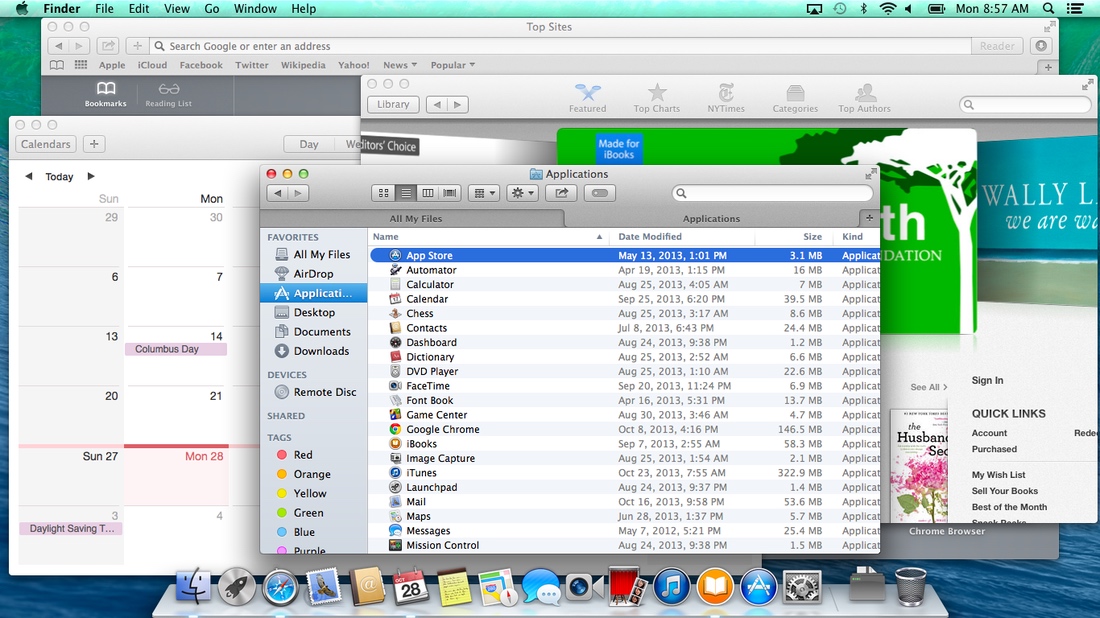
Mac OS X 10.9 Mavericks Desktop (2013)
Source: theverge.com
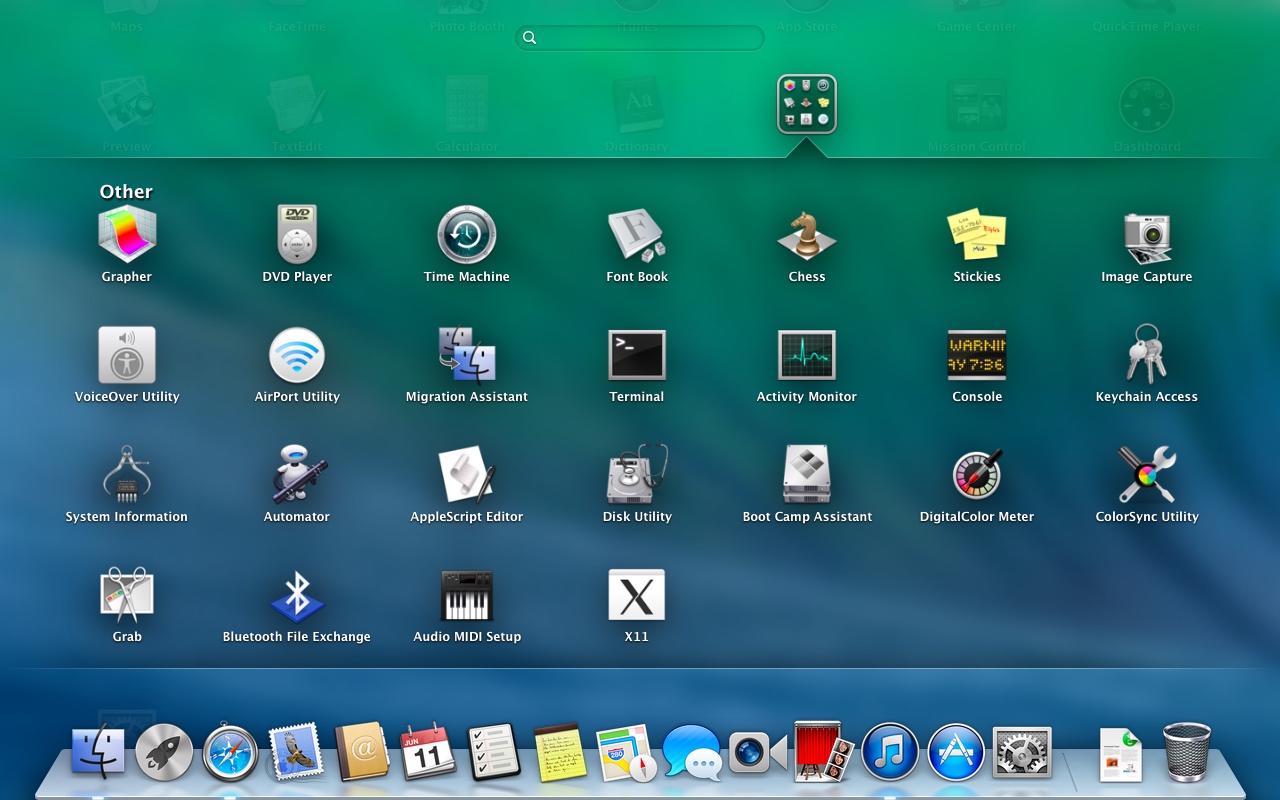
Mac OS X 10.9 Mavericks Launchpad (2013)
Source: 9to5mac.com
Top Sites had spent four years as a curved wall of pages floating in space, and Mavericks flattened it into a plain grid of twelve, including Apple, iCloud, Facebook, Twitter, Wikipedia, AllThingsD, BBC, CNN and eBay. The Apple tile is showing an iOS 7 announcement, and the menu clock and the Calendar year view both read Tuesday, June 11, 2013, the morning after the WWDC keynote that introduced Mavericks.
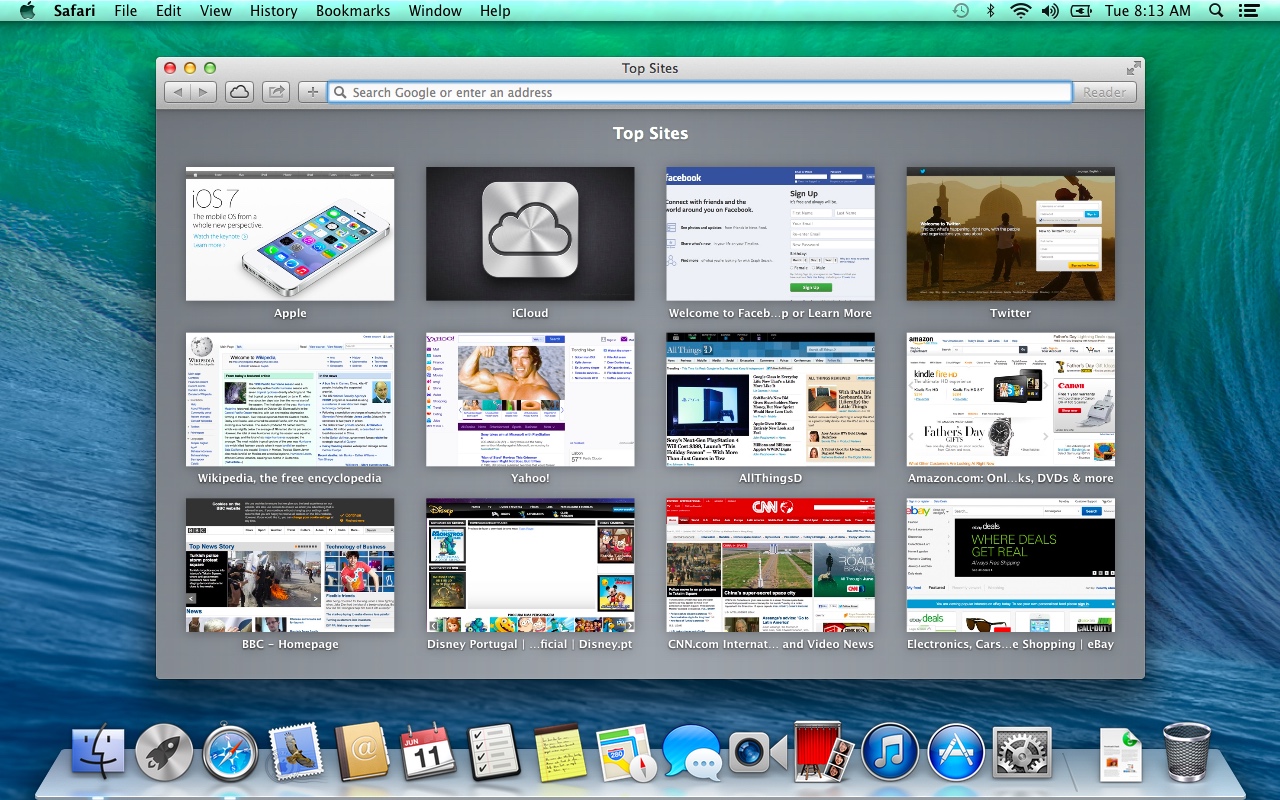
Mac OS X 10.9 Mavericks Safari Browser Top Sites (2013)
Source: 9to5mac.com
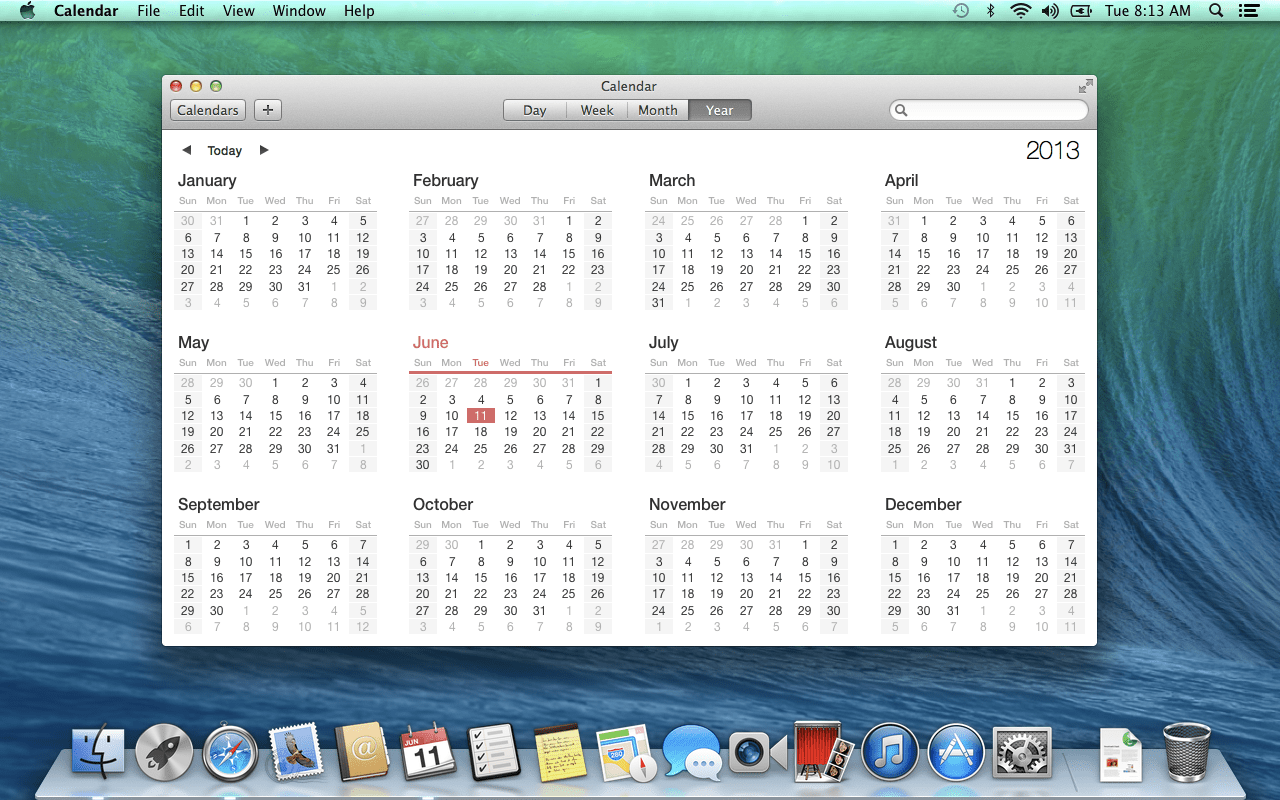
Mac OS X 10.9 Mavericks Calendar (2013)
Source: 9to5mac.com
Maps arrived on the Mac roughly a year after the iOS version launched badly enough that Tim Cook published an apology. The demo route is a nice bit of self-regard: Apple Store, Fifth Avenue to Apple Store, SoHo, 3.3 miles down Broadway. The satellite shot is Flyover, tilted over the San Francisco financial district.
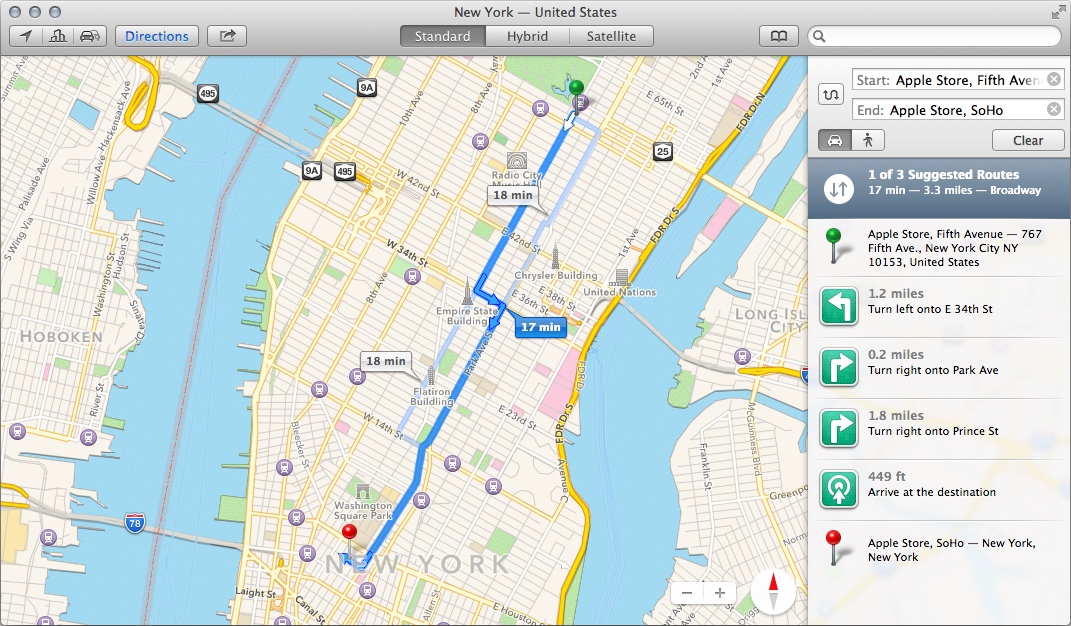
Mac OS X 10.9 Mavericks Apple Maps Standard Imagery (2013)
Source: thesweetsetup.com
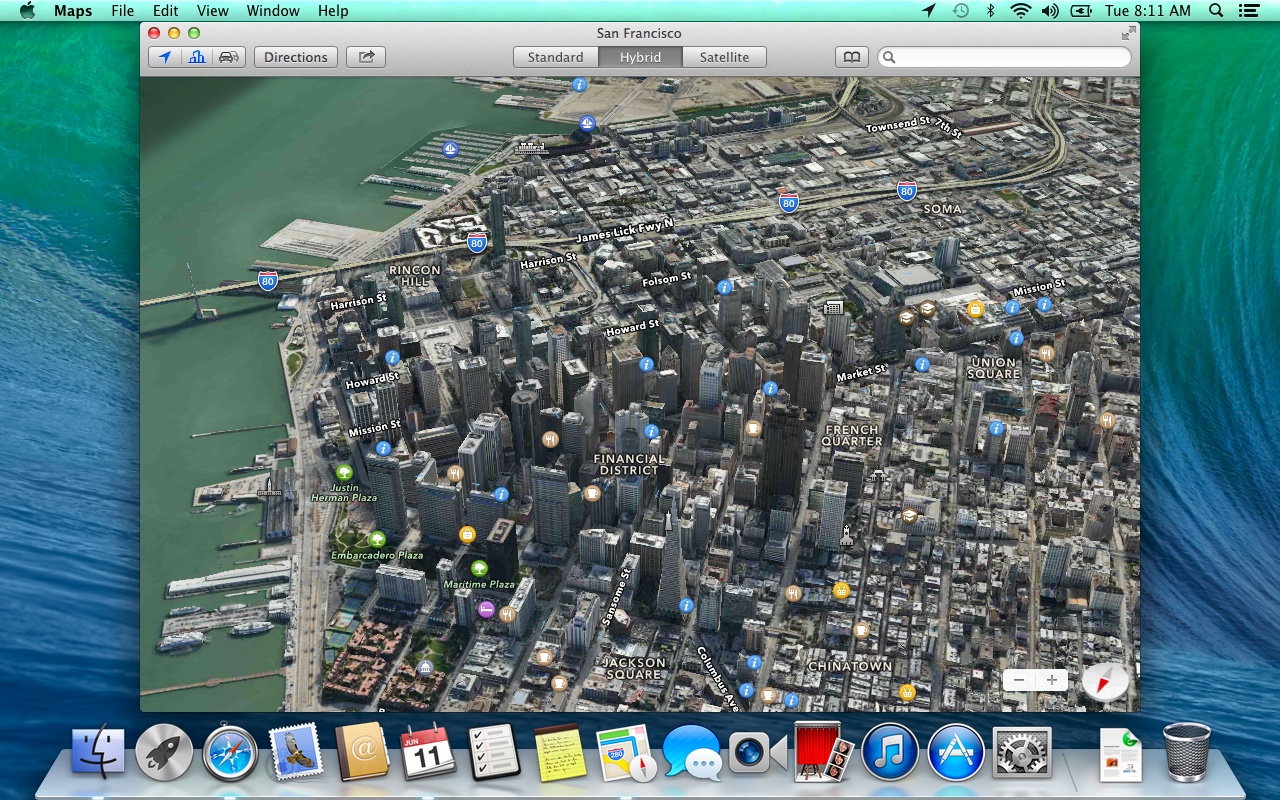
Mac OS X 10.9 Mavericks Apple Maps Satellite Imagery (2013)
Source: 9to5mac.com
Panther's four group headings have been deleted from System Preferences, and there in the third band is iCloud, the iTools box on its fourth name. The installer is no longer a disc. It is a free download with a woven green X in the middle of it.
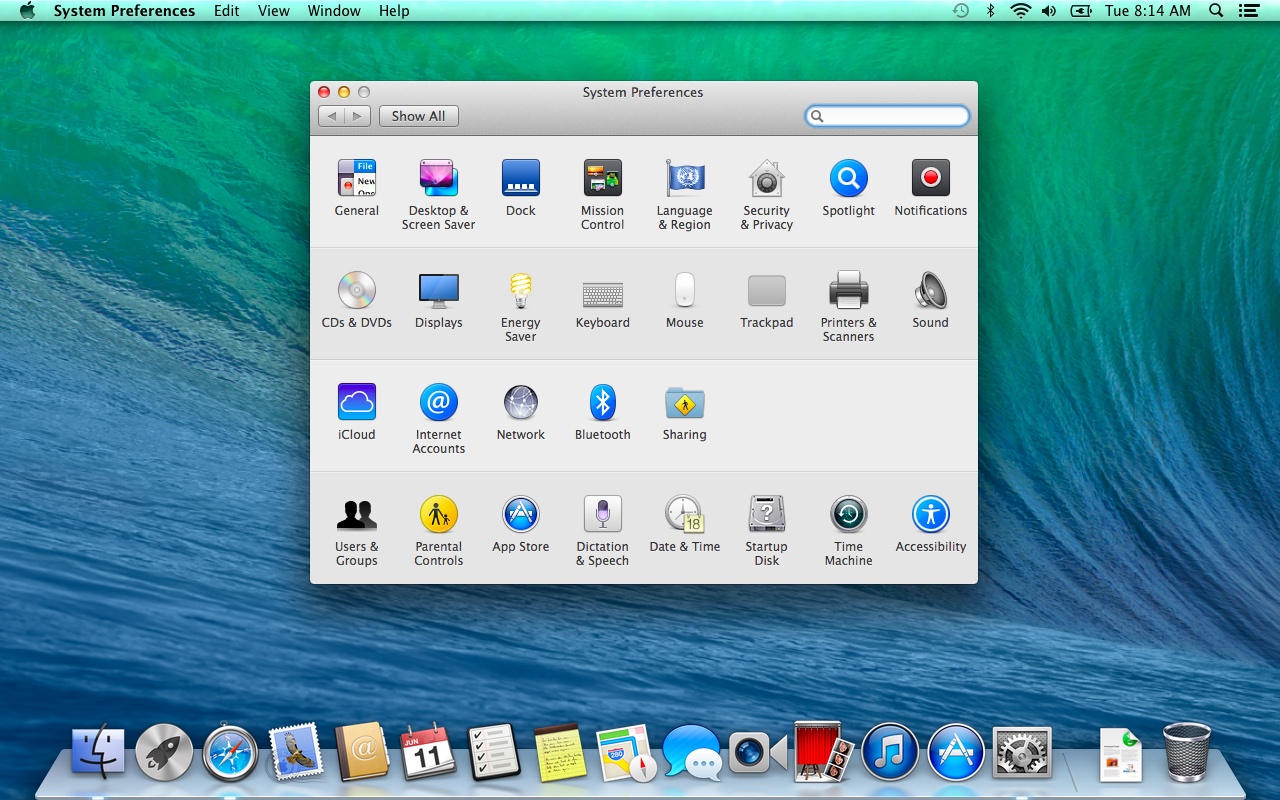
Mac OS X 10.9 Mavericks System Preferences (2013)
Source: 9to5mac.com
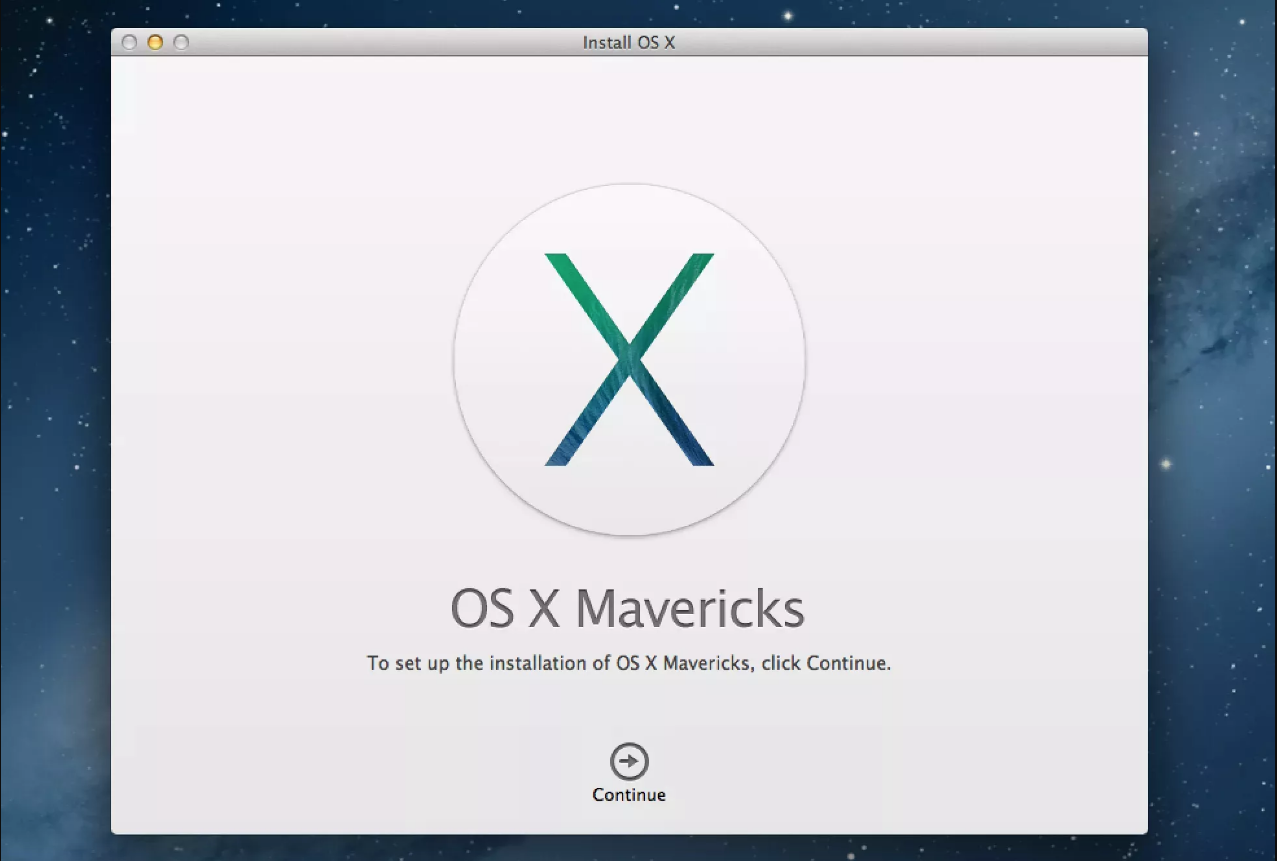
Mac OS X 10.9 Mavericks Installation Screen (2013)
Source: lifewire.com
Mac OS X 10.10 Yosemite - Flat Design, and Your iPhone on Your Desk (2014)
Yosemite is the biggest visual break here. iOS 7 had gone flat the year before and the Mac followed on October 16, 2014. Gradients out, translucency in, Lucida Grande replaced by Helvetica Neue, and a Dock that stopped being a sheet of glass receding into the desk.
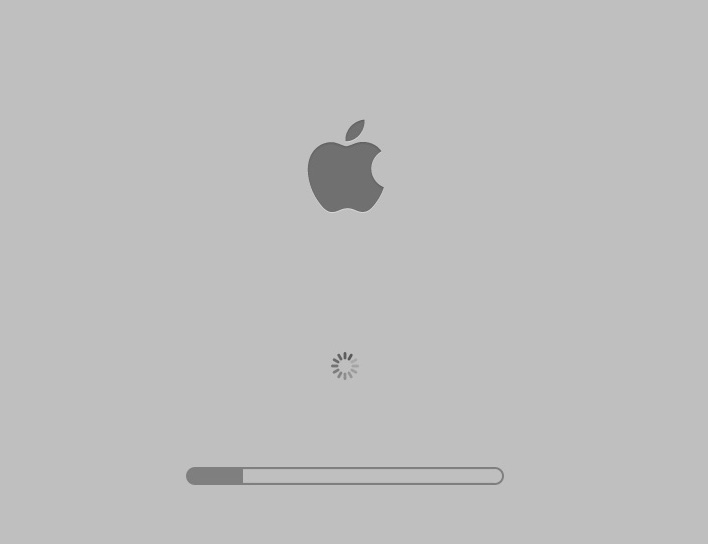
Mac OS X 10.10 Yosemite Loading Screen (2014)
Source: idownloadblog.com
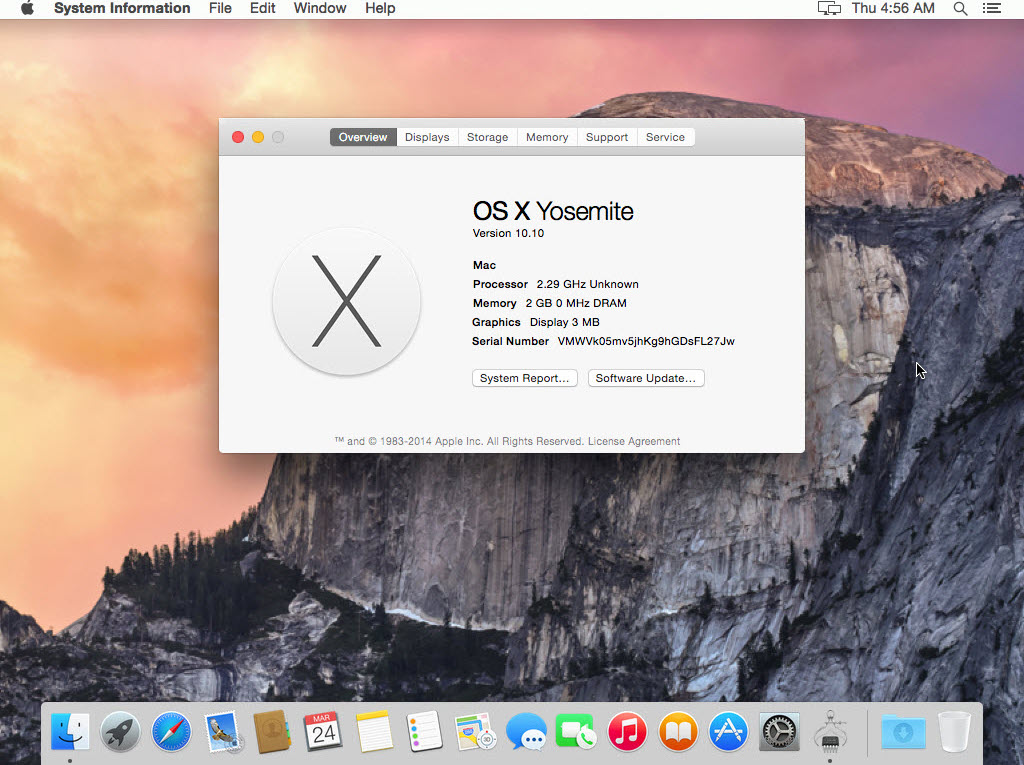
Mac OS X 10.10 Yosemite Desktop and System Information Dialog (2014)
Source: tactig.com
The dark panel below is the Today view, and the date on it is Thursday, October 16th, the day Yosemite was released. A reviewer's
machine on launch day.
Under it, the payoff to a fourteen-year thread: iCloud Drive in the Finder sidebar as an ordinary folder. The iTools sign-up sheet from
the Cheetah section finally had a home in the Finder sidebar.
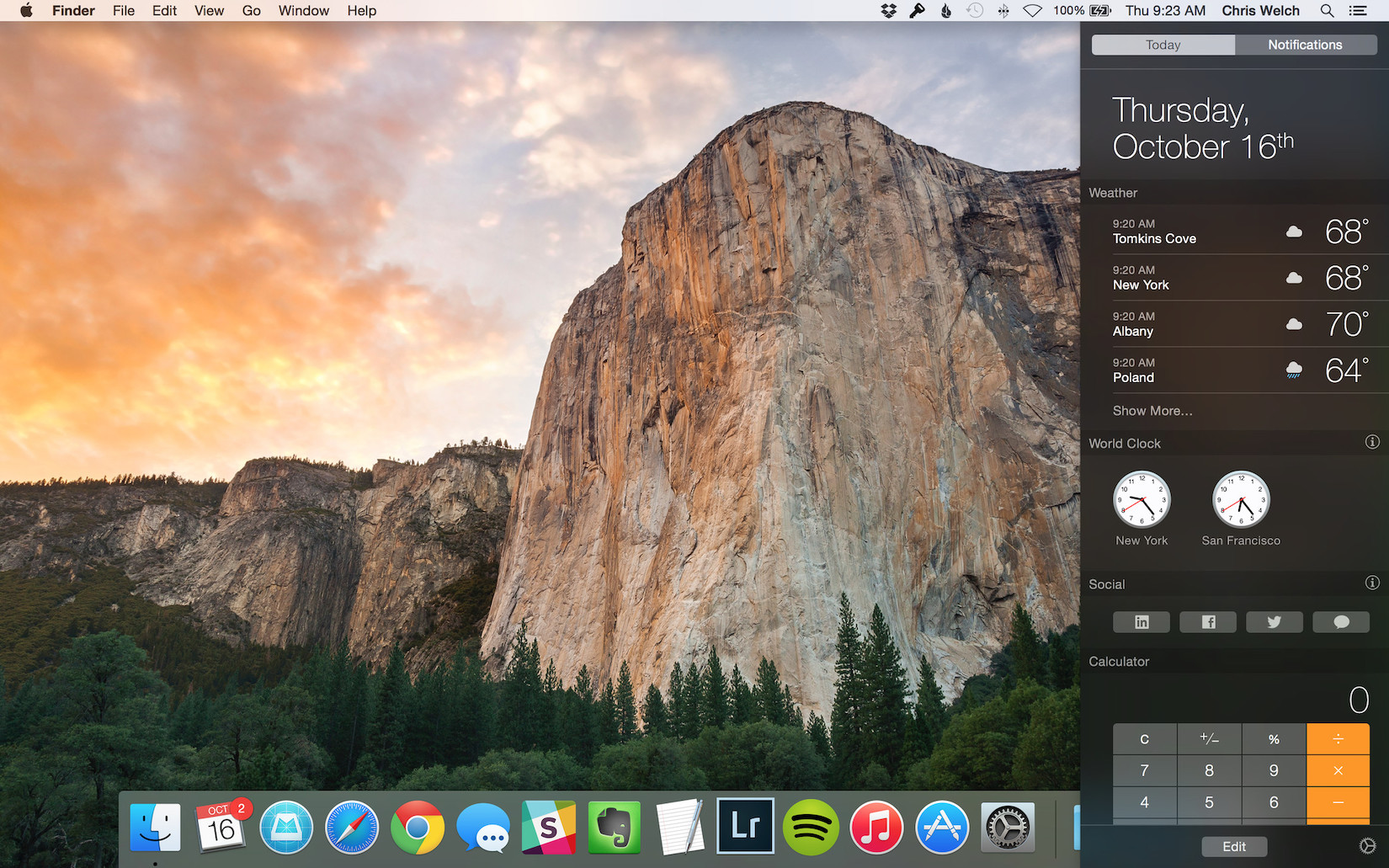
Mac OS X 10.10 Yosemite Today Desktop Feature (2014)
Source: theverge.com
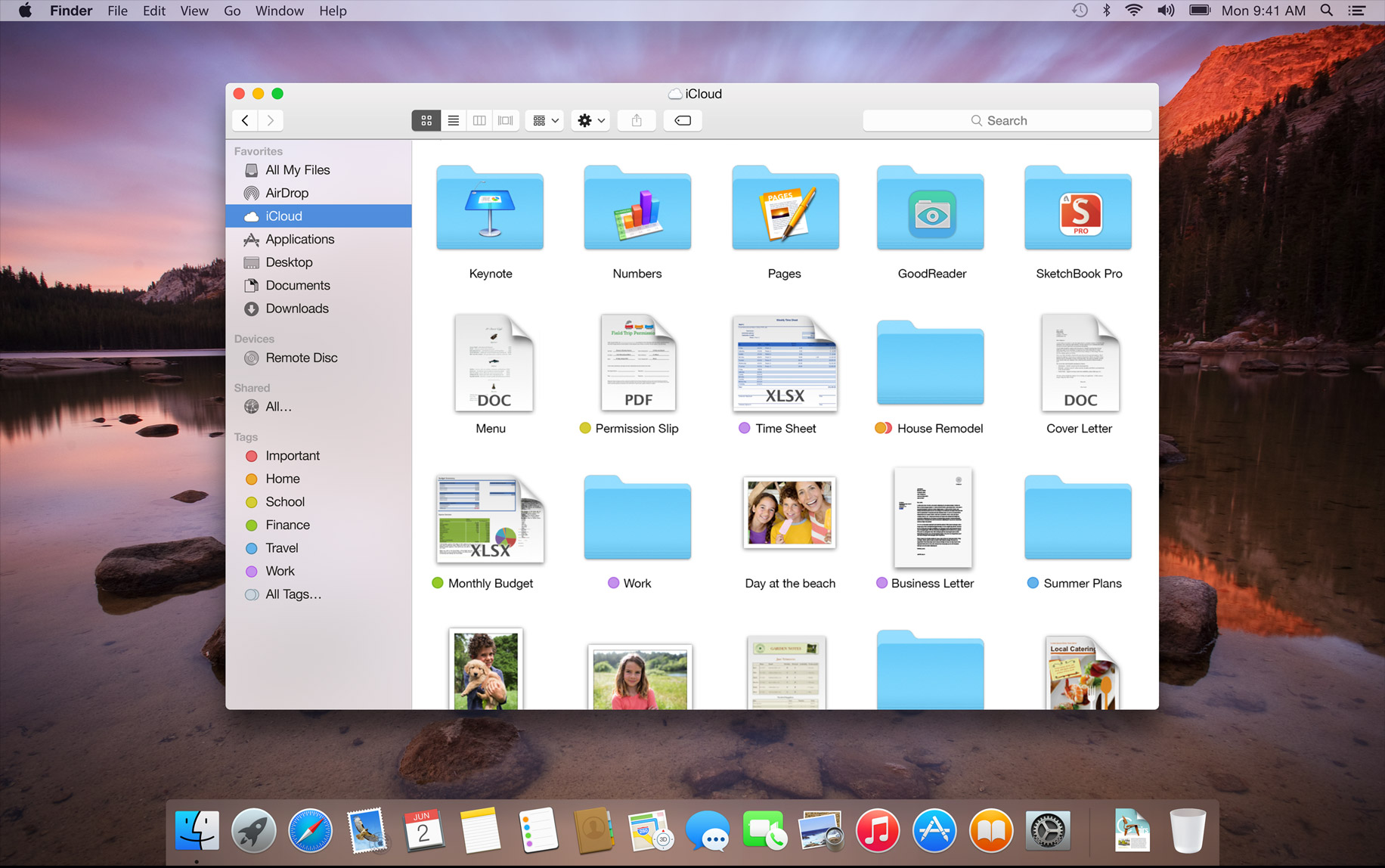
Mac OS X 10.10 Yosemite iCloud in Finder (2014)
Source: osxdaily.com
Watch the translucency in the Messages shot. The Safari toolbar behind it is blurring whatever sits underneath, which is
Yosemite's whole argument in one detail.
The window after it is Safari's tab overview, and the interesting part is the bottom, where tabs are shared between the desktop OS, iPhone, and iPad. Continuity is also why the FaceTime window has a telephone handset beside every name.
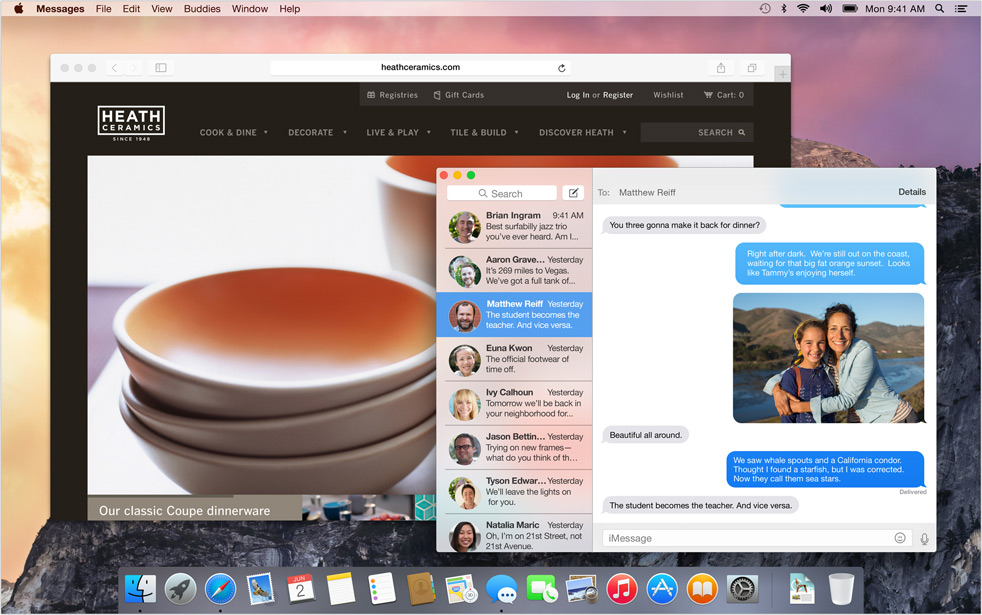
Mac OS X 10.10 Yosemite Safari and Messages (2014)
Source: osxdaily.com
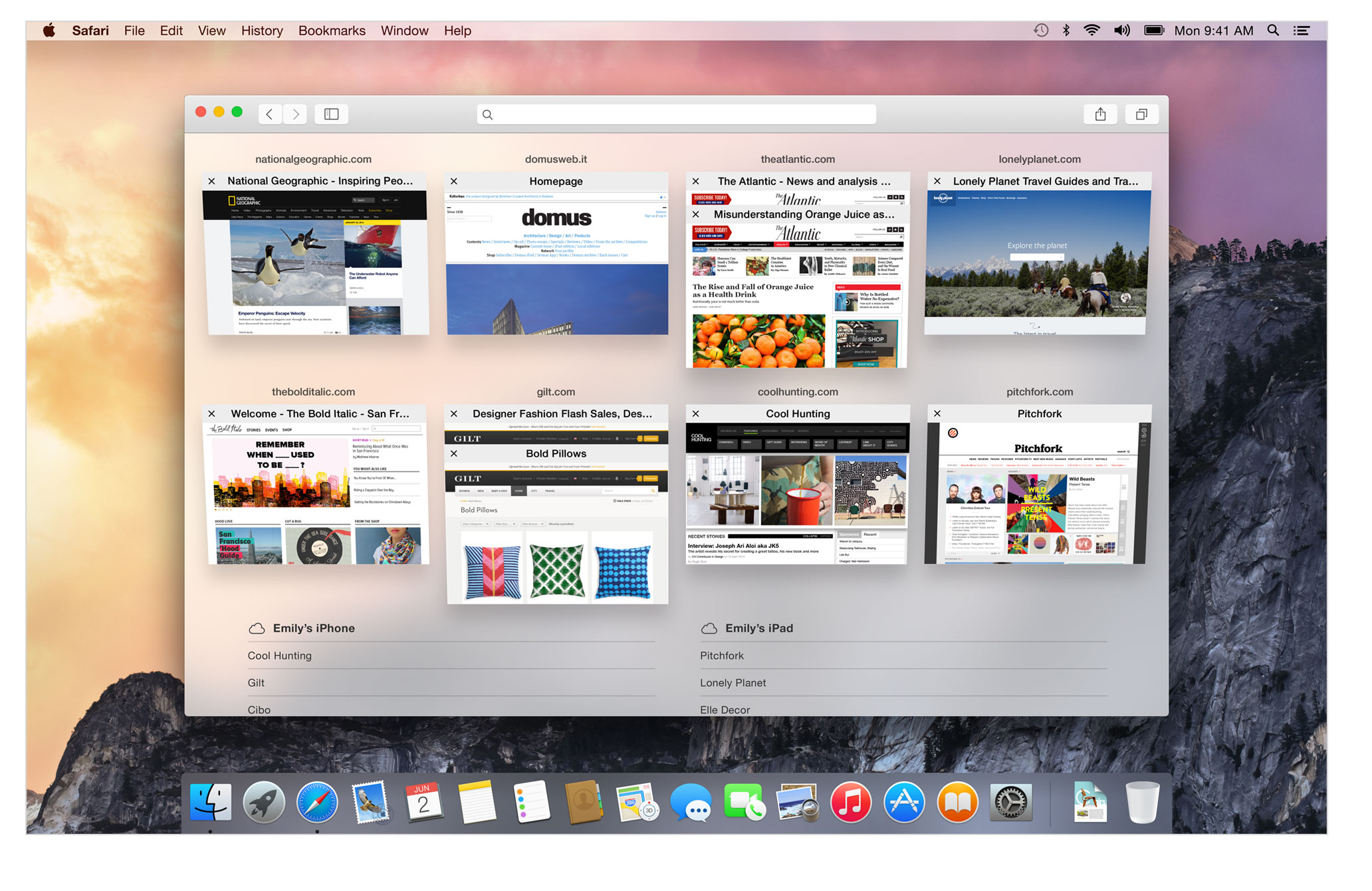
Mac OS X 10.10 Yosemite Safari Top Sites (2014)
Source: osxdaily.com
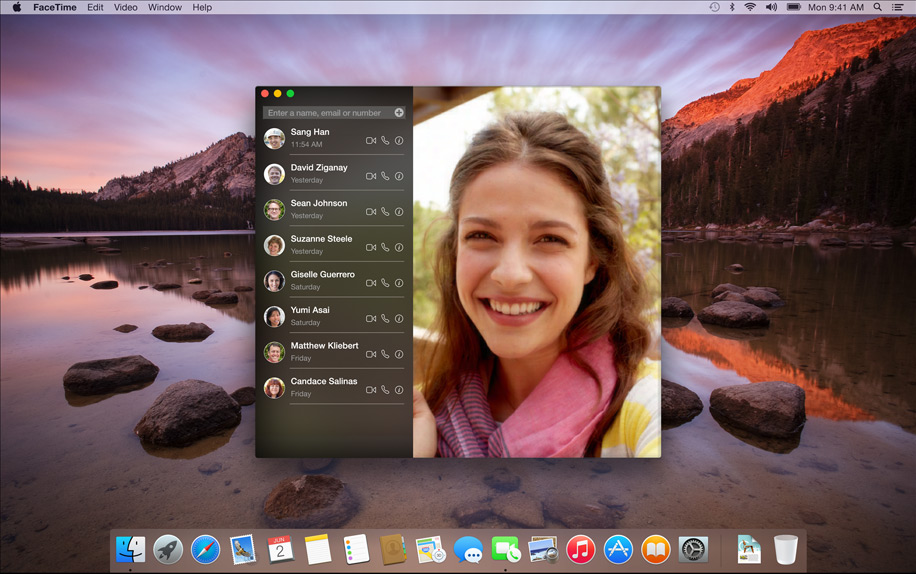
Mac OS X 10.10 Yosemite FaceTime App (2014)
Source: osxdaily.com
Spotlight moved. For ten years it had dropped out of the magnifying glass in the corner as a list of filenames. Yosemite floated
it in the middle of the screen with a preview panel, so searching for a document shows you the document. Compare the Sherlock window near
the top of this page, which could not finish indexing the disk.
System Preferences keeps its shape with flat artwork and one new pane, Extensions. The installer runs inside the old system, which is why
there is a Mavericks wave behind it.
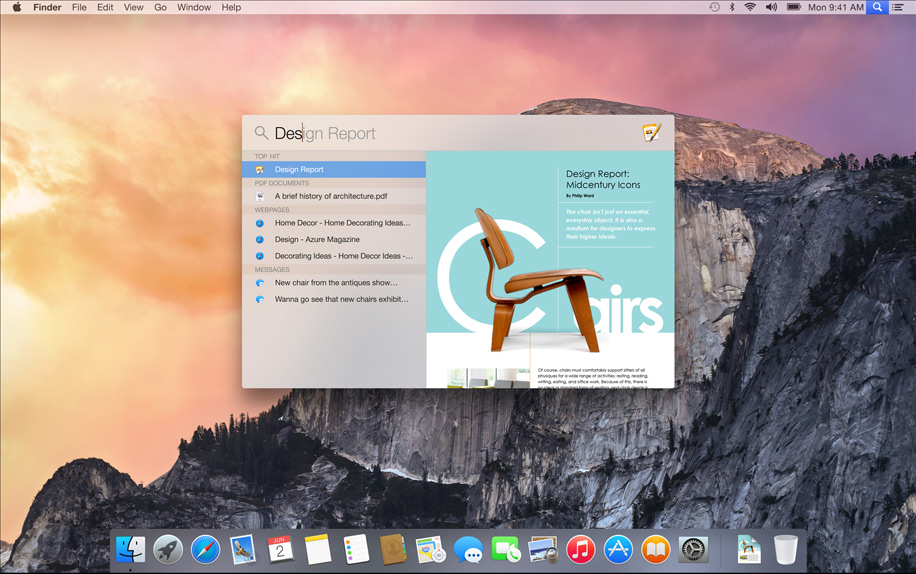
Mac OS X 10.10 Yosemite Spotlight Search (2014)
Source: osxdaily.com
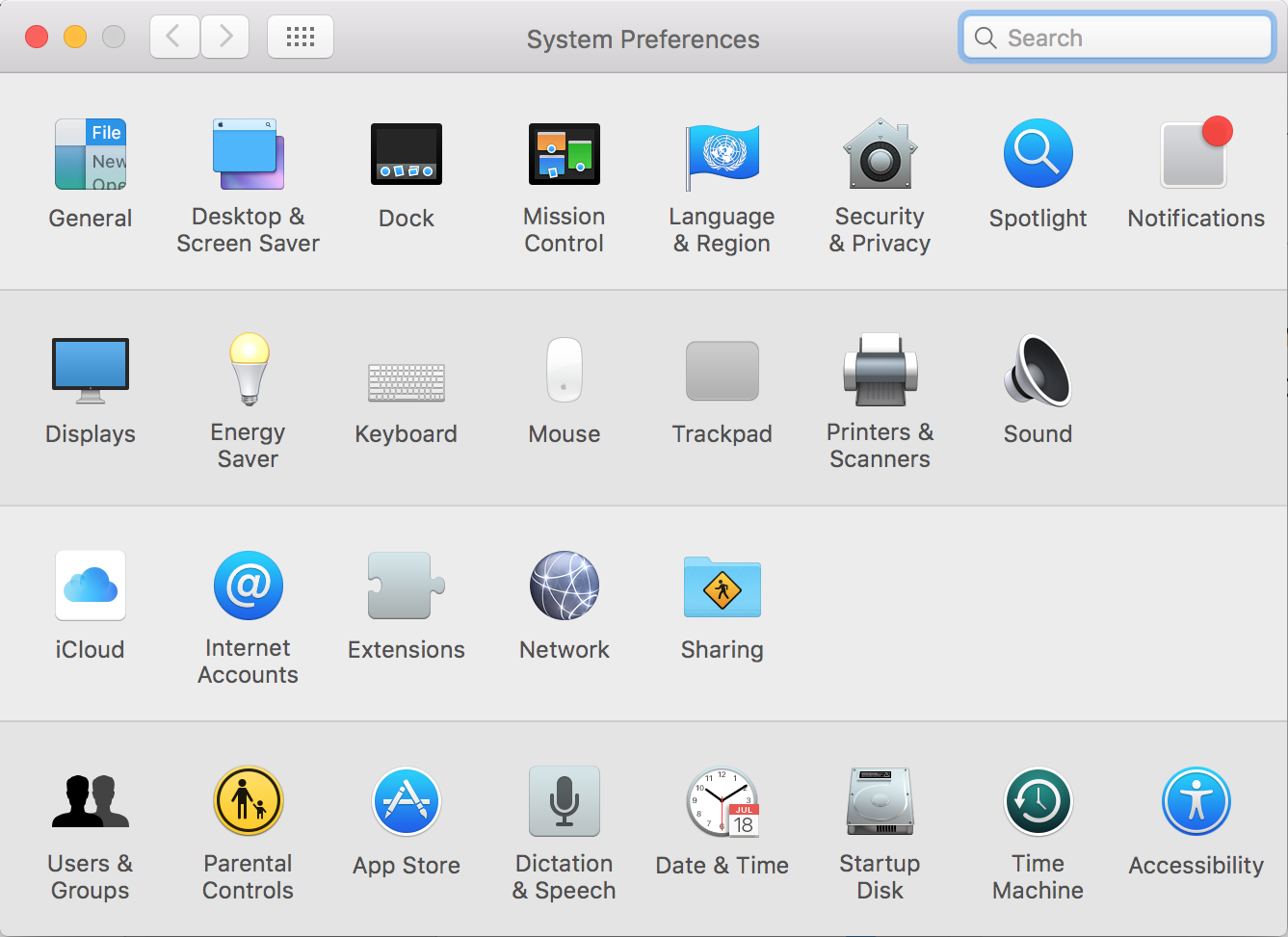
Mac OS X 10.10 Yosemite System Preferences (2014)
Source: apple.com
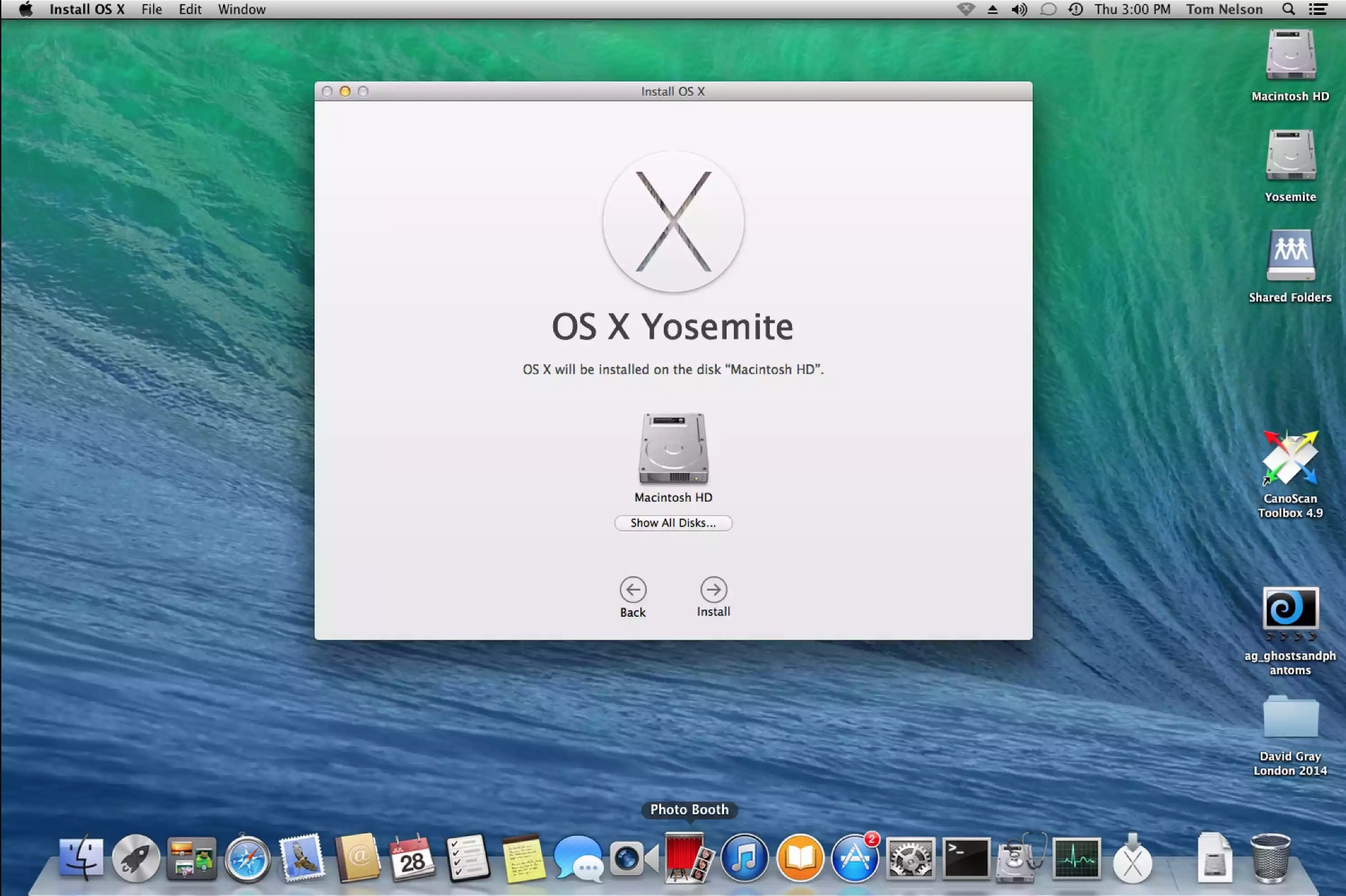
Mac OS X 10.10 Installation Screen (2014)
Source: lifewire.com
macOS 10.14 Mojave - Hello Dark Mode (2018)
Three releases fill this gap. El Capitan in 2015 replaced Helvetica Neue with Apple's own San Francisco typeface. Sierra in 2016 brought Siri to the desktop and renamed the system macOS, closing out sixteen years of the letter X. High Sierra in 2017 began moving Macs to APFS, Apple's new filesystem. Mojave, released September 24, 2018, is the one people remember, because it turned the lights off.
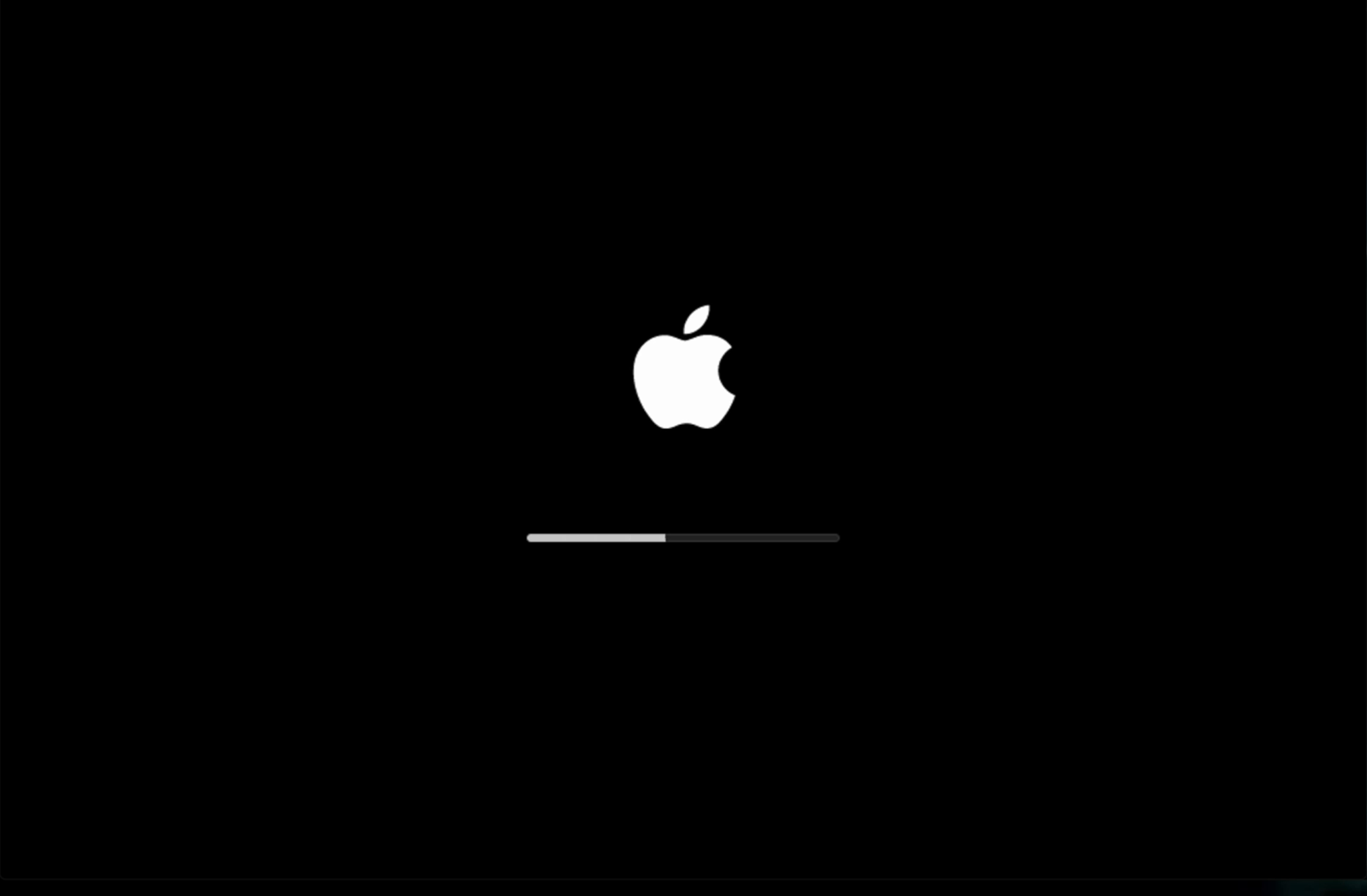
macOS 10.14 Mojave Bootup Screen (2018)
Source: geekrar.com
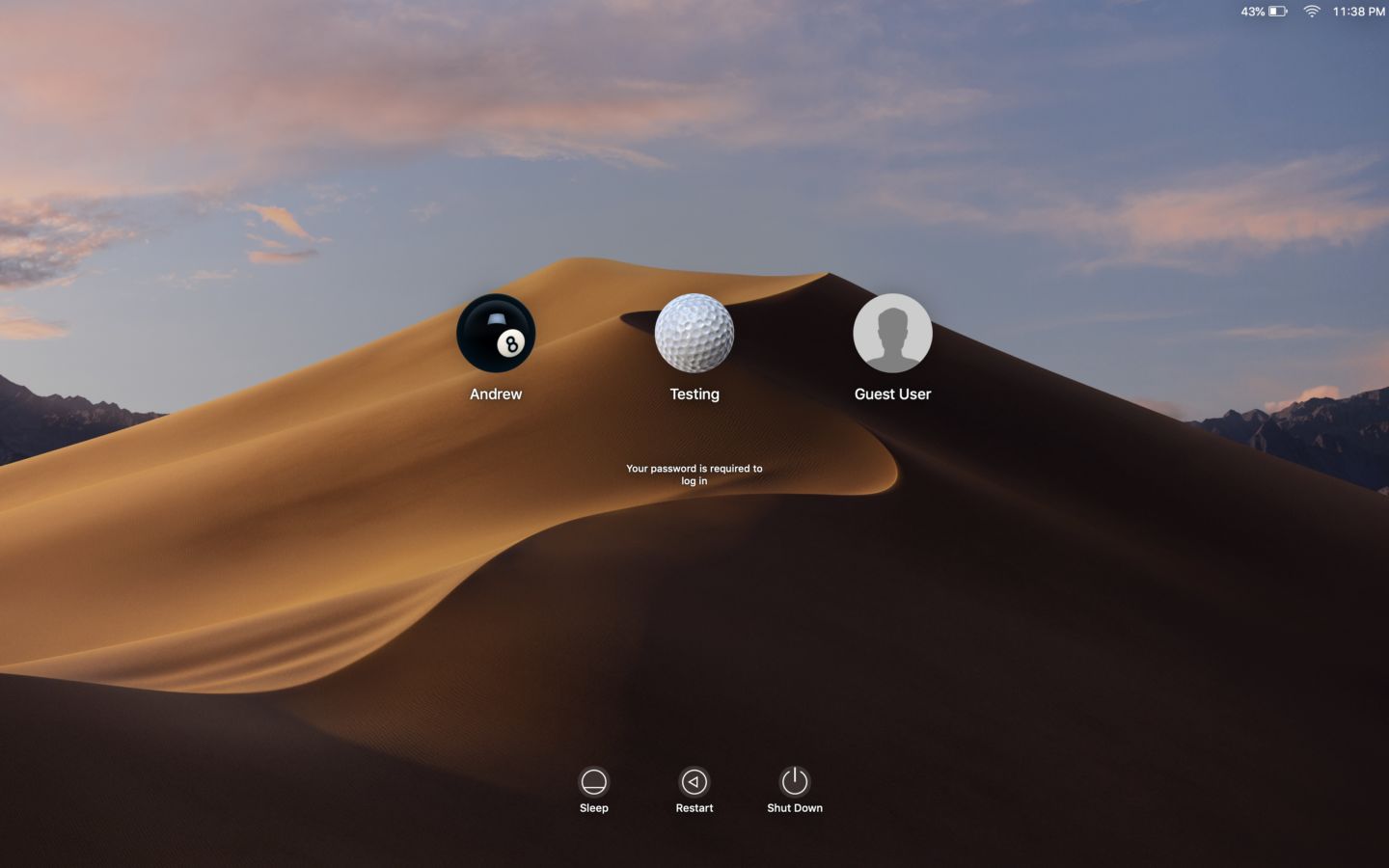
macOS 10.14 Mojave Login Screen (2018)
Source: arstechnica.com
Set that dark About window against the Cheetah one at the top of the page. Same dialog, same job, eighteen years apart, and the
pinstripes have become a charcoal panel over a dune at night.
The desktop under it is dated Wednesday, June 6, two days after the
WWDC keynote
that introduced Mojave.
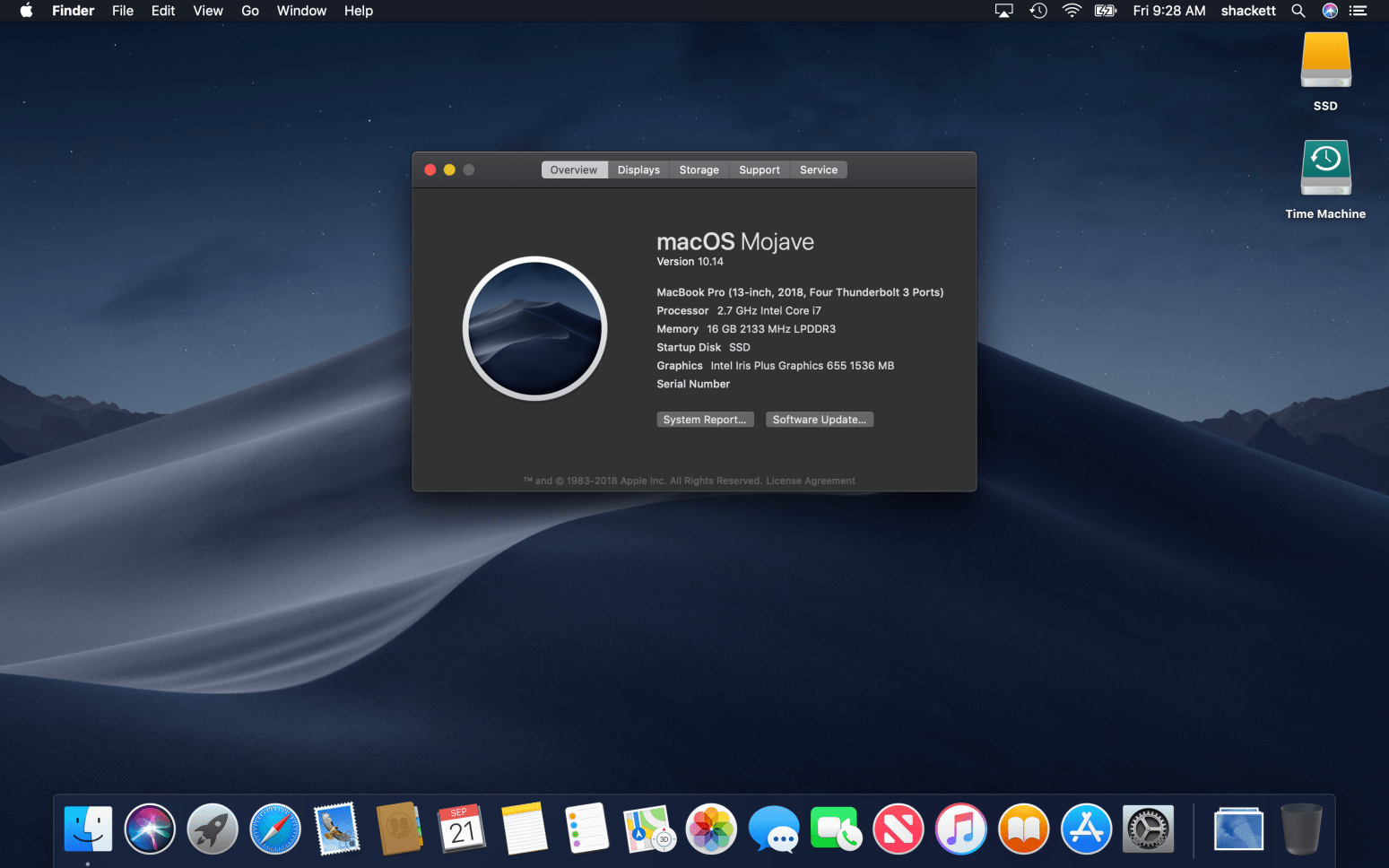
macOS 10.14 Mojave About Dialog (2018)
Source: 512pixels.net
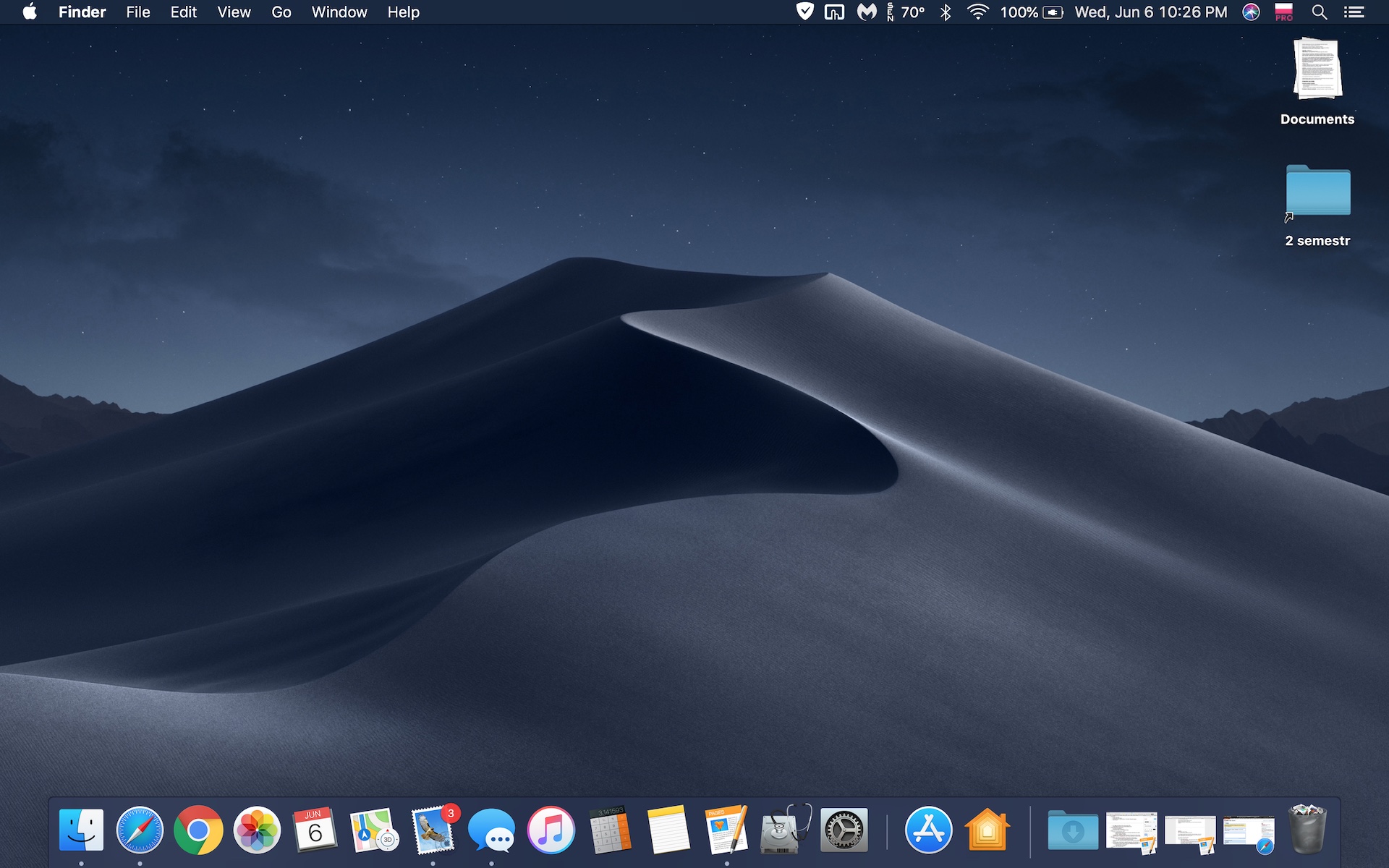
macOS 10.14 Mojave Dark Mode Desktop (2018)
Source: reddit.com
Dark mode mattered enough that Apple moved the question into the setup assistant. Before you reach your desktop for the first time, Mojave stops and asks you to choose your look, with two little mockups of the same dune under two paint jobs. The dark desktop above and the light desktop below show that choice played out, the same sand once at night and once at noon.
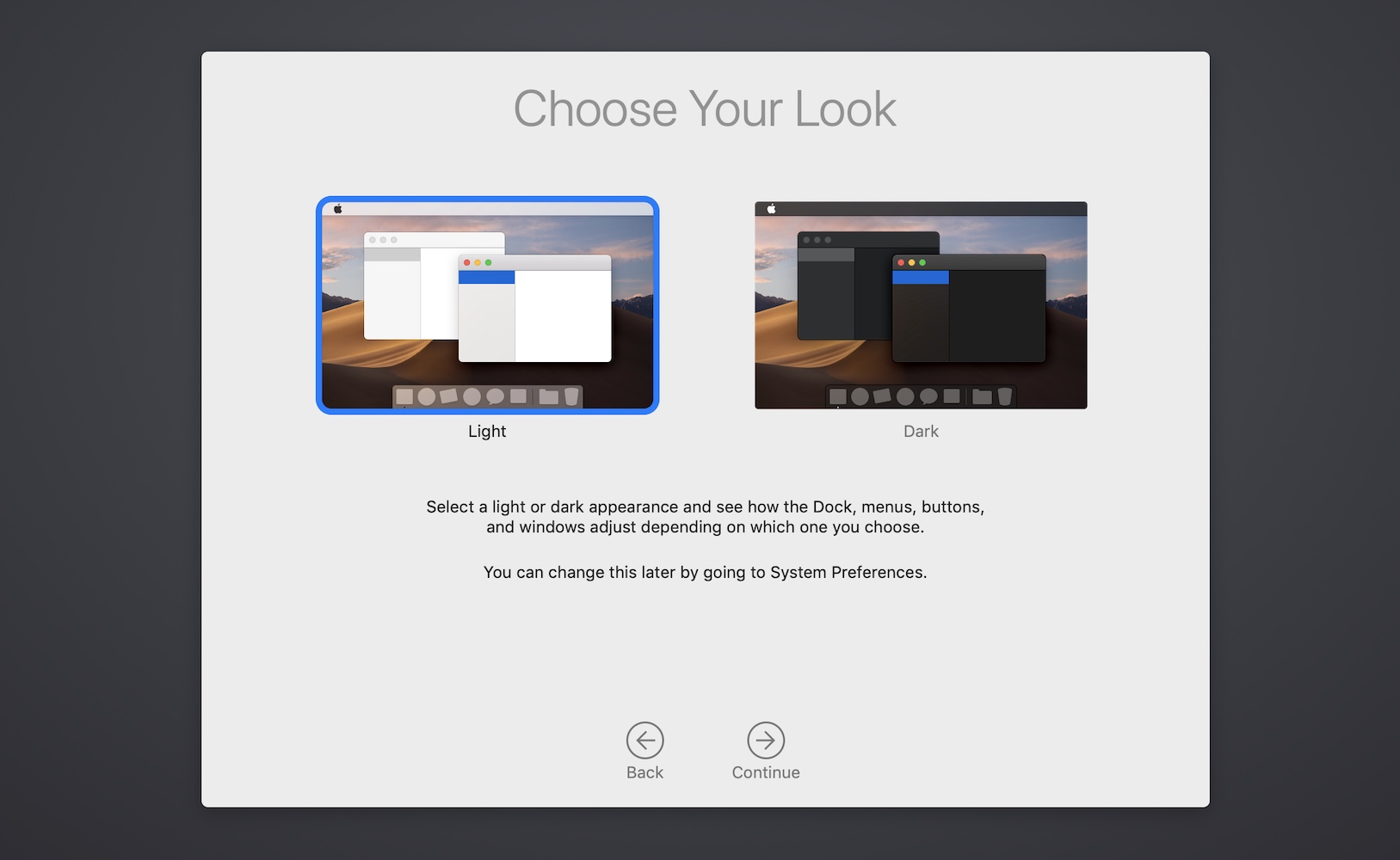
macOS 10.14 Light/Dark Mode Chooser (2018)
Source: Version Museum
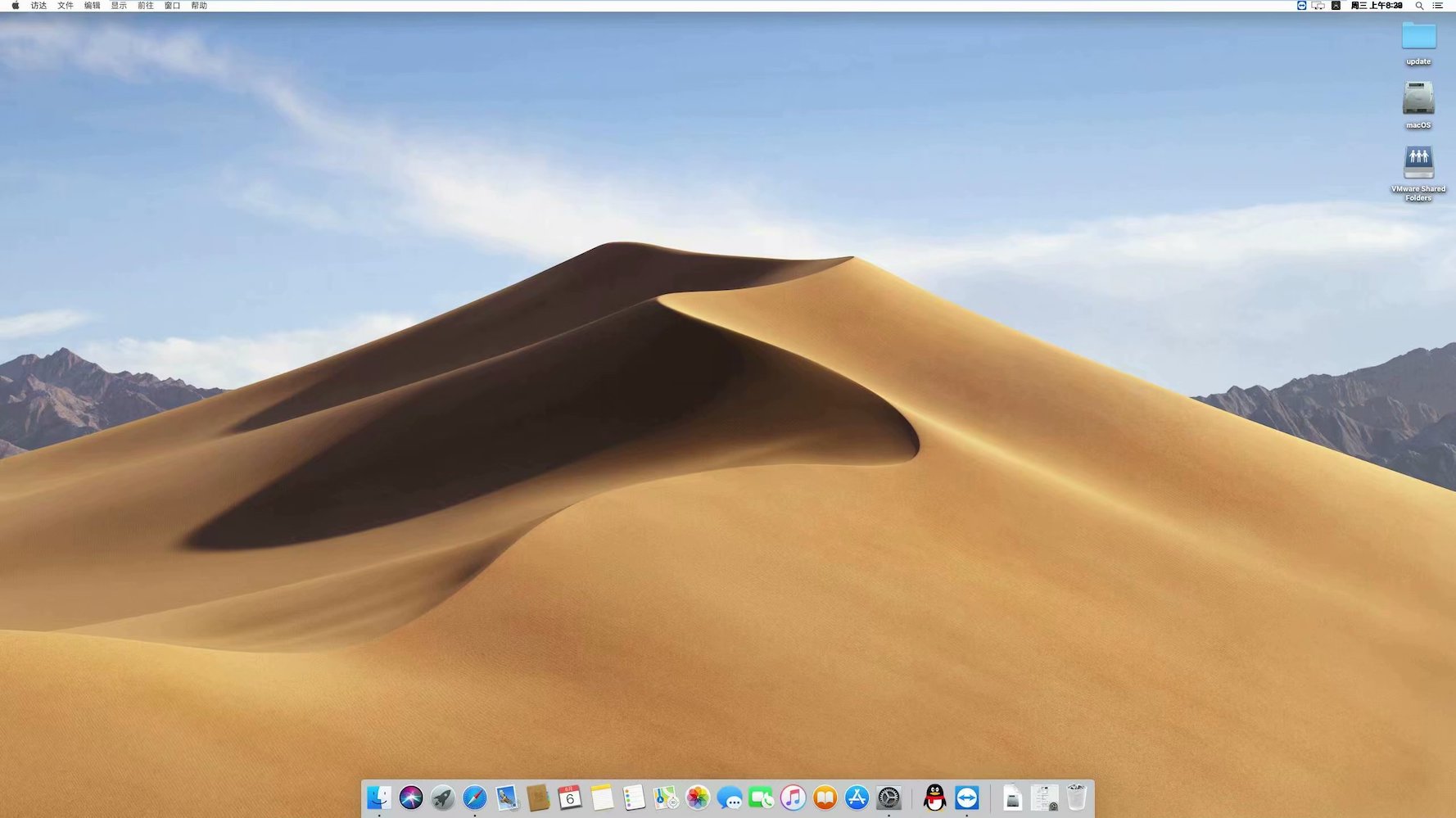
macOS 10.14 Mojave Light Mode Desktop (2018)
Source: hexo.lipf.tech
Dark mode was never a filter dropped over the old interface. Chrome, sidebars, menus and text fields all had to be redrawn, and
the Applications folder shows the result. Dashboard is still in there, about a year from removal.
Gallery View replaced Cover Flow: one big preview, a filmstrip, and a panel reading out everything the camera recorded, down to the Nikon
D50 at f/6.3 and ISO 200.
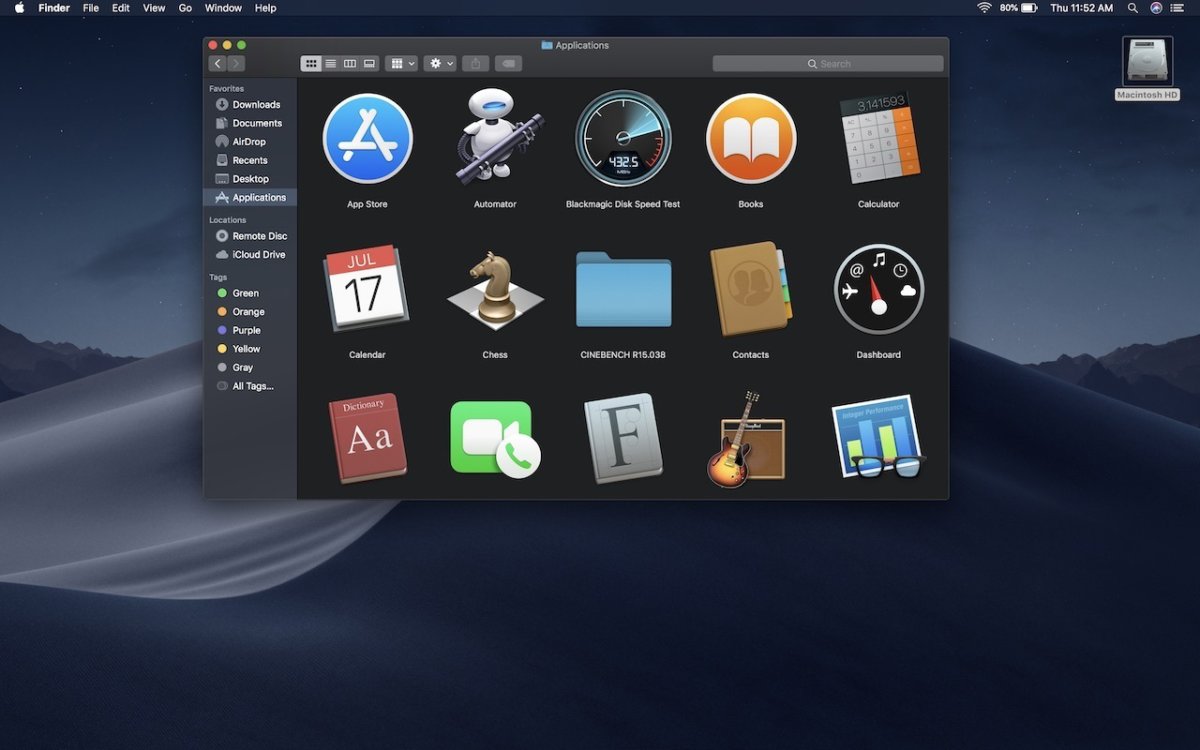
macOS 10.14 Mojave Application Icons in Finder (2018)
Source: computerworld.com
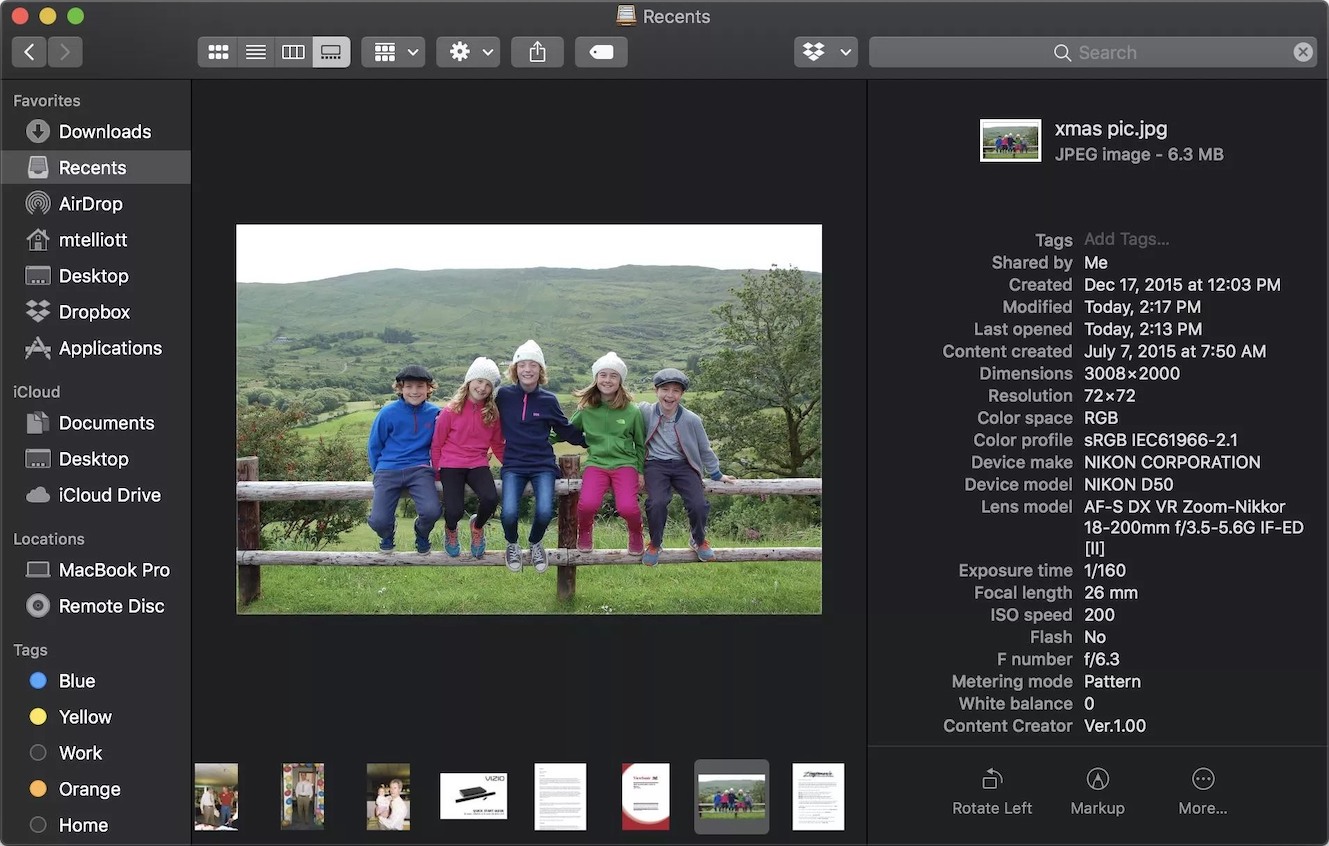
macOS 10.14 Mojave Finder Gallery View (2018)
Source: cnet.com
The dark System Preferences grid has Touch ID and Siri in it, and Software Update has been pulled back out of the App Store into
a pane of its own. Behind it, Maps is centered on Apple Park.
In System Preferences, you can pick light or dark mode, along with eight new accent colors. It also holds a small confession. The default browser on this Mac is
Google Chrome.
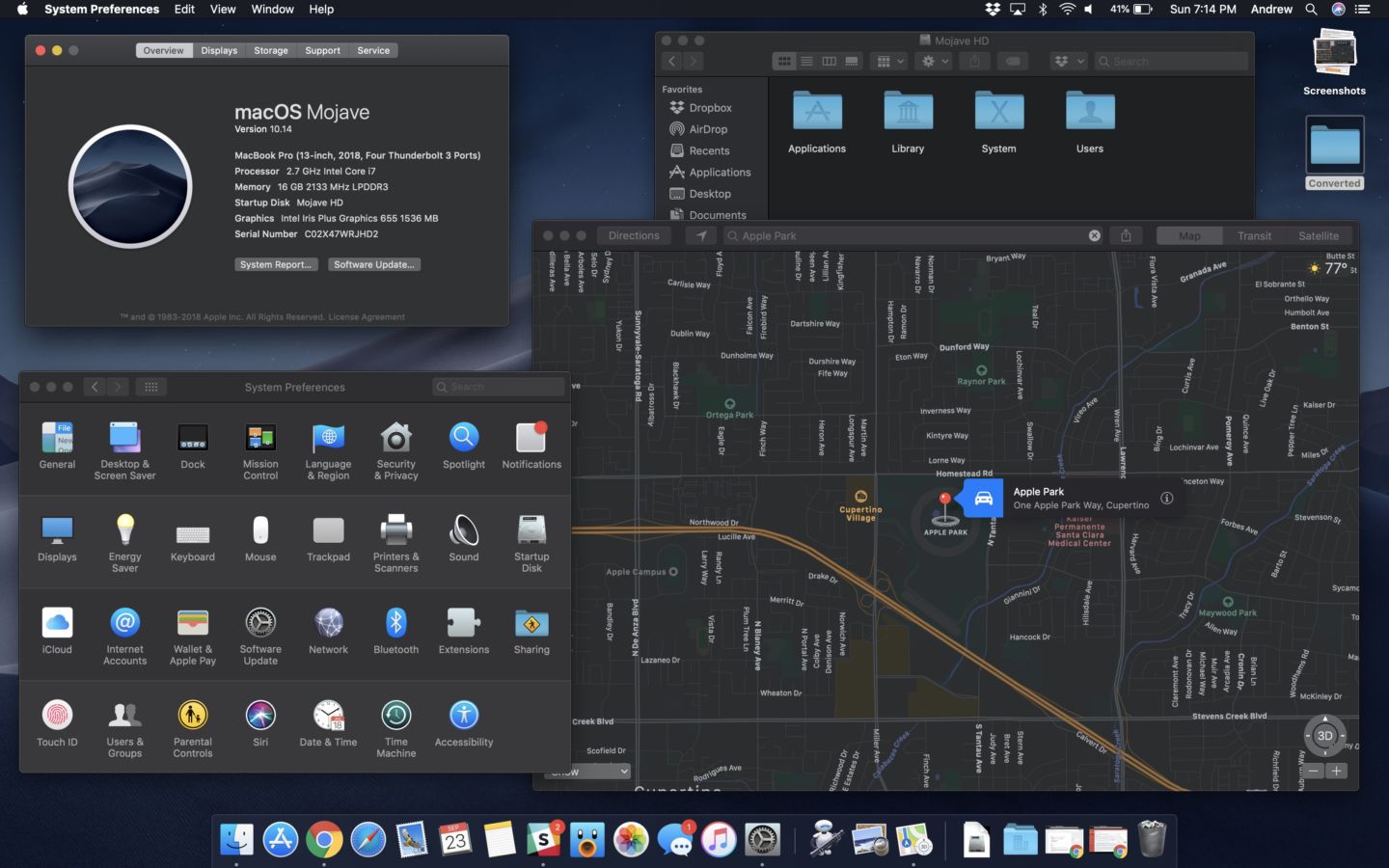
macOS 10.14 Mojave System Preferences and Apple Maps (2018)
Source: arstechnica.com
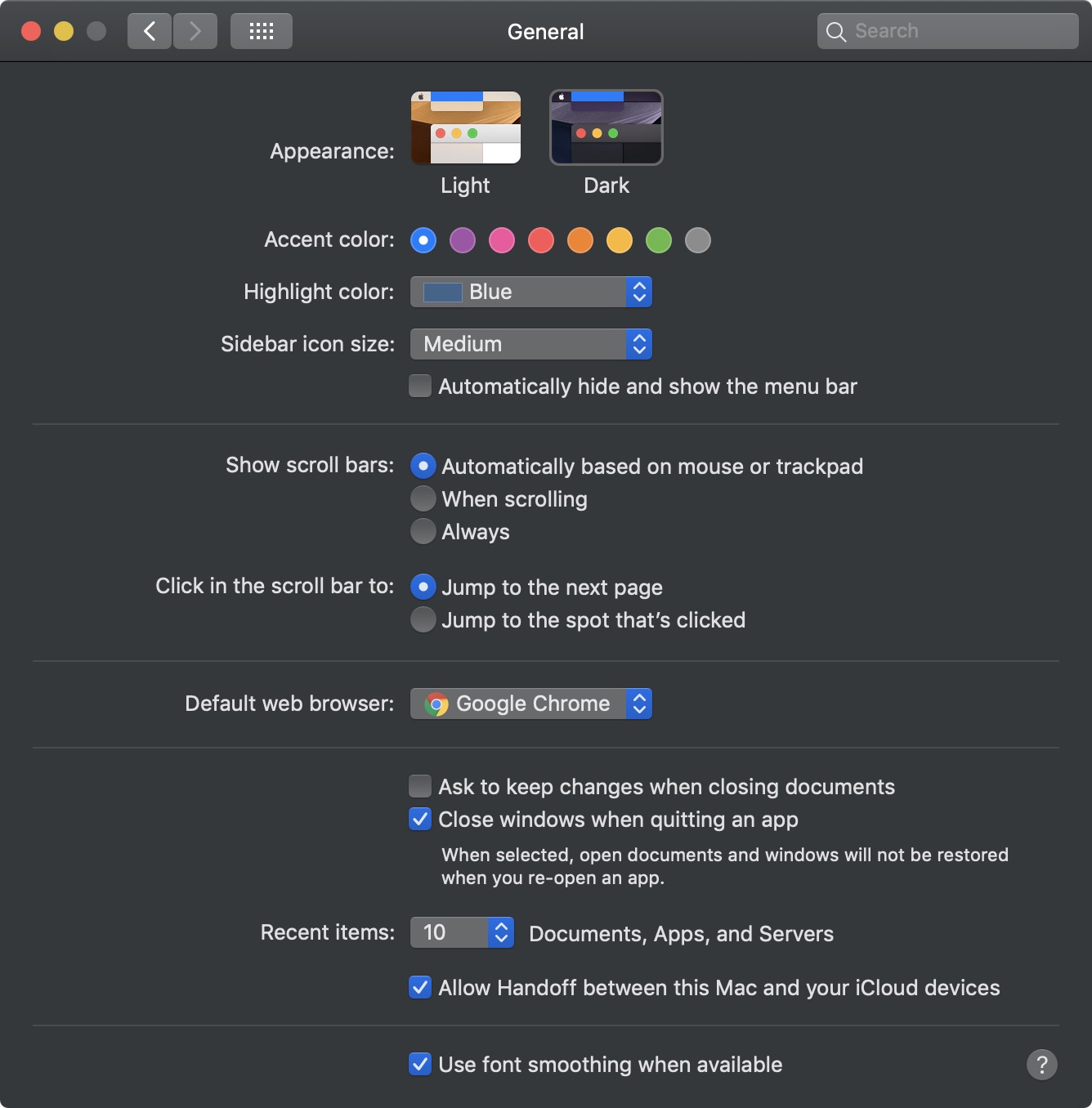
macOS 10.14 Mojave General Preferences (2018)
Source: arstechnica.com
And here is that thought from the Panther section, fifteen years later. The same pane, the same job, and a popup menu set to Dynamic, with one line underneath: this desktop picture changes throughout the day, based on your location. Panther could shuffle your wallpaper every thirty minutes. Mojave watches the sun.
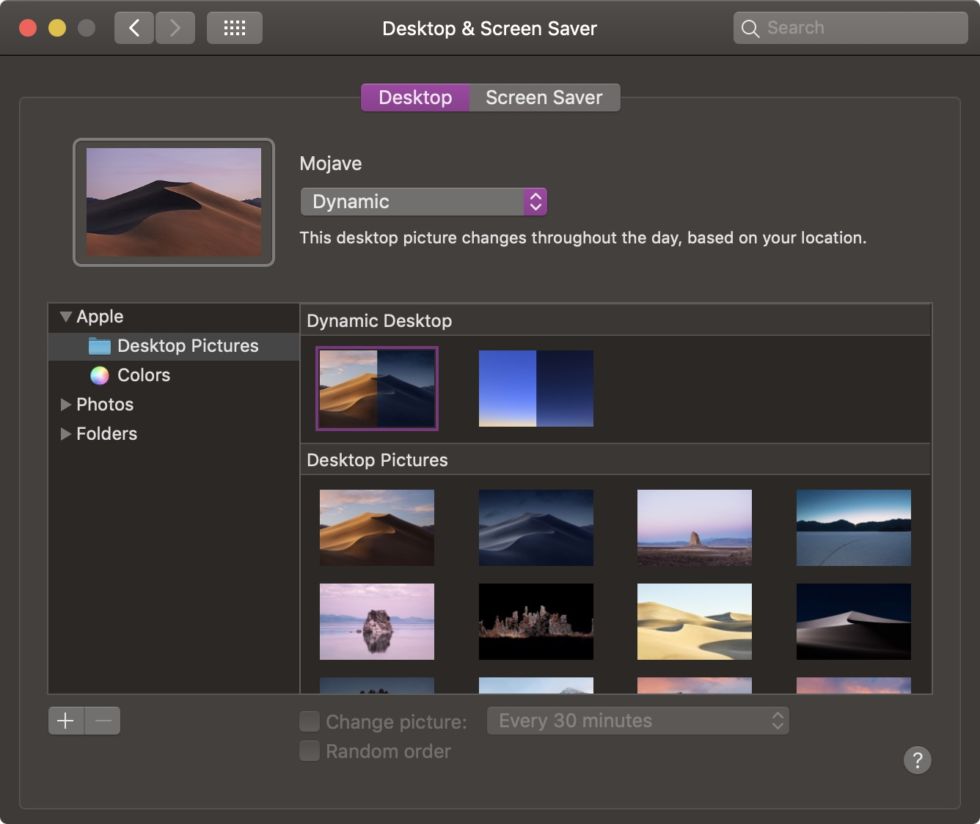
macOS 10.14 Mojave Desktop and Screen Saver Preferences (2018)
Source: arstechnica.com
Mojave was the last macOS that would run 32-bit software. Catalina removed it in 2019 along with Dashboard, and Big Sur ended the
10.x numbering in 2020 after nineteen years. But go back to that first Cheetah desktop and count what is still on your screen. The Dock,
the menu bar, the three colored buttons, column view, About This Mac. The pinstripes went. Almost nothing else did.
More from Version Museum
Classic Mac OS
See the operating system that Mac OS X replaced.
View the exhibit
Popular exhibits
Please help support our museum hosting costs by making a small donation -- buy us a coffee! Thank you so much!
 Buy us a coffee!
Scroll up to the top.
 More from Version Museum